Python Input and Output: Working with print() and input() Functions
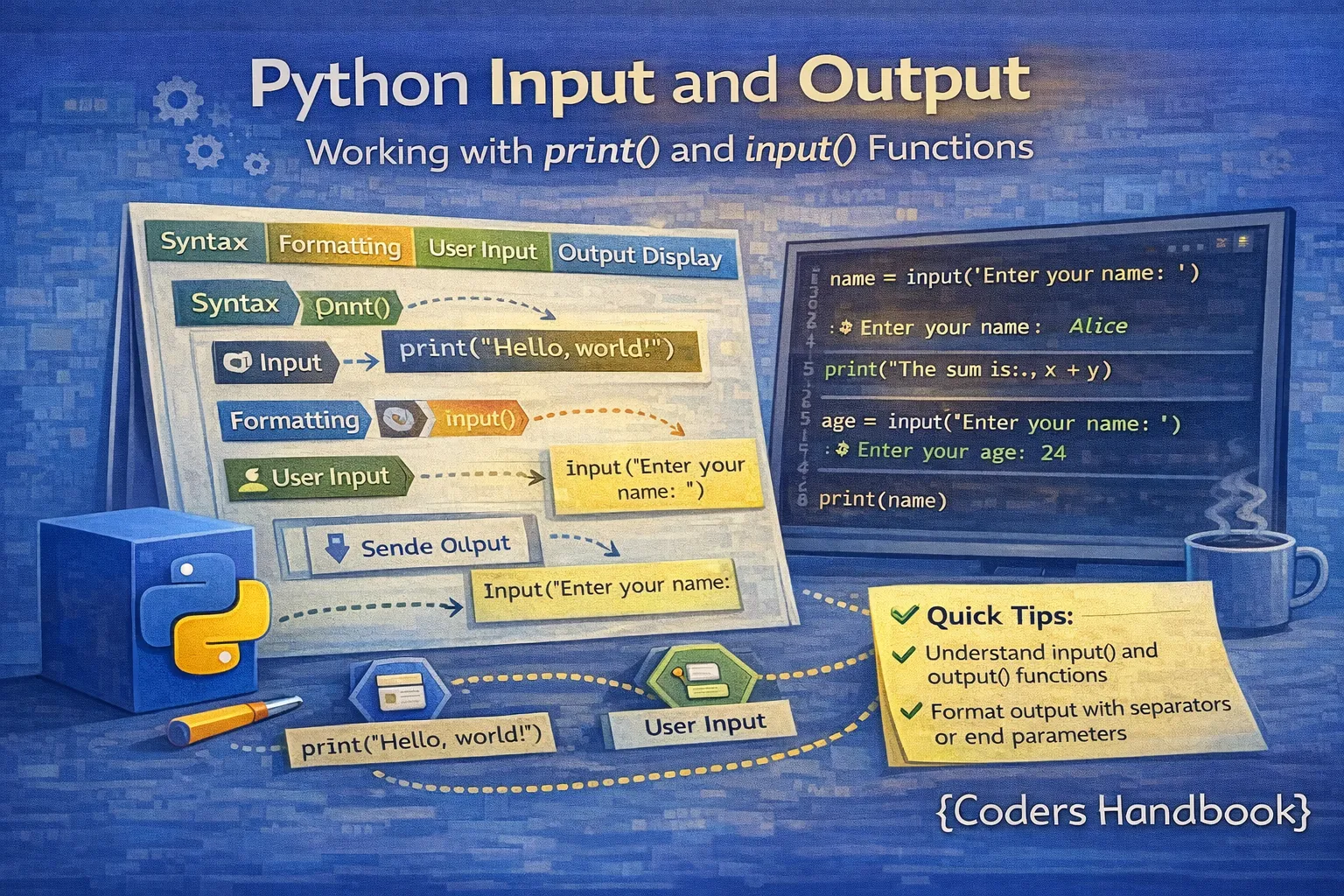
Input and output operations form the backbone of interactive Python programs, allowing applications to communicate with users by displaying information and receiving data. The print() function outputs data to the console with sophisticated formatting options, while the input() function captures user input as strings that can be transformed into other data types through type casting. Mastering these fundamental I/O operations enables you to create dynamic, user-friendly programs that display formatted results, process user responses, and handle data validation effectively. This comprehensive guide explores print() formatting techniques including f-strings, separator and end parameters, multiple argument handling, the input() function with prompt messages, type casting user input for numeric calculations, error handling strategies, and practical examples demonstrating real-world applications of Python's input/output capabilities.
Understanding the print() Function
The print() function is Python's primary tool for displaying output to the console, automatically converting values to strings and adding a newline character at the end by default. It accepts multiple arguments of any data type, separates them with spaces, and provides parameters for customizing output behavior including sep for changing separators between arguments and end for modifying the line-ending character. Understanding print()'s capabilities transforms basic output into professionally formatted displays suitable for debugging, user interfaces, and data presentation.
# Basic print() usage
print("Hello, World!")              # Simple string output
print(42)                           # Printing numbers
print(3.14159)                      # Floating-point numbers
print(True)                         # Boolean values

# Output:
# Hello, World!
# 42
# 3.14159
# True

# Printing multiple arguments
name = "Alice"
age = 25
print("Name:", name, "Age:", age)
# Output: Name: Alice Age: 25

# Print automatically adds spaces between arguments
print("Python", "is", "awesome")
# Output: Python is awesome

# Empty print() creates blank line
print("First line")
print()                             # Blank line
print("Second line")
# Output:
# First line
#
# Second line
Customizing Output with sep and end
The sep parameter controls what character or string appears between multiple arguments in print(), defaulting to a single space but customizable to any separator including commas, hyphens, newlines, or empty strings. The end parameter determines what character print() adds after output, defaulting to a newline but modifiable to create inline output, custom terminators, or no ending character at all for continuous printing.
# Using the sep parameter
print("Python", "Java", "C++", sep=", ")
# Output: Python, Java, C++

print("2026", "01", "14", sep="-")
# Output: 2026-01-14

print("Red", "Green", "Blue", sep=" | ")
# Output: Red | Green | Blue

# Creating file paths with sep
print("", "home", "user", "documents", sep="/")
# Output: /home/user/documents

# Using the end parameter
print("Loading", end="...")
print("Done!")
# Output: Loading...Done!

# Printing on same line
for i in range(5):
    print(i, end=" ")
print()  # New line at the end
# Output: 0 1 2 3 4

# Progress bar example
import time
for i in range(10):
    print("#", end="", flush=True)
    time.sleep(0.2)
print(" Complete!")
# Output: ########## Complete!

# Combining sep and end
print("Name", "Age", "City", sep=" | ", end=" <-- Headers\n")
print("Alice", "25", "NYC", sep=" | ", end=" <-- Data\n")
# Output:
# Name | Age | City <-- Headers
# Alice | 25 | NYC <-- Data
String Formatting Techniques
Python offers multiple string formatting methods with f-strings (formatted string literals) being the modern, preferred approach introduced in Python 3.6 for their readability, performance, and ease of use. F-strings allow embedding expressions directly inside string literals by prefixing the string with 'f' and placing variables or expressions within curly braces, supporting format specifiers for controlling number precision, width, alignment, and other presentation aspects.
F-Strings (Formatted String Literals)
# Basic f-string usage
name = "Alice"
age = 25
print(f"My name is {name} and I am {age} years old.")
# Output: My name is Alice and I am 25 years old.

# Expressions inside f-strings
width = 10
height = 5
print(f"Area of rectangle: {width * height} square units")
# Output: Area of rectangle: 50 square units

# Calling functions in f-strings
text = "python"
print(f"Uppercase: {text.upper()}, Length: {len(text)}")
# Output: Uppercase: PYTHON, Length: 6

# Mathematical operations
pi = 3.14159
radius = 5
print(f"Circle area: {pi * radius ** 2:.2f}")
# Output: Circle area: 78.54

# Format specifiers for numbers
price = 1234.5678

# Decimal places
print(f"Price: ${price:.2f}")           # 2 decimal places
# Output: Price: $1234.57

print(f"Price: ${price:.0f}")           # No decimal places
# Output: Price: $1235

# Width and alignment
for item, cost in [("Apple", 1.50), ("Banana", 0.75), ("Orange", 2.00)]:
    print(f"{item:.<15} ${cost:>6.2f}")
# Output:
# Apple.......... $  1.50
# Banana......... $  0.75
# Orange......... $  2.00

# Number formatting
number = 1234567
print(f"Number: {number:,}")            # Thousands separator
# Output: Number: 1,234,567

print(f"Number: {number:_}")            # Underscore separator
# Output: Number: 1_234_567

print(f"Binary: {number:b}")            # Binary representation
# Output: Binary: 100101101011010000111

print(f"Hex: {number:x}")               # Hexadecimal
# Output: Hex: 12d687

# Percentage formatting
accuracy = 0.9567
print(f"Accuracy: {accuracy:.1%}")
# Output: Accuracy: 95.7%

# Date formatting
from datetime import datetime
now = datetime.now()
print(f"Current date: {now:%Y-%m-%d}")
print(f"Current time: {now:%H:%M:%S}")
print(f"Full datetime: {now:%B %d, %Y at %I:%M %p}")
# Output (example):
# Current date: 2026-01-14
# Current time: 13:45:30
# Full datetime: January 14, 2026 at 01:45 PM
Alternative Formatting Methods
# str.format() method (older but still valid)
name = "Bob"
age = 30
print("Hello, {}! You are {} years old.".format(name, age))
# Output: Hello, Bob! You are 30 years old.

# Positional arguments
print("{0} + {1} = {2}".format(5, 3, 5+3))
# Output: 5 + 3 = 8

# Named arguments
print("{name} scored {score} points".format(name="Alice", score=95))
# Output: Alice scored 95 points

# Old % formatting (C-style, legacy)
name = "Charlie"
age = 35
print("Name: %s, Age: %d" % (name, age))
# Output: Name: Charlie, Age: 35

# Multiple values with %
print("Price: $%.2f, Quantity: %d, Total: $%.2f" % (19.99, 3, 19.99*3))
# Output: Price: $19.99, Quantity: 3, Total: $59.97

# String concatenation (simplest but limited)
first = "John"
last = "Doe"
print("Full name: " + first + " " + last)
# Output: Full name: John Doe

# Comparison: f-strings are fastest and most readable
# F-strings: Preferred for Python 3.6+
# .format(): Good for template strings
# % operator: Legacy code compatibility
# Concatenation: Simple cases onlyWorking with the input() Function
The input() function pauses program execution and waits for the user to type text and press Enter, returning the entered text as a string regardless of what the user types. Input() accepts an optional prompt string as an argument that displays before the cursor, guiding users on what information to provide. Since input() always returns strings, you must explicitly convert the return value to other data types like integers or floats using type casting functions when performing calculations or comparisons.
# Basic input() usage
name = input("Enter your name: ")
print(f"Hello, {name}!")

# Interactive session:
# Enter your name: Alice
# Hello, Alice!

# Input without prompt
response = input()
print(f"You entered: {response}")

# Multiple inputs
first_name = input("First name: ")
last_name = input("Last name: ")
print(f"Full name: {first_name} {last_name}")

# Interactive session:
# First name: John
# Last name: Doe
# Full name: John Doe

# Important: input() always returns a string!
value = input("Enter a number: ")
print(f"Type of value: {type(value)}")  # <class 'str'>
print(f"You entered: '{value}'")

# Interactive session:
# Enter a number: 42
# Type of value: <class 'str'>
# You entered: '42'
Type Casting User Input
Type casting converts string input from the user into numeric types like integers or floats so you can perform mathematical operations, comparisons, and validations. The int() function converts strings containing whole numbers to integers, float() handles decimal numbers, and bool() evaluates input for boolean logic, but each can raise ValueError exceptions if the input string doesn't match the expected format.
# Converting input to integer
age_str = input("Enter your age: ")
age = int(age_str)  # Convert string to integer
print(f"Next year you'll be {age + 1} years old.")

# Interactive session:
# Enter your age: 25
# Next year you'll be 26 years old.

# Inline conversion (common pattern)
age = int(input("Enter your age: "))
height = float(input("Enter your height in meters: "))

print(f"Age: {age} (type: {type(age)})")
print(f"Height: {height} (type: {type(height)})")

# Interactive session:
# Enter your age: 25
# Enter your height in meters: 1.75
# Age: 25 (type: <class 'int'>)
# Height: 1.75 (type: <class 'float'>)

# Calculator example
print("=== Simple Calculator ===")
num1 = float(input("Enter first number: "))
num2 = float(input("Enter second number: "))

print(f"\nResults:")
print(f"{num1} + {num2} = {num1 + num2}")
print(f"{num1} - {num2} = {num1 - num2}")
print(f"{num1} * {num2} = {num1 * num2}")
print(f"{num1} / {num2} = {num1 / num2:.2f}")

# Interactive session:
# === Simple Calculator ===
# Enter first number: 15.5
# Enter second number: 2.5
#
# Results:
# 15.5 + 2.5 = 18.0
# 15.5 - 2.5 = 13.0
# 15.5 * 2.5 = 38.75
# 15.5 / 2.5 = 6.20

# Boolean conversion
response = input("Do you agree? (yes/no): ")
is_agreed = response.lower() == "yes"
print(f"Agreement status: {is_agreed}")

# Interactive session:
# Do you agree? (yes/no): yes
# Agreement status: True
Handling Invalid Input
Robust programs anticipate and handle invalid user input gracefully using try-except blocks to catch ValueError exceptions that occur when type casting fails. Implementing validation loops that repeatedly prompt users until they provide valid input improves user experience and prevents program crashes, while clear error messages guide users toward entering acceptable values.
# Basic error handling
try:
    age = int(input("Enter your age: "))
    print(f"Your age is {age}")
except ValueError:
    print("Error: Please enter a valid number!")

# Interactive sessions:
# Enter your age: 25
# Your age is 25
#
# Enter your age: twenty-five
# Error: Please enter a valid number!

# Validation loop - keep asking until valid
while True:
    try:
        age = int(input("Enter your age (1-120): "))
        if 1 <= age <= 120:
            print(f"Valid age: {age}")
            break
        else:
            print("Age must be between 1 and 120. Try again.")
    except ValueError:
        print("Invalid input! Please enter a number.")

# Interactive session:
# Enter your age (1-120): abc
# Invalid input! Please enter a number.
# Enter your age (1-120): 150
# Age must be between 1 and 120. Try again.
# Enter your age (1-120): 25
# Valid age: 25

# Function for safe integer input
def get_integer(prompt, min_val=None, max_val=None):
    """Get validated integer input from user."""
    while True:
        try:
            value = int(input(prompt))

            if min_val is not None and value < min_val:
                print(f"Value must be at least {min_val}")
                continue

            if max_val is not None and value > max_val:
                print(f"Value must be at most {max_val}")
                continue

            return value
        except ValueError:
            print("Invalid input. Please enter a number.")

# Using the validation function
age = get_integer("Enter your age: ", min_val=1, max_val=120)
score = get_integer("Enter your score: ", min_val=0, max_val=100)

print(f"Age: {age}, Score: {score}")

# Multiple input validation
def get_numbers():
    """Get two valid numbers from user."""
    while True:
        try:
            num1 = float(input("Enter first number: "))
            num2 = float(input("Enter second number: "))
            return num1, num2
        except ValueError:
            print("Error: Both inputs must be valid numbers. Try again.\n")

# Use the function
x, y = get_numbers()
print(f"You entered: {x} and {y}")
print(f"Sum: {x + y}")Practical Examples and Applications
# Example 1: User Registration Form
print("=== User Registration ===")
print()

full_name = input("Full Name: ")
email = input("Email: ")
age = int(input("Age: "))
city = input("City: ")

print("\n=== Registration Summary ===")
print(f"Name: {full_name}")
print(f"Email: {email}")
print(f"Age: {age}")
print(f"City: {city}")
print(f"\nThank you for registering, {full_name}!")

# Example 2: Temperature Converter
print("\n=== Temperature Converter ===")
celsius = float(input("Enter temperature in Celsius: "))
fahrenheit = (celsius * 9/5) + 32
kelvin = celsius + 273.15

print(f"\n{celsius}°C is equivalent to:")
print(f"  {fahrenheit:.2f}°F")
print(f"  {kelvin:.2f}K")

# Example 3: Shopping Cart with Formatted Receipt
print("\n=== Shopping Cart ===")

items = []
prices = []

while True:
    item = input("\nEnter item name (or 'done' to finish): ")
    if item.lower() == 'done':
        break

    price = float(input(f"Enter price for {item}: $"))
    items.append(item)
    prices.append(price)

# Print formatted receipt
print("\n" + "="*40)
print("RECEIPT".center(40))
print("="*40)

for item, price in zip(items, prices):
    print(f"{item:.<30} ${price:>6.2f}")

print("-"*40)
total = sum(prices)
tax = total * 0.08  # 8% tax
grand_total = total + tax

print(f"{'Subtotal':.<30} ${total:>6.2f}")
print(f"{'Tax (8%)':.<30} ${tax:>6.2f}")
print("="*40)
print(f"{'TOTAL':.<30} ${grand_total:>6.2f}")
print("="*40)

# Example 4: BMI Calculator
print("\n=== BMI Calculator ===")

weight = float(input("Enter your weight in kg: "))
height = float(input("Enter your height in meters: "))

bmi = weight / (height ** 2)

print(f"\nYour BMI: {bmi:.2f}")

if bmi < 18.5:
    category = "Underweight"
elif bmi < 25:
    category = "Normal weight"
elif bmi < 30:
    category = "Overweight"
else:
    category = "Obese"

print(f"Category: {category}")

# Example 5: Multiplication Table Generator
print("\n=== Multiplication Table ===")
num = int(input("Enter a number: "))
limit = int(input("How many rows? "))

print(f"\nMultiplication table for {num}:")
print("-" * 25)

for i in range(1, limit + 1):
    result = num * i
    print(f"{num} × {i:2d} = {result:3d}")

# Example 6: Password Strength Checker
print("\n=== Password Strength Checker ===")

password = input("Enter a password: ")
length = len(password)

has_upper = any(c.isupper() for c in password)
has_lower = any(c.islower() for c in password)
has_digit = any(c.isdigit() for c in password)
has_special = any(not c.isalnum() for c in password)

score = sum([length >= 8, has_upper, has_lower, has_digit, has_special])

print(f"\nPassword Analysis:")
print(f"Length: {length} characters {'✓' if length >= 8 else '✗'}")
print(f"Uppercase: {'✓' if has_upper else '✗'}")
print(f"Lowercase: {'✓' if has_lower else '✗'}")
print(f"Numbers: {'✓' if has_digit else '✗'}")
print(f"Special characters: {'✓' if has_special else '✗'}")

strengths = ["Very Weak", "Weak", "Fair", "Good", "Strong", "Very Strong"]
print(f"\nPassword Strength: {strengths[score]}")
Best Practices and Tips
- Use f-strings for formatting: They're faster, more readable, and support complex expressions with clean syntax compared to older methods
- Provide clear prompts: Include units, format examples, or acceptable ranges in input prompts like 'Enter age (1-120):' to guide users
- Always validate numeric input: Wrap int() and float() conversions in try-except blocks to prevent crashes from non-numeric input
- Use inline conversion carefully: While int(input()) is concise, separate statements make debugging easier when errors occur
- Strip whitespace from input: Use .strip() on string input to remove leading/trailing spaces that might cause comparison issues
- Format numbers consistently: Use format specifiers like :.2f for currency to maintain professional, aligned output
- Consider case-insensitive input: Use .lower() or .upper() when comparing user responses to accept variations like 'Yes', 'yes', 'YES'
- Provide feedback: Echo back user input in formatted output so users can verify what was entered and processed
Conclusion
Mastering Python's input and output operations through the print() and input() functions is essential for creating interactive, user-friendly programs that effectively communicate with users. The print() function provides versatile output capabilities with multiple argument handling, customizable separators using the sep parameter to control spacing between values, end parameters for controlling line termination enabling inline output and progress indicators, and the flush parameter for immediate output in real-time applications. Modern string formatting with f-strings offers the most readable and efficient approach to embedding variables and expressions directly in strings, supporting comprehensive format specifiers for controlling numeric precision with :.2f notation, alignment and padding for tabular output, thousands separators for readable large numbers, percentage formatting, date/time formatting, and numerous other presentation options that make output professional and user-friendly.
The input() function captures user input as strings requiring explicit type casting to convert entered text into integers with int(), floats with float(), or other types as needed for calculations and comparisons, with proper error handling using try-except blocks to catch ValueError exceptions preventing crashes from invalid input. Implementing robust input validation through loops that repeatedly prompt users until valid data is provided, range checking to ensure values fall within acceptable bounds, clear error messages explaining what went wrong and what's expected, and reusable validation functions that encapsulate common patterns creates professional applications that handle real-world user behavior gracefully. The practical examples demonstrated complete applications including user registration forms with formatted output, temperature converters performing calculations on numeric input, shopping cart systems with formatted receipts using alignment and decimal precision, BMI calculators combining input validation with conditional logic, multiplication table generators showing iterative output formatting, and password strength checkers analyzing string input characteristics. By combining these I/O techniques with validation, error handling, and formatting best practices, you can build interactive Python programs that provide excellent user experiences through clear prompts, professional output presentation, robust error handling, and informative feedback that guides users toward successful interactions with your applications.
$ share --platform
$ cat /comments/ (0)
$ cat /comments/
// No comments found. Be the first!