File Handling in Python: Reading and Writing Files
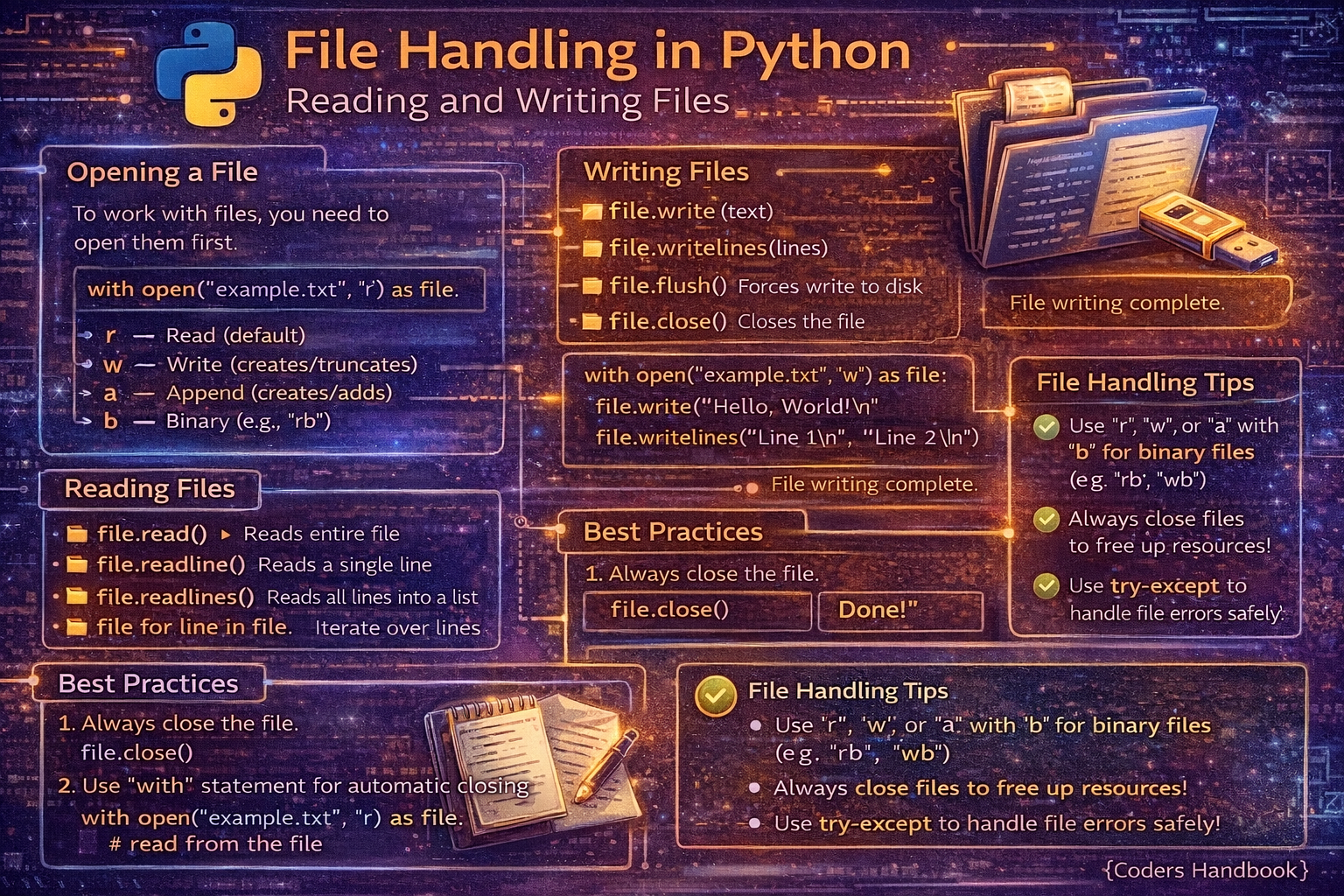
File handling is a fundamental skill in Python programming enabling applications to persist data, process external files, generate reports, and interact with system resources through reading from and writing to files on disk. Python provides built-in functions and intuitive syntax for file operations including the open() function for accessing files, various file modes controlling read/write/append behavior, methods like read(), write(), and readline() for content manipulation, and context managers using the with statement ensuring proper resource cleanup. Understanding file I/O is essential for real-world applications processing configuration files, logging information, analyzing data from CSV or JSON files, generating output documents, and implementing data pipelines requiring external file interactions.
This comprehensive guide explores the open() function and file objects providing interfaces to file operations, file modes including read, write, append, and binary modes controlling access patterns, reading methods covering entire files, line-by-line reading, and reading specific byte counts, writing and appending content to files with proper formatting, context managers using with statements guaranteeing file closure even during exceptions, file positioning using seek() and tell() for random access, working with different file types including text files, CSV files with the csv module, and JSON files with the json module, and best practices covering error handling, encoding considerations, and resource management. Whether you're building data processing pipelines reading CSV datasets, web applications reading configuration files, logging systems writing application events, or utilities generating reports in various formats, mastering Python file handling provides essential tools for persistent data storage and external file integration in professional applications.
Opening Files with open()
The open() function is Python's primary interface for file operations, taking a filename and optional mode parameter, returning a file object providing methods for reading and writing. File paths can be absolute specifying full system paths or relative to the current working directory. After operations complete, files must be closed using the close() method to release system resources, though context managers automate this process preventing resource leaks.
# Opening Files with open()

# Basic file opening (manual close)
file = open('example.txt', 'r')
content = file.read()
print(content)
file.close()  # Must manually close

# Better approach: Using context manager (automatic close)
with open('example.txt', 'r') as file:
    content = file.read()
    print(content)
# File automatically closed after with block

# Absolute path
with open('/home/user/documents/data.txt', 'r') as file:
    content = file.read()

# Relative path (from current working directory)
with open('data/sample.txt', 'r') as file:
    content = file.read()

# Windows path (use raw string or forward slashes)
with open(r'C:\Users\Name\file.txt', 'r') as file:
    content = file.read()

# Or use forward slashes (works on Windows too)
with open('C:/Users/Name/file.txt', 'r') as file:
    content = file.read()

# File object attributes
with open('example.txt', 'r') as file:
    print(f"File name: {file.name}")
    print(f"File mode: {file.mode}")
    print(f"Is closed: {file.closed}")

print(f"After with block, closed: {file.closed}")

# Checking if file exists before opening
import os

filename = 'myfile.txt'
if os.path.exists(filename):
    with open(filename, 'r') as file:
        content = file.read()
else:
    print(f"File {filename} does not exist")

# Handling file not found errors
try:
    with open('nonexistent.txt', 'r') as file:
        content = file.read()
except FileNotFoundError:
    print("File not found!")
except PermissionError:
    print("Permission denied!")
except Exception as e:
print(f"Error: {e}")with statement automatically closes files even if errors occur, preventing resource leaks. Use with open() instead of manually calling close().File Modes Explained
File modes control how files are opened and what operations are permitted. The primary modes include 'r' for reading existing files, 'w' for writing that overwrites existing content, 'a' for appending to file ends, and 'x' for exclusive creation failing if files exist. Adding '+' enables both reading and writing, while 'b' opens files in binary mode for non-text files like images or executables. Understanding modes prevents accidental data loss and enables appropriate file access patterns.
# File Modes Explained

# 'r' - Read mode (default)
# Opens file for reading, raises error if file doesn't exist
with open('data.txt', 'r') as file:
    content = file.read()

# 'w' - Write mode
# Creates new file or OVERWRITES existing file (careful!)
with open('output.txt', 'w') as file:
    file.write('This overwrites everything')

# 'a' - Append mode
# Adds to end of file, creates if doesn't exist
with open('log.txt', 'a') as file:
    file.write('New log entry\n')

# 'x' - Exclusive creation
# Creates file, raises error if file exists
try:
    with open('unique.txt', 'x') as file:
        file.write('This file is new')
except FileExistsError:
    print("File already exists!")

# 'r+' - Read and write
# Opens for both, file pointer at beginning
with open('data.txt', 'r+') as file:
    content = file.read()
    file.write('\nAppended text')

# 'w+' - Write and read
# Creates/overwrites file for reading and writing
with open('temp.txt', 'w+') as file:
    file.write('Line 1\n')
    file.write('Line 2\n')
    file.seek(0)  # Move to beginning
    content = file.read()
    print(content)

# 'a+' - Append and read
# Opens for appending and reading
with open('log.txt', 'a+') as file:
    file.write('New entry\n')
    file.seek(0)  # Move to beginning to read
    content = file.read()

# 'b' - Binary mode (combine with other modes)
# Read binary file
with open('image.png', 'rb') as file:
    binary_data = file.read()

# Write binary file
with open('copy.png', 'wb') as file:
    file.write(binary_data)

# 't' - Text mode (default, usually omitted)
with open('data.txt', 'rt') as file:  # Same as 'r'
    content = file.read()

# Common mode combinations:
# 'rb'  - Read binary
# 'wb'  - Write binary
# 'ab'  - Append binary
# 'r+b' - Read/write binary
# 'w+b' - Write/read binary'w' mode completely erases existing file content! Use 'a' for appending or 'r+' for reading and modifying. Always double-check before using write mode.Reading File Content
Python provides multiple methods for reading file content depending on needs. The read() method loads entire content into memory suitable for small files, readline() reads single lines for sequential processing, readlines() returns a list of all lines, and iterating over file objects provides memory-efficient line-by-line processing for large files. Choosing appropriate reading methods balances convenience with memory efficiency and processing requirements.
# Reading File Content

# Method 1: read() - Read entire file
with open('data.txt', 'r') as file:
    content = file.read()
    print(content)
    print(f"Content length: {len(content)}")

# Read specific number of characters
with open('data.txt', 'r') as file:
    first_100 = file.read(100)  # Read first 100 characters
    print(first_100)

# Method 2: readline() - Read one line at a time
with open('data.txt', 'r') as file:
    line1 = file.readline()
    line2 = file.readline()
    print(f"Line 1: {line1}")
    print(f"Line 2: {line2}")

# Method 3: readlines() - Read all lines into list
with open('data.txt', 'r') as file:
    lines = file.readlines()
    print(f"Total lines: {len(lines)}")
    for line in lines:
        print(line.strip())  # strip() removes newline

# Method 4: Iterate over file (BEST for large files)
with open('data.txt', 'r') as file:
    for line in file:
        print(line.strip())
# Memory efficient - reads one line at a time

# Processing lines with line numbers
with open('data.txt', 'r') as file:
    for line_num, line in enumerate(file, 1):
        print(f"{line_num}: {line.strip()}")

# Reading and processing simultaneously
with open('numbers.txt', 'r') as file:
    total = 0
    for line in file:
        try:
            number = float(line.strip())
            total += number
        except ValueError:
            continue
    print(f"Total: {total}")

# Read file in chunks (for very large files)
with open('large_file.txt', 'r') as file:
    chunk_size = 1024  # 1KB chunks
    while True:
        chunk = file.read(chunk_size)
        if not chunk:
            break
        # Process chunk
        print(f"Read {len(chunk)} characters")

# Read file with specific encoding
with open('data.txt', 'r', encoding='utf-8') as file:
    content = file.read()

# Skip empty lines
with open('data.txt', 'r') as file:
    non_empty_lines = [line.strip() for line in file if line.strip()]
    print(non_empty_lines)

# Read CSV-like data manually
with open('data.csv', 'r') as file:
    header = file.readline().strip().split(',')
    for line in file:
        values = line.strip().split(',')
        print(dict(zip(header, values)))
Writing and Appending to Files
Writing to files uses the write() method which writes string content without automatic newlines, requiring explicit \n characters for line breaks. The writelines() method writes sequences of strings, also without automatic newlines. Append mode adds content to file ends without overwriting existing data, useful for logging and incremental data collection. Proper writing practices include flushing buffers with flush() when needed and handling encoding correctly for international characters.
# Writing and Appending to Files

# Basic write (overwrites file)
with open('output.txt', 'w') as file:
    file.write('First line\n')
    file.write('Second line\n')

# Write multiple lines at once
with open('output.txt', 'w') as file:
    content = """Line 1
Line 2
Line 3
"""
    file.write(content)

# writelines() - write list of strings
lines = ['First line\n', 'Second line\n', 'Third line\n']
with open('output.txt', 'w') as file:
    file.writelines(lines)

# Note: writelines doesn't add newlines automatically
lines = ['Line 1', 'Line 2', 'Line 3']
with open('output.txt', 'w') as file:
    file.writelines(line + '\n' for line in lines)

# Append to existing file
with open('log.txt', 'a') as file:
    file.write('New log entry\n')

# Write formatted data
name = "Alice"
age = 25
with open('user.txt', 'w') as file:
    file.write(f"Name: {name}\n")
    file.write(f"Age: {age}\n")

# Write with print() function
with open('output.txt', 'w') as file:
    print("Line 1", file=file)
    print("Line 2", file=file)
    print("Line 3", file=file)

# Write multiple data types
with open('data.txt', 'w') as file:
    file.write(f"Integer: {42}\n")
    file.write(f"Float: {3.14}\n")
    file.write(f"Boolean: {True}\n")
    file.write(f"List: {[1, 2, 3]}\n")

# Write with specific encoding
with open('unicode.txt', 'w', encoding='utf-8') as file:
    file.write('Hello 世界 🌍\n')

# Flush buffer (force write to disk)
with open('output.txt', 'w') as file:
    file.write('Important data')
    file.flush()  # Ensure written immediately

# Write CSV-like data manually
header = ['Name', 'Age', 'City']
data = [
    ['Alice', 25, 'NYC'],
    ['Bob', 30, 'LA'],
    ['Charlie', 35, 'Chicago']
]

with open('data.csv', 'w') as file:
    file.write(','.join(header) + '\n')
    for row in data:
        file.write(','.join(str(x) for x in row) + '\n')

# Write incrementally (useful for logging)
import datetime

with open('app.log', 'a') as file:
    timestamp = datetime.datetime.now()
    file.write(f"[{timestamp}] Application started\n")
    # ... do work ...
    file.write(f"[{timestamp}] Operation completed\n")
File Positioning and Random Access
File objects maintain a position pointer indicating where the next read or write operation occurs. The seek() method moves this pointer to specific byte positions enabling random access, while tell() returns the current position. These methods enable reading specific file sections without processing entire content, modifying file portions, and implementing efficient file navigation for large files or binary formats with known structures.
# File Positioning and Random Access

# tell() - Get current position
with open('data.txt', 'r') as file:
    print(f"Initial position: {file.tell()}")  # 0
    file.read(10)
    print(f"After reading 10 chars: {file.tell()}")  # 10

# seek() - Move to specific position
with open('data.txt', 'r') as file:
    file.seek(0)    # Move to beginning
    content = file.read()

    file.seek(0)    # Back to beginning
    first_line = file.readline()

    file.seek(10)   # Move to byte 10
    rest = file.read()

# seek with whence parameter
with open('data.txt', 'r') as file:
    file.seek(0, 0)   # From beginning (default)
    file.seek(10, 1)  # From current position
    file.seek(-5, 2)  # From end (negative moves backward)

# Read, then go back and read again
with open('data.txt', 'r') as file:
    first_read = file.read(20)
    print(f"First read: {first_read}")

    file.seek(0)  # Reset to beginning
    second_read = file.read(20)
    print(f"Second read: {second_read}")

# Write, then read in r+ mode
with open('temp.txt', 'w+') as file:
    file.write('Line 1\n')
    file.write('Line 2\n')
    file.write('Line 3\n')

    file.seek(0)  # Move to beginning to read
    content = file.read()
    print(content)

# Modify part of file
with open('data.txt', 'r+') as file:
    content = file.read()
    file.seek(0)  # Back to beginning
    file.write('MODIFIED: ' + content)

# Read last N bytes of file
with open('data.txt', 'rb') as file:
    file.seek(-100, 2)  # 100 bytes from end
    last_bytes = file.read()

# Random access in binary file
with open('data.bin', 'rb') as file:
    # Read header (first 64 bytes)
    header = file.read(64)

    # Jump to specific record
    record_size = 128
    record_number = 5
    file.seek(64 + (record_number * record_size))
    record = file.read(record_size)

# Get file size
import os
with open('data.txt', 'r') as file:
    file.seek(0, 2)  # Seek to end
    size = file.tell()
    print(f"File size: {size} bytes")

# Alternative: using os.path
size = os.path.getsize('data.txt')
print(f"File size: {size} bytes")
Working with Different File Types
Python provides specialized modules for common file formats. The csv module handles CSV files with proper delimiter and quoting support, the json module serializes and deserializes JSON data with type preservation, and binary mode supports images, executables, and custom binary formats. Using appropriate modules for specific formats ensures correct parsing, proper encoding handling, and robust error handling compared to manual string manipulation.
# Working with Different File Types

# === CSV Files ===
import csv

# Reading CSV
with open('data.csv', 'r') as file:
    reader = csv.reader(file)
    header = next(reader)  # Get header row
    for row in reader:
        print(row)  # Each row is a list

# Reading CSV as dictionaries
with open('data.csv', 'r') as file:
    reader = csv.DictReader(file)
    for row in reader:
        print(row)  # Each row is a dict
        print(f"Name: {row['Name']}, Age: {row['Age']}")

# Writing CSV
data = [
    ['Name', 'Age', 'City'],
    ['Alice', 25, 'NYC'],
    ['Bob', 30, 'LA']
]

with open('output.csv', 'w', newline='') as file:
    writer = csv.writer(file)
    writer.writerows(data)

# Writing CSV from dictionaries
data = [
    {'Name': 'Alice', 'Age': 25, 'City': 'NYC'},
    {'Name': 'Bob', 'Age': 30, 'City': 'LA'}
]

with open('output.csv', 'w', newline='') as file:
    fieldnames = ['Name', 'Age', 'City']
    writer = csv.DictWriter(file, fieldnames=fieldnames)
    writer.writeheader()
    writer.writerows(data)

# === JSON Files ===
import json

# Reading JSON
with open('data.json', 'r') as file:
    data = json.load(file)
    print(data)
    print(f"Name: {data['name']}")

# Writing JSON
data = {
    'name': 'Alice',
    'age': 25,
    'city': 'NYC',
    'hobbies': ['reading', 'coding']
}

with open('output.json', 'w') as file:
    json.dump(data, file, indent=4)

# Pretty printing JSON
with open('output.json', 'w') as file:
    json.dump(data, file, indent=2, sort_keys=True)

# JSON with custom encoding
with open('output.json', 'w', encoding='utf-8') as file:
    json.dump(data, file, ensure_ascii=False, indent=2)

# === Binary Files ===

# Copy binary file (image, video, etc.)
with open('image.png', 'rb') as source:
    with open('copy.png', 'wb') as dest:
        dest.write(source.read())

# Copy in chunks (memory efficient)
with open('large_video.mp4', 'rb') as source:
    with open('copy.mp4', 'wb') as dest:
        chunk_size = 4096  # 4KB chunks
        while True:
            chunk = source.read(chunk_size)
            if not chunk:
                break
            dest.write(chunk)

# === Text Files with Different Encodings ===

# Read with specific encoding
with open('data.txt', 'r', encoding='utf-8') as file:
    content = file.read()

# Write with specific encoding
with open('output.txt', 'w', encoding='utf-8') as file:
    file.write('Hello 世界 🌍\n')

# Handle encoding errors
with open('data.txt', 'r', encoding='utf-8', errors='ignore') as file:
    content = file.read()

# === Configuration Files (INI) ===
import configparser

config = configparser.ConfigParser()
config.read('config.ini')

# Read settings
value = config['Section']['key']

# === Pickle (Python objects) ===
import pickle

# Save Python object
data = {'name': 'Alice', 'numbers': [1, 2, 3]}
with open('data.pkl', 'wb') as file:
    pickle.dump(data, file)

# Load Python object
with open('data.pkl', 'rb') as file:
    loaded_data = pickle.load(file)
    print(loaded_data)
File Handling Best Practices
- Always use context managers: The
withstatement ensures files are properly closed even when errors occur, preventing resource leaks and file corruption - Handle exceptions properly: Catch
FileNotFoundError,PermissionError, andIOErrorwith try-except blocks providing user-friendly error messages - Specify encoding explicitly: Use
encoding='utf-8'for text files to handle international characters and avoid platform-dependent encoding issues - Choose appropriate reading methods: Use file iteration for large files,
read()for small files, andreadlines()when you need a list of lines - Be careful with write mode: Mode
'w'overwrites files completely. Use'a'for appending or check file existence before writing - Use appropriate modules: Use
csvmodule for CSV files,jsonfor JSON, not manual string parsing which is error-prone - Close files explicitly if not using with: If you can't use
with, ensureclose()is called infinallyblocks - Use binary mode for non-text: Images, videos, executables require
'rb'or'wb'mode. Text mode corrupts binary data - Process large files efficiently: Read in chunks or iterate line-by-line instead of loading entire files into memory
- Validate file paths: Check if files exist with
os.path.exists()and validate permissions before operations
with open() for file operations. It automatically handles closing files, prevents resource leaks, and ensures proper cleanup even during exceptions. This single practice prevents most file handling bugs.Conclusion
File handling in Python provides comprehensive capabilities for reading and writing files through the open() function returning file objects with methods like read(), write(), readline(), and readlines() enabling various content manipulation patterns. File modes control access patterns with 'r' for reading existing files, 'w' for writing that overwrites content, 'a' for appending to file ends, 'x' for exclusive creation, plus modifiers like '+' for simultaneous reading and writing and 'b' for binary mode handling non-text files. Reading methods range from read() loading entire content suitable for small files, readline() for sequential line processing, readlines() returning line lists, to file iteration providing memory-efficient processing for large files without loading everything into memory simultaneously.
Context managers using the with statement provide automatic resource management closing files even during exceptions, preventing resource leaks and ensuring proper cleanup making them essential best practice for all file operations. File positioning through seek() and tell() enables random access moving to specific byte positions for reading file sections, modifying portions, and implementing efficient navigation particularly useful for binary formats with known structures. Working with different file types leverages specialized modules including the csv module for comma-separated values with proper delimiter handling, the json module for JSON serialization preserving Python types, and binary mode for images, videos, and custom binary formats requiring byte-level operations. Best practices emphasize always using context managers for automatic resource cleanup, handling exceptions including FileNotFoundError and PermissionError gracefully, specifying encoding explicitly with encoding='utf-8' for international character support, choosing appropriate reading methods balancing convenience with memory efficiency, being cautious with write mode that overwrites existing content, using specialized modules for specific formats rather than manual parsing, processing large files in chunks or via iteration, and validating file paths before operations. By mastering file opening and modes, reading and writing techniques, context managers ensuring resource safety, file positioning for random access, specialized handling for CSV and JSON formats, and best practices preventing common pitfalls, you gain essential tools for persistent data storage, external file integration, log management, data processing pipelines, and configuration handling enabling professional Python applications interacting effectively with file systems and external data sources.
$ share --platform
$ cat /comments/ (0)
$ cat /comments/
// No comments found. Be the first!