Data Visualization with Matplotlib: Creating Charts and Graphs
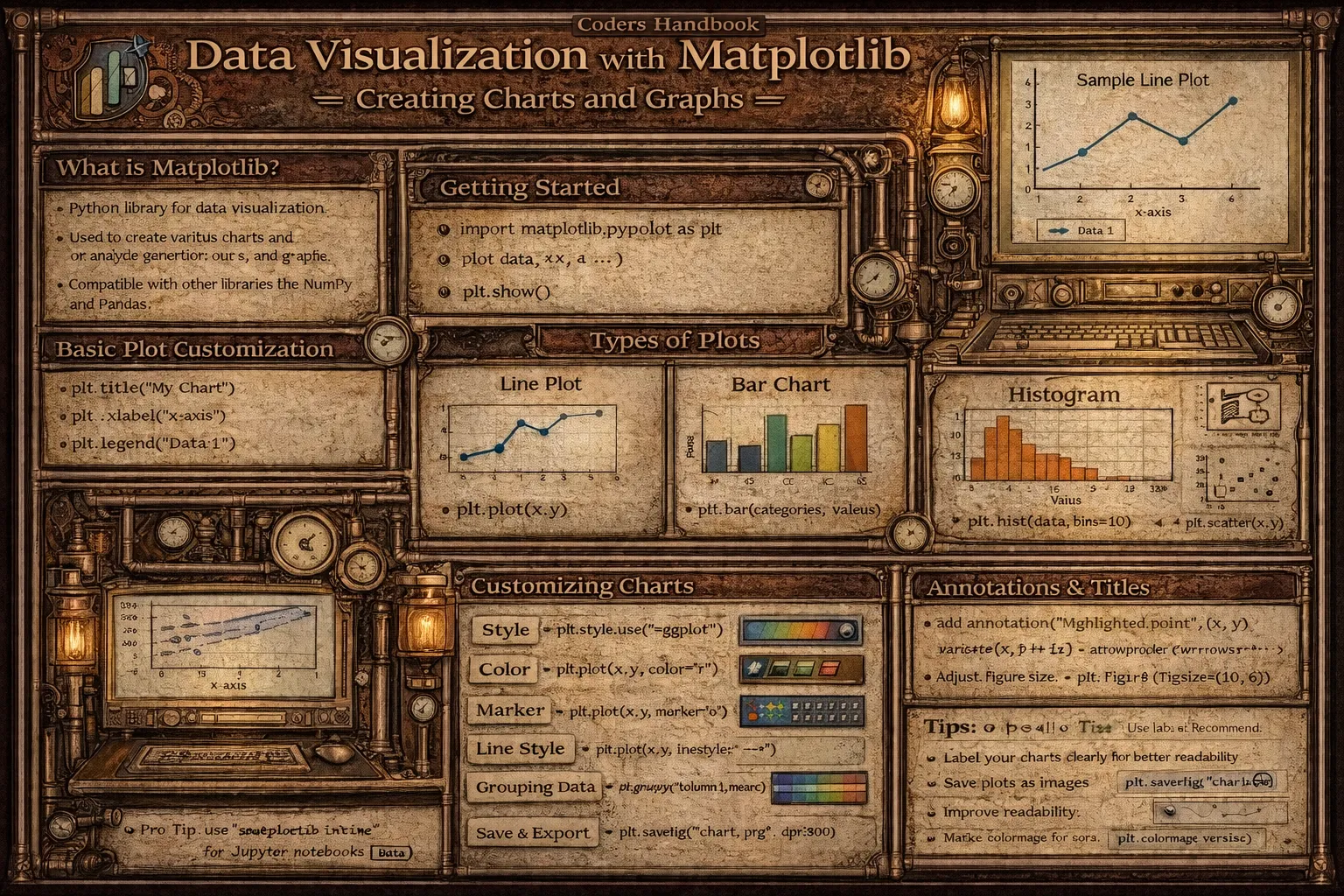
Data visualization transforms raw numbers into visual representations enabling pattern recognition, trend identification, and insight communication more effectively than tables or text. Matplotlib is Python's foundational plotting library providing comprehensive tools for creating static, animated, and interactive visualizations with publication-quality output. The pyplot module offers MATLAB-style interface with functions like plot() creating line charts, bar() generating bar charts, scatter() producing scatter plots, and hist() displaying histograms, supporting extensive customization through parameters controlling colors, markers, line styles, and annotations.
This comprehensive guide explores creating line plots with plot() visualizing continuous data showing trends over time or relationships between variables, customizing with color, linestyle, and marker parameters, bar charts using bar() comparing categories with vertical bars or barh() for horizontal orientation, scatter plots with scatter() revealing correlations between two variables using size and color encoding additional dimensions, histograms using hist() displaying data distributions with configurable bins, pie charts with pie() showing proportions, customizing visualizations setting titles with title(), axis labels with xlabel() and ylabel(), legends with legend() identifying multiple series, grid lines with grid(), colors using named colors or hex codes, fonts with fontsize and fontfamily, markers and line styles with marker and linestyle parameters, creating subplots with subplots() arranging multiple charts in grid layouts sharing axes or independent, figure-level customization controlling size with figsize, resolution with dpi, and layout with tight_layout(), saving figures with savefig() exporting to PNG, PDF, or SVG formats, and advanced techniques including annotations with annotate(), twin axes with twinx(), logarithmic scales with set_xscale(), and style sheets with plt.style.use(). Whether you're presenting business metrics in reports, exploring scientific data for publications, visualizing machine learning results, creating dashboards monitoring systems, or communicating insights to stakeholders, mastering Matplotlib provides essential tools for data visualization enabling effective communication of quantitative information through clear compelling graphics supporting data-driven storytelling and decision-making.
Creating Basic Plots
Basic plots form the foundation of data visualization including line plots for continuous data, bar charts for categorical comparisons, scatter plots for correlations, and histograms for distributions. The pyplot interface provides simple functions creating common chart types with minimal code. Understanding basic plot creation enables quick exploratory visualization during data analysis.
# Creating Basic Plots

import matplotlib.pyplot as plt
import numpy as np

# === Line Plot ===

# Simple line plot
x = [1, 2, 3, 4, 5]
y = [2, 4, 6, 8, 10]

plt.figure(figsize=(8, 5))
plt.plot(x, y)
plt.title('Simple Line Plot')
plt.xlabel('X-axis')
plt.ylabel('Y-axis')
plt.grid(True)
plt.show()

# Line plot with customization
x = np.linspace(0, 10, 100)
y = np.sin(x)

plt.figure(figsize=(10, 6))
plt.plot(x, y, color='blue', linewidth=2, linestyle='-', marker='o',
         markersize=3, label='sin(x)')
plt.title('Sine Wave', fontsize=16, fontweight='bold')
plt.xlabel('X-axis', fontsize=12)
plt.ylabel('Y-axis', fontsize=12)
plt.legend()
plt.grid(True, alpha=0.3)
plt.show()

# Multiple lines on same plot
x = np.linspace(0, 10, 100)
y1 = np.sin(x)
y2 = np.cos(x)
y3 = np.tan(x)

plt.figure(figsize=(10, 6))
plt.plot(x, y1, label='sin(x)', color='blue', linewidth=2)
plt.plot(x, y2, label='cos(x)', color='red', linewidth=2)
plt.plot(x, y3, label='tan(x)', color='green', linewidth=2)
plt.title('Trigonometric Functions')
plt.xlabel('X')
plt.ylabel('Y')
plt.legend(loc='upper right')
plt.ylim(-2, 2)  # Set y-axis limits
plt.grid(True)
plt.show()

# === Bar Chart ===

# Vertical bar chart
categories = ['Product A', 'Product B', 'Product C', 'Product D']
values = [25, 40, 30, 55]

plt.figure(figsize=(8, 6))
plt.bar(categories, values, color='skyblue', edgecolor='black')
plt.title('Product Sales')
plt.xlabel('Products')
plt.ylabel('Sales (Units)')
plt.grid(axis='y', alpha=0.3)
plt.show()

# Horizontal bar chart
plt.figure(figsize=(8, 6))
plt.barh(categories, values, color='lightcoral')
plt.title('Product Sales (Horizontal)')
plt.xlabel('Sales (Units)')
plt.ylabel('Products')
plt.grid(axis='x', alpha=0.3)
plt.show()

# Grouped bar chart
categories = ['Q1', 'Q2', 'Q3', 'Q4']
product_a = [20, 35, 30, 35]
product_b = [25, 32, 34, 20]

x_pos = np.arange(len(categories))
width = 0.35

plt.figure(figsize=(10, 6))
plt.bar(x_pos - width/2, product_a, width, label='Product A', color='blue')
plt.bar(x_pos + width/2, product_b, width, label='Product B', color='orange')
plt.xlabel('Quarter')
plt.ylabel('Sales')
plt.title('Quarterly Sales Comparison')
plt.xticks(x_pos, categories)
plt.legend()
plt.show()

# === Scatter Plot ===

# Simple scatter plot
x = np.random.rand(50)
y = np.random.rand(50)

plt.figure(figsize=(8, 6))
plt.scatter(x, y, color='red', marker='o', s=100, alpha=0.6)
plt.title('Scatter Plot')
plt.xlabel('X-axis')
plt.ylabel('Y-axis')
plt.grid(True)
plt.show()

# Scatter with size and color variations
x = np.random.rand(100)
y = np.random.rand(100)
colors = np.random.rand(100)
sizes = 1000 * np.random.rand(100)

plt.figure(figsize=(10, 6))
plt.scatter(x, y, c=colors, s=sizes, alpha=0.5, cmap='viridis')
plt.colorbar(label='Color Value')
plt.title('Scatter Plot with Varying Size and Color')
plt.xlabel('X-axis')
plt.ylabel('Y-axis')
plt.show()

# === Histogram ===

# Simple histogram
data = np.random.randn(1000)

plt.figure(figsize=(10, 6))
plt.hist(data, bins=30, color='green', edgecolor='black', alpha=0.7)
plt.title('Histogram of Random Data')
plt.xlabel('Value')
plt.ylabel('Frequency')
plt.grid(axis='y', alpha=0.3)
plt.show()

# Multiple histograms
data1 = np.random.normal(0, 1, 1000)
data2 = np.random.normal(2, 1.5, 1000)

plt.figure(figsize=(10, 6))
plt.hist(data1, bins=30, alpha=0.5, label='Dataset 1', color='blue')
plt.hist(data2, bins=30, alpha=0.5, label='Dataset 2', color='red')
plt.title('Overlapping Histograms')
plt.xlabel('Value')
plt.ylabel('Frequency')
plt.legend()
plt.show()

# === Pie Chart ===

sizes = [15, 30, 45, 10]
labels = ['Category A', 'Category B', 'Category C', 'Category D']
colors = ['gold', 'lightcoral', 'lightskyblue', 'lightgreen']
explode = (0, 0.1, 0, 0)  # Explode 2nd slice

plt.figure(figsize=(8, 8))
plt.pie(sizes, explode=explode, labels=labels, colors=colors,
        autopct='%1.1f%%', shadow=True, startangle=90)
plt.title('Pie Chart Example')
plt.axis('equal')  # Equal aspect ratio ensures circular pie
plt.show()

# === Box Plot ===

data = [np.random.normal(0, std, 100) for std in range(1, 4)]

plt.figure(figsize=(8, 6))
plt.boxplot(data, labels=['Group 1', 'Group 2', 'Group 3'])
plt.title('Box Plot')
plt.ylabel('Value')
plt.grid(axis='y', alpha=0.3)
plt.show()

# === Area Plot ===

x = np.linspace(0, 10, 100)
y1 = np.sin(x)
y2 = np.cos(x)

plt.figure(figsize=(10, 6))
plt.fill_between(x, y1, alpha=0.5, label='sin(x)')
plt.fill_between(x, y2, alpha=0.5, label='cos(x)')
plt.title('Area Plot')
plt.xlabel('X-axis')
plt.ylabel('Y-axis')
plt.legend()
plt.grid(True)
plt.show()

print("All basic plots created successfully!")plt.show() to display plots. Without it, plots won't appear. In Jupyter notebooks, plots display automatically.Plot Customization and Styling
Customizing plots enhances readability and professional appearance through colors, fonts, markers, line styles, and annotations. Matplotlib provides extensive customization options controlling every visual aspect from axis properties to legend positioning. Understanding customization techniques enables creating publication-quality visualizations matching specific requirements or branding guidelines.
# Plot Customization and Styling

import matplotlib.pyplot as plt
import numpy as np

# === Color customization ===

x = np.linspace(0, 10, 100)

plt.figure(figsize=(12, 4))

# Named colors
plt.subplot(1, 3, 1)
plt.plot(x, np.sin(x), color='red')
plt.plot(x, np.cos(x), color='blue')
plt.title('Named Colors')

# Hex colors
plt.subplot(1, 3, 2)
plt.plot(x, np.sin(x), color='#FF5733')
plt.plot(x, np.cos(x), color='#3498DB')
plt.title('Hex Colors')

# RGB tuples
plt.subplot(1, 3, 3)
plt.plot(x, np.sin(x), color=(0.8, 0.2, 0.2))
plt.plot(x, np.cos(x), color=(0.2, 0.4, 0.8))
plt.title('RGB Colors')

plt.tight_layout()
plt.show()

# === Line styles and markers ===

x = np.linspace(0, 10, 20)

plt.figure(figsize=(10, 6))

# Different line styles
plt.plot(x, x, linestyle='-', label='Solid', linewidth=2)
plt.plot(x, x + 2, linestyle='--', label='Dashed', linewidth=2)
plt.plot(x, x + 4, linestyle='-.', label='Dash-dot', linewidth=2)
plt.plot(x, x + 6, linestyle=':', label='Dotted', linewidth=2)

plt.title('Line Styles', fontsize=14)
plt.legend()
plt.grid(True, alpha=0.3)
plt.show()

# Different markers
plt.figure(figsize=(10, 6))

markers = ['o', 's', '^', 'D', '*', 'p', 'h']
labels = ['Circle', 'Square', 'Triangle', 'Diamond', 'Star', 'Pentagon', 'Hexagon']

for i, (marker, label) in enumerate(zip(markers, labels)):
    plt.plot(x, x + i*2, marker=marker, label=label,
             markersize=8, linewidth=2, markevery=2)

plt.title('Marker Styles', fontsize=14)
plt.legend()
plt.grid(True, alpha=0.3)
plt.show()

# === Font customization ===

plt.figure(figsize=(10, 6))

x = np.linspace(0, 10, 100)
plt.plot(x, np.sin(x))

# Custom fonts
plt.title('Custom Font Example', fontsize=18, fontweight='bold',
          fontfamily='serif', color='navy')
plt.xlabel('X-axis', fontsize=14, fontstyle='italic')
plt.ylabel('Y-axis', fontsize=14, fontstyle='italic')

# Tick label customization
plt.xticks(fontsize=12)
plt.yticks(fontsize=12)

plt.grid(True, alpha=0.3)
plt.show()

# === Legend customization ===

x = np.linspace(0, 10, 100)

plt.figure(figsize=(10, 6))
plt.plot(x, np.sin(x), label='sin(x)', linewidth=2)
plt.plot(x, np.cos(x), label='cos(x)', linewidth=2)
plt.plot(x, np.tan(x), label='tan(x)', linewidth=2)

plt.title('Legend Customization')
plt.ylim(-2, 2)

# Custom legend
plt.legend(loc='upper right',           # Position
          frameon=True,                 # Show frame
          fancybox=True,                # Rounded corners
          shadow=True,                  # Add shadow
          ncol=3,                       # Number of columns
          fontsize=12,                  # Font size
          title='Functions',            # Legend title
          title_fontsize=14)            # Title font size

plt.grid(True, alpha=0.3)
plt.show()

# === Annotations ===

x = np.linspace(0, 10, 100)
y = np.sin(x)

plt.figure(figsize=(10, 6))
plt.plot(x, y, linewidth=2)

# Annotate maximum
max_idx = np.argmax(y)
plt.annotate('Maximum',
            xy=(x[max_idx], y[max_idx]),
            xytext=(x[max_idx] + 1, y[max_idx] + 0.3),
            arrowprops=dict(arrowstyle='->', color='red', lw=2),
            fontsize=12,
            color='red')

# Annotate minimum
min_idx = np.argmin(y)
plt.annotate('Minimum',
            xy=(x[min_idx], y[min_idx]),
            xytext=(x[min_idx] - 2, y[min_idx] - 0.3),
            arrowprops=dict(arrowstyle='->', color='blue', lw=2),
            fontsize=12,
            color='blue')

plt.title('Annotations Example')
plt.xlabel('X-axis')
plt.ylabel('Y-axis')
plt.grid(True, alpha=0.3)
plt.show()

# === Text and labels ===

plt.figure(figsize=(10, 6))

x = np.arange(5)
values = [3, 7, 2, 5, 8]

bars = plt.bar(x, values, color='skyblue', edgecolor='black')

# Add value labels on bars
for i, (bar, value) in enumerate(zip(bars, values)):
    plt.text(bar.get_x() + bar.get_width()/2,
            bar.get_height() + 0.2,
            str(value),
            ha='center',
            va='bottom',
            fontsize=12,
            fontweight='bold')

plt.title('Bar Chart with Labels')
plt.xlabel('Category')
plt.ylabel('Value')
plt.ylim(0, 10)
plt.show()

# === Axis customization ===

plt.figure(figsize=(10, 6))

x = np.linspace(0, 10, 100)
plt.plot(x, np.exp(x/5))

plt.title('Axis Customization')

# Set axis limits
plt.xlim(0, 10)
plt.ylim(0, 10)

# Set axis scale
plt.yscale('log')  # Logarithmic y-axis

# Custom tick positions
plt.xticks([0, 2, 4, 6, 8, 10])

# Custom tick labels
plt.yticks([1, 10, 100], ['Low', 'Medium', 'High'])

plt.grid(True, which='both', alpha=0.3)
plt.show()

# === Style sheets ===

# Available styles
print("Available styles:", plt.style.available[:5])

# Using built-in style
plt.style.use('seaborn-v0_8-darkgrid')

plt.figure(figsize=(10, 6))
x = np.linspace(0, 10, 100)
plt.plot(x, np.sin(x), linewidth=2, label='sin(x)')
plt.plot(x, np.cos(x), linewidth=2, label='cos(x)')
plt.title('Using Style Sheet')
plt.legend()
plt.show()

# Reset to default style
plt.style.use('default')

print("Customization examples completed!")plt.style.use('seaborn-v0_8') for consistent professional styling. Explore available styles with plt.style.available.Creating Subplots and Complex Layouts
Subplots arrange multiple charts in single figure enabling comparative visualization and comprehensive dashboards. The subplots() function creates grid layouts returning figure and axes objects, while subplot() adds individual plots to existing figures. Understanding subplot creation enables building complex multi-panel visualizations showing related data simultaneously.
# Creating Subplots and Complex Layouts

import matplotlib.pyplot as plt
import numpy as np

# === Basic subplots ===

# Create 2x2 subplot grid
fig, axes = plt.subplots(2, 2, figsize=(12, 10))

x = np.linspace(0, 10, 100)

# Plot in each subplot
axes[0, 0].plot(x, np.sin(x))
axes[0, 0].set_title('Sine')
axes[0, 0].grid(True)

axes[0, 1].plot(x, np.cos(x), 'r')
axes[0, 1].set_title('Cosine')
axes[0, 1].grid(True)

axes[1, 0].plot(x, np.tan(x))
axes[1, 0].set_title('Tangent')
axes[1, 0].set_ylim(-5, 5)
axes[1, 0].grid(True)

axes[1, 1].plot(x, np.exp(x/5))
axes[1, 1].set_title('Exponential')
axes[1, 1].grid(True)

# Overall title
fig.suptitle('Trigonometric and Exponential Functions', fontsize=16)

plt.tight_layout()
plt.show()

# === Subplots with different sizes ===

fig = plt.figure(figsize=(12, 8))

# Large subplot on top
ax1 = plt.subplot(2, 1, 1)
ax1.plot(x, np.sin(x), linewidth=2)
ax1.set_title('Main Plot')
ax1.grid(True)

# Two smaller subplots on bottom
ax2 = plt.subplot(2, 2, 3)
ax2.bar(['A', 'B', 'C'], [3, 7, 2])
ax2.set_title('Bar Chart')

ax3 = plt.subplot(2, 2, 4)
ax3.scatter(np.random.rand(20), np.random.rand(20))
ax3.set_title('Scatter Plot')

plt.tight_layout()
plt.show()

# === Shared axes ===

# Share x-axis
fig, (ax1, ax2) = plt.subplots(2, 1, figsize=(10, 8), sharex=True)

ax1.plot(x, np.sin(x))
ax1.set_ylabel('sin(x)')
ax1.grid(True)

ax2.plot(x, np.cos(x), 'r')
ax2.set_xlabel('X-axis')
ax2.set_ylabel('cos(x)')
ax2.grid(True)

fig.suptitle('Subplots with Shared X-axis')
plt.tight_layout()
plt.show()

# === Iterating through subplots ===

fig, axes = plt.subplots(2, 3, figsize=(15, 8))

for i, ax in enumerate(axes.flat):
    x = np.linspace(0, 10, 100)
    y = np.sin(x + i)
    ax.plot(x, y)
    ax.set_title(f'Phase shift: {i}')
    ax.grid(True, alpha=0.3)

fig.suptitle('Multiple Sine Waves with Different Phases', fontsize=16)
plt.tight_layout()
plt.show()

# === GridSpec for advanced layouts ===

from matplotlib.gridspec import GridSpec

fig = plt.figure(figsize=(12, 8))
gs = GridSpec(3, 3, figure=fig)

# Large plot spanning multiple cells
ax1 = fig.add_subplot(gs[0:2, 0:2])
ax1.plot(x, np.sin(x), linewidth=2)
ax1.set_title('Large Plot')
ax1.grid(True)

# Smaller plots
ax2 = fig.add_subplot(gs[0, 2])
ax2.bar(['A', 'B'], [3, 5])
ax2.set_title('Small 1')

ax3 = fig.add_subplot(gs[1, 2])
ax3.scatter(np.random.rand(10), np.random.rand(10))
ax3.set_title('Small 2')

ax4 = fig.add_subplot(gs[2, :])
ax4.hist(np.random.randn(1000), bins=30)
ax4.set_title('Bottom Plot')
ax4.grid(axis='y', alpha=0.3)

plt.tight_layout()
plt.show()

# === Dashboard example ===

fig, axes = plt.subplots(2, 2, figsize=(14, 10))
fig.suptitle('Sales Dashboard', fontsize=18, fontweight='bold')

# Revenue trend
months = ['Jan', 'Feb', 'Mar', 'Apr', 'May', 'Jun']
revenue = [120, 135, 145, 140, 160, 175]
axes[0, 0].plot(months, revenue, marker='o', linewidth=2, color='green')
axes[0, 0].set_title('Monthly Revenue ($K)')
axes[0, 0].grid(True, alpha=0.3)

# Product sales
products = ['Product A', 'Product B', 'Product C', 'Product D']
sales = [450, 380, 520, 290]
axes[0, 1].bar(products, sales, color='skyblue', edgecolor='black')
axes[0, 1].set_title('Product Sales')
axes[0, 1].set_ylabel('Units Sold')
axes[0, 1].grid(axis='y', alpha=0.3)

# Customer distribution
regions = ['North', 'South', 'East', 'West']
customers = [2500, 3200, 2800, 3500]
axes[1, 0].pie(customers, labels=regions, autopct='%1.1f%%',
              colors=['gold', 'lightcoral', 'lightskyblue', 'lightgreen'])
axes[1, 0].set_title('Customer Distribution by Region')

# Satisfaction scores
categories = ['Quality', 'Service', 'Value', 'Support']
scores = [4.2, 4.5, 3.8, 4.0]
axes[1, 1].barh(categories, scores, color='orange')
axes[1, 1].set_xlabel('Score (out of 5)')
axes[1, 1].set_title('Customer Satisfaction')
axes[1, 1].set_xlim(0, 5)
axes[1, 1].grid(axis='x', alpha=0.3)

plt.tight_layout()
plt.show()

# === Saving figures ===

fig, ax = plt.subplots(figsize=(10, 6))
ax.plot(x, np.sin(x), linewidth=2)
ax.set_title('Figure to Save')
ax.grid(True)

# Save in different formats
plt.savefig('plot.png', dpi=300, bbox_inches='tight')  # High resolution PNG
plt.savefig('plot.pdf', bbox_inches='tight')           # Vector PDF
plt.savefig('plot.svg', bbox_inches='tight')           # Vector SVG

print("Figures saved successfully!")

plt.show()

print("Subplot examples completed!")plt.tight_layout() after creating subplots to prevent overlapping labels and titles.Visualization Best Practices
- Choose appropriate chart type: Use line plots for trends, bar charts for comparisons, scatter plots for correlations, histograms for distributions. Wrong chart type confuses viewers
- Always label axes: Include clear axis labels with units using
xlabel()andylabel(). Unlabeled axes make plots meaningless - Add meaningful titles: Use descriptive titles explaining what plot shows. Include context like time period or data source when relevant
- Use legends for multiple series: Add legend with
legend()when plotting multiple datasets. Position appropriately avoiding data obstruction - Choose colors carefully: Use colorblind-friendly palettes. Avoid red-green combinations. Use distinct colors for different categories
- Set appropriate axis limits: Use
xlim()andylim()showing relevant data range. Avoid truncated axes misleading viewers - Add grid lines for readability: Use
grid(True)with low alpha helping readers estimate values. Don't make grids too prominent - Use consistent styling: Apply style sheets with
plt.style.use()for professional appearance. Maintain consistency across related plots - Save high-resolution images: Export with
dpi=300for publication quality. Use vector formats (PDF, SVG) when possible for scalability - Keep it simple: Avoid chart junk and unnecessary decorations. Focus on data clarity. Less is often more in data visualization
figsize for readability. Default (6.4, 4.8) often too small. Try (10, 6) or larger for presentations.Conclusion
Data visualization with Matplotlib transforms numerical data into visual representations enabling pattern recognition and insight communication through comprehensive plotting capabilities. Creating basic plots uses pyplot interface with plot() generating line charts for continuous data showing trends and relationships, bar() and barh() creating vertical and horizontal bar charts comparing categorical values, scatter() producing scatter plots revealing correlations between variables with optional size and color encoding, hist() displaying histograms showing data distributions with configurable bin counts, pie() creating pie charts showing proportions, and boxplot() visualizing distributions with quartiles. Customization enhances plot appearance and clarity through color specification using named colors, hex codes, or RGB tuples, line styles including solid, dashed, dash-dot, and dotted specified with linestyle parameter, markers including circles, squares, triangles, and stars controlled with marker parameter, fonts customized through fontsize, fontweight, and fontfamily parameters, legends positioned and styled with legend() accepting location, frame, and column parameters, annotations adding text and arrows with annotate() highlighting important features, and axis customization setting limits with xlim() and ylim(), scales with set_xscale() including logarithmic, and custom tick labels.
Creating subplots arranges multiple charts in grid layouts using subplots() returning figure and axes objects for organized multi-panel visualizations, subplot() adding individual plots with flexible positioning, shared axes enabling comparison across plots maintaining consistent scales, GridSpec providing advanced layout control spanning multiple cells, and iterating through axes with axes.flat applying operations to all subplots. Saving figures exports visualizations using savefig() supporting multiple formats including PNG for raster images with dpi parameter controlling resolution, PDF and SVG for vector graphics maintaining quality at any scale, and bbox_inches='tight' removing extra whitespace. Best practices emphasize choosing appropriate chart types matching data characteristics, labeling axes clearly with units and descriptions, adding meaningful titles providing context, using legends identifying multiple series, choosing colorblind-friendly palettes, setting appropriate axis limits showing relevant ranges, adding grid lines enhancing readability, applying consistent styling through style sheets, saving high-resolution images for publication, and keeping visualizations simple focusing on data clarity. By mastering basic plot types including line, bar, scatter, and histogram charts, customization techniques controlling colors, markers, fonts, and annotations, subplot creation for complex layouts, figure export for sharing, and best practices ensuring clarity and professionalism, you gain essential tools for data visualization enabling effective communication of quantitative information supporting data analysis, scientific publications, business presentations, and data-driven storytelling transforming raw numbers into compelling visual narratives facilitating understanding and decision-making.
$ share --platform
$ cat /comments/ (0)
$ cat /comments/
// No comments found. Be the first!