Browser Automation with Selenium Python: Complete Guide
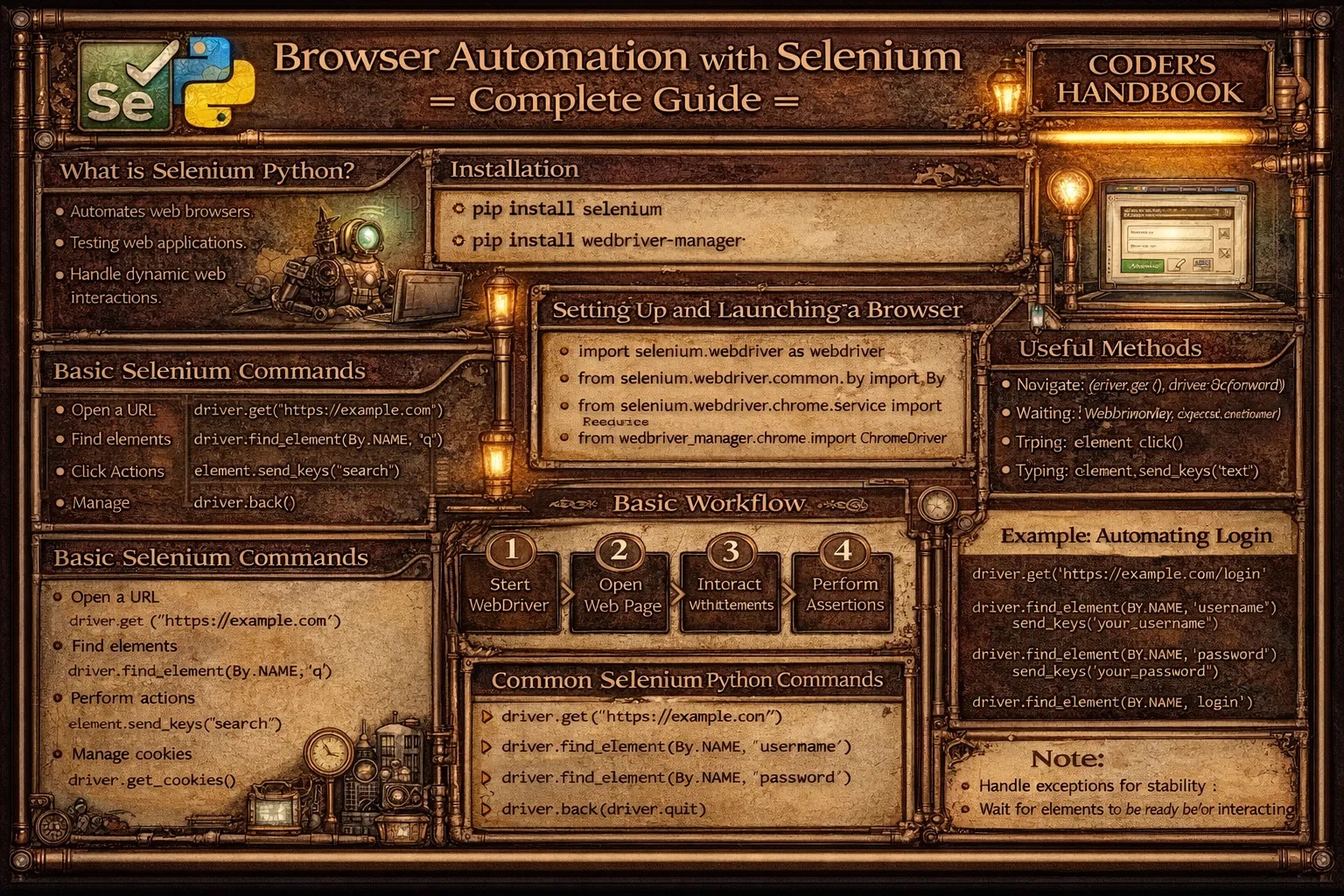
Browser automation enables programmatic control of web browsers performing actions like clicking buttons, filling forms, and navigating pages without manual intervention. Selenium WebDriver is the industry-standard framework providing APIs for controlling browsers including Chrome, Firefox, Edge, and Safari through native browser automation protocols. Python's selenium package offers intuitive interfaces for WebDriver enabling automated testing verifying web application functionality, web scraping extracting data from JavaScript-heavy sites, form automation streamlining repetitive data entry, and monitoring checking website availability and performance.
This comprehensive guide explores WebDriver setup installing selenium package with pip and downloading browser drivers like ChromeDriver or GeckoDriver, creating WebDriver instances with webdriver.Chrome() or webdriver.Firefox() initializing browser sessions, navigating pages using driver.get() loading URLs and driver.back() or driver.forward() for history navigation, locating elements with find_element() using By.ID, By.CLASS_NAME, By.CSS_SELECTOR, and By.XPATH strategies, interacting with elements including click() simulating clicks, send_keys() typing text, clear() removing input, and submit() submitting forms, handling waits with implicit waits setting default timeout and explicit waits using WebDriverWait for specific conditions, executing JavaScript with execute_script() running custom code in browser context, handling alerts and popups switching to alert objects accepting or dismissing, working with frames and windows switching contexts between iframes and browser tabs, taking screenshots with save_screenshot() capturing page state, and automated testing integrating Selenium with unittest or pytest frameworks. Whether you're building automated test suites ensuring web application quality, scraping dynamic content requiring JavaScript execution, automating form submissions across multiple sites, monitoring web services checking functionality, or performing end-to-end testing simulating user workflows, mastering Selenium WebDriver provides essential tools for browser automation enabling reliable programmatic browser control supporting quality assurance and automation tasks.
Setup and Basic Navigation
Setting up Selenium requires installing the selenium package and browser drivers enabling communication with browsers. The webdriver module provides classes for different browsers creating driver instances controlling browser sessions. Basic navigation uses driver.get() loading URLs, along with methods for page history, window management, and browser properties.
# Setup and Basic Navigation

# === Installation ===
# pip install selenium
# Download ChromeDriver: https://chromedriver.chromium.org/
# Or use webdriver-manager: pip install webdriver-manager

from selenium import webdriver
from selenium.webdriver.chrome.service import Service
from selenium.webdriver.common.by import By
from webdriver_manager.chrome import ChromeDriverManager
import time

# === Creating WebDriver instance ===

# Method 1: Using webdriver-manager (automatic driver download)
driver = webdriver.Chrome(service=Service(ChromeDriverManager().install()))

# Method 2: Specifying driver path manually
# driver = webdriver.Chrome(service=Service('/path/to/chromedriver'))

# Method 3: Firefox
# from webdriver_manager.firefox import GeckoDriverManager
# driver = webdriver.Firefox(service=Service(GeckoDriverManager().install()))

# Method 4: Edge
# from webdriver_manager.microsoft import EdgeChromiumDriverManager
# driver = webdriver.Edge(service=Service(EdgeChromiumDriverManager().install()))

print("Browser opened successfully")

# === Basic navigation ===

# Navigate to URL
driver.get('https://www.python.org')
print(f"Current URL: {driver.current_url}")
print(f"Page Title: {driver.title}")

# Get page source
page_source = driver.page_source
print(f"Page source length: {len(page_source)} characters")

# Browser history navigation
driver.get('https://www.python.org/about')
time.sleep(1)

driver.back()  # Go back
print("Navigated back")
time.sleep(1)

driver.forward()  # Go forward
print("Navigated forward")
time.sleep(1)

driver.refresh()  # Refresh page
print("Page refreshed")

# === Window management ===

# Get window size
size = driver.get_window_size()
print(f"Window size: {size['width']}x{size['height']}")

# Set window size
driver.set_window_size(1920, 1080)
print("Window resized to 1920x1080")

# Maximize window
driver.maximize_window()
print("Window maximized")

# Minimize window
driver.minimize_window()
print("Window minimized")

# Fullscreen mode
# driver.fullscreen_window()

# Get window position
position = driver.get_window_position()
print(f"Window position: x={position['x']}, y={position['y']}")

# === Browser properties ===

print(f"Browser name: {driver.name}")
print(f"Current URL: {driver.current_url}")
print(f"Page title: {driver.title}")

# === Headless mode (no GUI) ===

def create_headless_driver():
    """Create headless Chrome driver."""
    from selenium.webdriver.chrome.options import Options

    options = Options()
    options.add_argument('--headless')
    options.add_argument('--disable-gpu')
    options.add_argument('--no-sandbox')

    driver = webdriver.Chrome(
        service=Service(ChromeDriverManager().install()),
        options=options
    )
    return driver

# headless_driver = create_headless_driver()
# headless_driver.get('https://example.com')
# print(f"Headless title: {headless_driver.title}")
# headless_driver.quit()

# === Custom browser options ===

def create_custom_driver():
    """Create driver with custom options."""
    from selenium.webdriver.chrome.options import Options

    options = Options()
    options.add_argument('--start-maximized')
    options.add_argument('--disable-notifications')
    options.add_argument('--disable-popup-blocking')
    options.add_argument('--incognito')

    # Set download directory
    prefs = {
        'download.default_directory': '/path/to/downloads',
        'download.prompt_for_download': False
    }
    options.add_experimental_option('prefs', prefs)

    driver = webdriver.Chrome(
        service=Service(ChromeDriverManager().install()),
        options=options
    )
    return driver

# === Cookies management ===

# Get all cookies
cookies = driver.get_cookies()
print(f"Number of cookies: {len(cookies)}")

# Add cookie
driver.add_cookie({
    'name': 'test_cookie',
    'value': 'test_value'
})

# Get specific cookie
cookie = driver.get_cookie('test_cookie')
print(f"Cookie: {cookie}")

# Delete cookie
driver.delete_cookie('test_cookie')

# Delete all cookies
driver.delete_all_cookies()

# === Close vs Quit ===

# driver.close()  # Close current window
# driver.quit()   # Close all windows and end session

print("Basic navigation complete")

# Clean up
driver.quit()pip install webdriver-manager to automatically download and manage browser drivers. No manual driver downloads needed.Locating Elements
Locating elements is fundamental to browser automation enabling interaction with page components. Selenium provides multiple strategies including By.ID for unique identifiers, By.CLASS_NAME for class attributes, By.CSS_SELECTOR for CSS syntax, By.XPATH for XML path expressions, and By.TAG_NAME for HTML tags. Understanding element location strategies enables precise targeting of interactive elements.
# Locating Elements

from selenium import webdriver
from selenium.webdriver.common.by import By
from selenium.webdriver.chrome.service import Service
from webdriver_manager.chrome import ChromeDriverManager
from selenium.common.exceptions import NoSuchElementException
import time

driver = webdriver.Chrome(service=Service(ChromeDriverManager().install()))
driver.get('https://www.python.org')

# === Finding single element ===

# By ID
try:
    search_box = driver.find_element(By.ID, 'id-search-field')
    print("Found element by ID")
except NoSuchElementException:
    print("Element not found by ID")

# By NAME
try:
    element = driver.find_element(By.NAME, 'q')
    print("Found element by NAME")
except NoSuchElementException:
    print("Element not found by NAME")

# By CLASS_NAME
try:
    element = driver.find_element(By.CLASS_NAME, 'python-logo')
    print("Found element by CLASS_NAME")
except NoSuchElementException:
    print("Element not found by CLASS_NAME")

# By TAG_NAME
header = driver.find_element(By.TAG_NAME, 'h1')
print(f"H1 text: {header.text}")

# By LINK_TEXT (exact match)
try:
    link = driver.find_element(By.LINK_TEXT, 'Downloads')
    print("Found link by LINK_TEXT")
except NoSuchElementException:
    print("Link not found")

# By PARTIAL_LINK_TEXT (partial match)
try:
    link = driver.find_element(By.PARTIAL_LINK_TEXT, 'Down')
    print("Found link by PARTIAL_LINK_TEXT")
except NoSuchElementException:
    print("Link not found")

# === CSS Selectors ===

# By CSS class
element = driver.find_element(By.CSS_SELECTOR, '.python-logo')
print("Found by CSS class")

# By CSS ID
element = driver.find_element(By.CSS_SELECTOR, '#id-search-field')
print("Found by CSS ID")

# By attribute
element = driver.find_element(By.CSS_SELECTOR, 'input[name="q"]')
print("Found by CSS attribute")

# Complex CSS selector
element = driver.find_element(By.CSS_SELECTOR, 'nav ul li a')
print("Found by complex CSS selector")

# === XPath ===

# Absolute XPath (not recommended - brittle)
# element = driver.find_element(By.XPATH, '/html/body/div/header/div/nav/ul/li[1]/a')

# Relative XPath (recommended)
element = driver.find_element(By.XPATH, '//input[@name="q"]')
print("Found by XPath attribute")

# XPath with text
try:
    link = driver.find_element(By.XPATH, '//a[text()="Downloads"]')
    print("Found by XPath text")
except NoSuchElementException:
    print("Element not found")

# XPath with contains
element = driver.find_element(By.XPATH, '//a[contains(text(), "Down")]')
print("Found by XPath contains")

# XPath with multiple conditions
element = driver.find_element(
    By.XPATH,
    '//input[@type="text" and @name="q"]'
)
print("Found by XPath multiple conditions")

# XPath parent navigation
element = driver.find_element(By.XPATH, '//input[@name="q"]/parent::form')
print("Found parent by XPath")

# === Finding multiple elements ===

# Find all links
links = driver.find_elements(By.TAG_NAME, 'a')
print(f"Found {len(links)} links")

# Iterate through elements
for i, link in enumerate(links[:5]):
    print(f"Link {i}: {link.text} - {link.get_attribute('href')}")

# Find all elements with class
elements = driver.find_elements(By.CLASS_NAME, 'menu')
print(f"Found {len(elements)} menu elements")

# Find all by CSS selector
list_items = driver.find_elements(By.CSS_SELECTOR, 'nav ul li')
print(f"Found {len(list_items)} list items")

# === Element properties ===

element = driver.find_element(By.ID, 'id-search-field')

# Get text content
text = element.text
print(f"Element text: {text}")

# Get attribute value
attribute = element.get_attribute('placeholder')
print(f"Placeholder: {attribute}")

# Get element tag name
tag = element.tag_name
print(f"Tag name: {tag}")

# Check if element is displayed
is_displayed = element.is_displayed()
print(f"Is displayed: {is_displayed}")

# Check if element is enabled
is_enabled = element.is_enabled()
print(f"Is enabled: {is_enabled}")

# Check if element is selected (for checkboxes/radio buttons)
# is_selected = element.is_selected()

# Get element size
size = element.size
print(f"Element size: {size['width']}x{size['height']}")

# Get element location
location = element.location
print(f"Element location: x={location['x']}, y={location['y']}")

# === Element hierarchy navigation ===

# Find element within element
parent = driver.find_element(By.TAG_NAME, 'nav')
child_link = parent.find_element(By.TAG_NAME, 'a')
print(f"Child link: {child_link.text}")

# Find multiple elements within element
parent = driver.find_element(By.TAG_NAME, 'nav')
child_links = parent.find_elements(By.TAG_NAME, 'a')
print(f"Found {len(child_links)} links in nav")

# === Checking if element exists ===

def element_exists(by, value):
    """Check if element exists."""
    try:
        driver.find_element(by, value)
        return True
    except NoSuchElementException:
        return False

if element_exists(By.ID, 'id-search-field'):
    print("Search field exists")
else:
    print("Search field not found")

# === Safe element finding ===

def safe_find_element(by, value, default=None):
    """Find element safely, return default if not found."""
    try:
        return driver.find_element(by, value)
    except NoSuchElementException:
        return default

element = safe_find_element(By.ID, 'non-existent', default=None)
if element:
    print("Element found")
else:
    print("Element not found, using default")

driver.quit()Element Interactions and Waits
Interacting with elements simulates user actions including clicking buttons, typing text, and submitting forms. Common interactions use click() for button clicks, send_keys() for text input, clear() removing content, and submit() for form submission. Waits handle dynamic content with implicit waits setting global timeout and explicit waits using WebDriverWait for specific conditions ensuring elements are ready.
# Element Interactions and Waits

from selenium import webdriver
from selenium.webdriver.common.by import By
from selenium.webdriver.common.keys import Keys
from selenium.webdriver.support.ui import WebDriverWait
from selenium.webdriver.support import expected_conditions as EC
from selenium.webdriver.common.action_chains import ActionChains
from selenium.webdriver.support.select import Select
from selenium.webdriver.chrome.service import Service
from webdriver_manager.chrome import ChromeDriverManager
import time

driver = webdriver.Chrome(service=Service(ChromeDriverManager().install()))

# === Basic interactions ===

driver.get('https://www.google.com')

# Find search box
search_box = driver.find_element(By.NAME, 'q')

# Type text
search_box.send_keys('Python Selenium')
time.sleep(1)

# Clear text
search_box.clear()
time.sleep(1)

# Type again
search_box.send_keys('Python programming')

# Submit form
search_box.submit()
time.sleep(2)

# Or use ENTER key
# search_box.send_keys(Keys.RETURN)

# === Click interactions ===

driver.get('https://example.com')

# Click element
try:
    link = driver.find_element(By.LINK_TEXT, 'More information...')
    link.click()
    print("Link clicked")
except Exception as e:
    print(f"Click error: {e}")

# === Special keys ===

driver.get('https://www.google.com')
search_box = driver.find_element(By.NAME, 'q')

# Send special keys
search_box.send_keys('Selenium')
search_box.send_keys(Keys.ARROW_DOWN)  # Arrow key
search_box.send_keys(Keys.ARROW_DOWN)
search_box.send_keys(Keys.RETURN)      # Enter key

# Keyboard shortcuts
# search_box.send_keys(Keys.CONTROL, 'a')  # Ctrl+A (select all)
# search_box.send_keys(Keys.CONTROL, 'c')  # Ctrl+C (copy)

# === Implicit wait ===

# Set implicit wait (applies to all find_element calls)
driver.implicitly_wait(10)  # Wait up to 10 seconds

# Now all element searches will wait up to 10 seconds
element = driver.find_element(By.ID, 'some-id')

# === Explicit wait ===

driver.get('https://www.python.org')

# Wait for element to be clickable
wait = WebDriverWait(driver, 10)  # Wait up to 10 seconds

try:
    search_box = wait.until(
        EC.presence_of_element_located((By.ID, 'id-search-field'))
    )
    print("Element found with explicit wait")
    search_box.send_keys('testing')
except Exception as e:
    print(f"Timeout: {e}")

# === Common expected conditions ===

# Wait for element to be present
element = wait.until(EC.presence_of_element_located((By.ID, 'element-id')))

# Wait for element to be visible
element = wait.until(EC.visibility_of_element_located((By.ID, 'element-id')))

# Wait for element to be clickable
element = wait.until(EC.element_to_be_clickable((By.ID, 'button-id')))

# Wait for text to be present
wait.until(EC.text_to_be_present_in_element((By.ID, 'status'), 'Complete'))

# Wait for URL to contain text
wait.until(EC.url_contains('search'))

# Wait for title to be
wait.until(EC.title_is('Expected Title'))

# Wait for element to be invisible
wait.until(EC.invisibility_of_element_located((By.ID, 'loading')))

# === Dropdowns ===

# Example HTML: <select id="dropdown"><option>Option 1</option></select>

# select_element = driver.find_element(By.ID, 'dropdown')
# select = Select(select_element)

# Select by visible text
# select.select_by_visible_text('Option 1')

# Select by value attribute
# select.select_by_value('option1')

# Select by index
# select.select_by_index(0)

# Get selected option
# selected_option = select.first_selected_option
# print(f"Selected: {selected_option.text}")

# Get all options
# all_options = select.options
# for option in all_options:
#     print(option.text)

# === Checkboxes and radio buttons ===

# checkbox = driver.find_element(By.ID, 'checkbox-id')

# Check if selected
# if not checkbox.is_selected():
#     checkbox.click()  # Select checkbox

# Uncheck
# if checkbox.is_selected():
#     checkbox.click()  # Unselect checkbox

# === Action chains (advanced interactions) ===

actions = ActionChains(driver)

# Hover over element
# element = driver.find_element(By.ID, 'menu')
# actions.move_to_element(element).perform()

# Right click
# element = driver.find_element(By.ID, 'context-menu')
# actions.context_click(element).perform()

# Double click
# element = driver.find_element(By.ID, 'double-click-btn')
# actions.double_click(element).perform()

# Drag and drop
# source = driver.find_element(By.ID, 'draggable')
# target = driver.find_element(By.ID, 'droppable')
# actions.drag_and_drop(source, target).perform()

# Click and hold
# element = driver.find_element(By.ID, 'element')
# actions.click_and_hold(element).perform()
# time.sleep(2)
# actions.release().perform()

# Chain multiple actions
# actions.move_to_element(element1).click().move_to_element(element2).click().perform()

# === Scrolling ===

# Scroll to element
element = driver.find_element(By.TAG_NAME, 'footer')
driver.execute_script("arguments[0].scrollIntoView();", element)
time.sleep(1)

# Scroll to top
driver.execute_script("window.scrollTo(0, 0);")
time.sleep(1)

# Scroll to bottom
driver.execute_script("window.scrollTo(0, document.body.scrollHeight);")
time.sleep(1)

# Scroll by pixels
driver.execute_script("window.scrollBy(0, 500);")

# === File upload ===

# file_input = driver.find_element(By.ID, 'file-upload')
# file_input.send_keys('/path/to/file.txt')  # Absolute path

# === Form example ===

def fill_form(driver, username, password):
    """Fill and submit login form."""
    # Find form elements
    username_field = driver.find_element(By.ID, 'username')
    password_field = driver.find_element(By.ID, 'password')
    submit_button = driver.find_element(By.ID, 'submit')

    # Fill form
    username_field.clear()
    username_field.send_keys(username)

    password_field.clear()
    password_field.send_keys(password)

    # Submit
    submit_button.click()

    # Or use form submit
    # password_field.submit()

driver.quit()WebDriverWait with expected conditions over time.sleep(). Waits make tests faster and more reliable.Advanced Features and Testing
Advanced Selenium features enable complex automation including JavaScript execution with execute_script() running custom code, alert handling switching to alert objects, frame switching navigating iframes, window management handling multiple tabs, and screenshot capture. Integration with testing frameworks like unittest or pytest enables automated test suites with assertions, fixtures, and reporting.
# Advanced Features and Testing

from selenium import webdriver
from selenium.webdriver.common.by import By
from selenium.webdriver.chrome.service import Service
from webdriver_manager.chrome import ChromeDriverManager
from selenium.webdriver.support.ui import WebDriverWait
from selenium.webdriver.support import expected_conditions as EC
import unittest
import time

# === JavaScript execution ===

driver = webdriver.Chrome(service=Service(ChromeDriverManager().install()))
driver.get('https://example.com')

# Execute JavaScript
title = driver.execute_script("return document.title;")
print(f"Title from JS: {title}")

# Scroll with JavaScript
driver.execute_script("window.scrollTo(0, 500);")

# Click element with JavaScript (when regular click fails)
element = driver.find_element(By.TAG_NAME, 'h1')
driver.execute_script("arguments[0].click();", element)

# Get element property
value = driver.execute_script("return arguments[0].value;", element)

# Modify DOM
driver.execute_script(
    "arguments[0].style.border='3px solid red';",
    element
)

# Execute complex script
script = """
    var elements = document.querySelectorAll('a');
    var links = [];
    elements.forEach(function(el) {
        links.push(el.href);
    });
    return links;
"""
links = driver.execute_script(script)
print(f"Found {len(links)} links")

# === Handling alerts ===

# JavaScript alert
# driver.execute_script("alert('Test Alert');")
# time.sleep(1)

# Switch to alert
# alert = driver.switch_to.alert

# Get alert text
# alert_text = alert.text
# print(f"Alert text: {alert_text}")

# Accept alert (click OK)
# alert.accept()

# Dismiss alert (click Cancel)
# alert.dismiss()

# Prompt - enter text
# driver.execute_script("prompt('Enter name:');")
# alert = driver.switch_to.alert
# alert.send_keys('John Doe')
# alert.accept()

# === Handling frames/iframes ===

# Switch to frame by index
# driver.switch_to.frame(0)

# Switch to frame by name or ID
# driver.switch_to.frame('frame-name')

# Switch to frame by element
# frame_element = driver.find_element(By.TAG_NAME, 'iframe')
# driver.switch_to.frame(frame_element)

# Interact with elements in frame
# element = driver.find_element(By.ID, 'element-in-frame')
# element.click()

# Switch back to main content
# driver.switch_to.default_content()

# Switch to parent frame
# driver.switch_to.parent_frame()

# === Multiple windows/tabs ===

# Get current window handle
main_window = driver.current_window_handle
print(f"Main window: {main_window}")

# Open new tab
driver.execute_script("window.open('https://www.python.org', '_blank');")
time.sleep(2)

# Get all window handles
all_windows = driver.window_handles
print(f"Total windows: {len(all_windows)}")

# Switch to new tab
for window in all_windows:
    if window != main_window:
        driver.switch_to.window(window)
        print(f"Switched to: {driver.title}")
        break

# Do something in new tab
print(f"Current URL: {driver.current_url}")

# Close current tab
driver.close()

# Switch back to main window
driver.switch_to.window(main_window)
print(f"Back to: {driver.title}")

# === Screenshots ===

# Full page screenshot
driver.save_screenshot('screenshot.png')
print("Screenshot saved")

# Element screenshot
element = driver.find_element(By.TAG_NAME, 'h1')
element.screenshot('element.png')
print("Element screenshot saved")

# Get screenshot as bytes
screenshot_bytes = driver.get_screenshot_as_png()

# Get screenshot as base64
screenshot_base64 = driver.get_screenshot_as_base64()

# === Browser logs ===

# Get browser console logs
logs = driver.get_log('browser')
for log in logs:
    print(f"Log: {log['level']} - {log['message']}")

driver.quit()

# === Integration with unittest ===

class SeleniumTestCase(unittest.TestCase):
    """Selenium test case with unittest."""

    @classmethod
    def setUpClass(cls):
        """Set up driver once for all tests."""
        cls.driver = webdriver.Chrome(
            service=Service(ChromeDriverManager().install())
        )
        cls.driver.implicitly_wait(10)

    @classmethod
    def tearDownClass(cls):
        """Close driver after all tests."""
        cls.driver.quit()

    def test_page_title(self):
        """Test page title."""
        self.driver.get('https://www.python.org')
        self.assertIn('Python', self.driver.title)

    def test_search_functionality(self):
        """Test search functionality."""
        self.driver.get('https://www.python.org')

        # Find search box
        search_box = self.driver.find_element(By.ID, 'id-search-field')

        # Search for 'testing'
        search_box.send_keys('testing')
        search_box.submit()

        # Wait for results
        time.sleep(2)

        # Verify URL contains 'search'
        self.assertIn('search', self.driver.current_url)

    def test_element_presence(self):
        """Test element is present."""
        self.driver.get('https://www.python.org')

        # Check element exists
        try:
            element = self.driver.find_element(By.CLASS_NAME, 'python-logo')
            self.assertTrue(element.is_displayed())
        except Exception as e:
            self.fail(f"Element not found: {e}")

# === Integration with pytest ===

import pytest

@pytest.fixture(scope='module')
def browser():
    """Pytest fixture for browser."""
    driver = webdriver.Chrome(
        service=Service(ChromeDriverManager().install())
    )
    driver.implicitly_wait(10)
    yield driver
    driver.quit()

def test_python_homepage(browser):
    """Test Python homepage with pytest."""
    browser.get('https://www.python.org')
    assert 'Python' in browser.title

def test_navigation(browser):
    """Test navigation with pytest."""
    browser.get('https://www.python.org')

    # Click Downloads link
    link = browser.find_element(By.LINK_TEXT, 'Downloads')
    link.click()

    # Verify URL
    assert 'downloads' in browser.current_url.lower()

# === Page Object Model pattern ===

class LoginPage:
    """Page object for login page."""

    def __init__(self, driver):
        self.driver = driver
        self.username_field = (By.ID, 'username')
        self.password_field = (By.ID, 'password')
        self.login_button = (By.ID, 'login-button')

    def enter_username(self, username):
        """Enter username."""
        element = self.driver.find_element(*self.username_field)
        element.clear()
        element.send_keys(username)

    def enter_password(self, password):
        """Enter password."""
        element = self.driver.find_element(*self.password_field)
        element.clear()
        element.send_keys(password)

    def click_login(self):
        """Click login button."""
        element = self.driver.find_element(*self.login_button)
        element.click()

    def login(self, username, password):
        """Complete login."""
        self.enter_username(username)
        self.enter_password(password)
        self.click_login()

# Usage
# driver = webdriver.Chrome()
# driver.get('https://example.com/login')
# login_page = LoginPage(driver)
# login_page.login('[email protected]', 'password123')

if __name__ == '__main__':
    # Run unittest tests
    unittest.main()
Browser Automation Best Practices
- Use explicit waits over implicit: WebDriverWait with expected conditions more reliable than implicit waits. Wait for specific conditions not arbitrary time delays
- Prefer CSS selectors over XPath: CSS selectors faster and more readable than XPath. Use XPath only when CSS insufficient for complex queries
- Implement Page Object Model: Separate page structure from test logic. Create classes representing pages with methods for interactions improving maintainability
- Use headless mode for CI/CD: Run tests in headless browsers in continuous integration environments. Faster execution without GUI overhead
- Handle exceptions gracefully: Catch NoSuchElementException, TimeoutException, and other Selenium exceptions. Provide meaningful error messages for debugging
- Close browsers properly: Always call driver.quit() in finally blocks or use context managers. Prevents orphaned browser processes consuming resources
- Use unique locators: Prefer IDs over classes. Ensure locators uniquely identify elements. Brittle locators cause test failures when pages change
- Take screenshots on failures: Capture screenshots when tests fail. Include in test reports for debugging visual evidence of failures
- Avoid hard-coded waits: Don't use time.sleep() for synchronization. Use explicit waits checking element state instead of arbitrary delays
- Run tests in parallel: Use pytest-xdist or Selenium Grid running tests concurrently. Dramatically reduces total test suite execution time
Conclusion
Browser automation with Selenium WebDriver enables programmatic browser control through Python APIs supporting automated testing, web scraping, and form automation. Setting up Selenium requires installing selenium package with pip, downloading browser drivers like ChromeDriver managing browser communication, or using webdriver-manager for automatic driver management, with WebDriver instances created through webdriver.Chrome() or webdriver.Firefox() initializing browser sessions supporting configuration through Options objects setting headless mode, window size, and preferences. Basic navigation uses driver.get() loading URLs with driver.back() and driver.forward() for history navigation, driver.refresh() reloading pages, window management methods maximizing, minimizing, and resizing browsers, and cookie management adding, retrieving, and deleting cookies.
Locating elements uses multiple strategies including By.ID for unique identifiers fastest and most reliable, By.CLASS_NAME for class attributes, By.CSS_SELECTOR for CSS syntax providing powerful queries, By.XPATH for XML paths supporting complex navigation, and By.LINK_TEXT for hyperlink text. Element interactions simulate user actions with click() clicking buttons and links, send_keys() typing text supporting special keys like Keys.RETURN, clear() removing input content, and submit() submitting forms, while ActionChains enable advanced interactions including hover, drag-and-drop, and right-click. Waits handle dynamic content with implicit waits setting global timeout for all element searches, and explicit waits using WebDriverWait with expected conditions like presence_of_element_located, element_to_be_clickable, and visibility_of_element_located providing reliable synchronization. Advanced features include JavaScript execution with execute_script() running custom code in browser context enabling DOM manipulation and data extraction, alert handling switching to alert objects accepting or dismissing dialogs, frame switching navigating between iframes using switch_to.frame(), window management handling multiple tabs with window_handles, and screenshot capture using save_screenshot() documenting test failures. Integration with testing frameworks like unittest or pytest enables automated test suites with setUp and tearDown fixtures, assertions verifying expected behavior, and Page Object Model pattern separating page structure from test logic improving maintainability. Best practices emphasize using explicit waits over time.sleep() for reliable synchronization, preferring CSS selectors over XPath for performance, implementing Page Object Model organizing code, using headless mode in CI/CD environments, handling exceptions gracefully catching Selenium errors, closing browsers properly preventing resource leaks, using unique locators preventing brittle tests, taking screenshots on failures for debugging, avoiding hard-coded waits, and running tests in parallel reducing execution time. By mastering WebDriver setup and configuration, element location strategies, interaction methods, wait mechanisms, advanced features including JavaScript execution and multi-window handling, testing framework integration, and best practices, you gain essential tools for browser automation enabling comprehensive automated testing ensuring web application quality, scraping dynamic content requiring JavaScript, automating repetitive tasks, and performing end-to-end testing simulating real user workflows.
$ share --platform
$ cat /comments/ (0)
$ cat /comments/
// No comments found. Be the first!