GUI Development with Tkinter: Build Desktop Applications
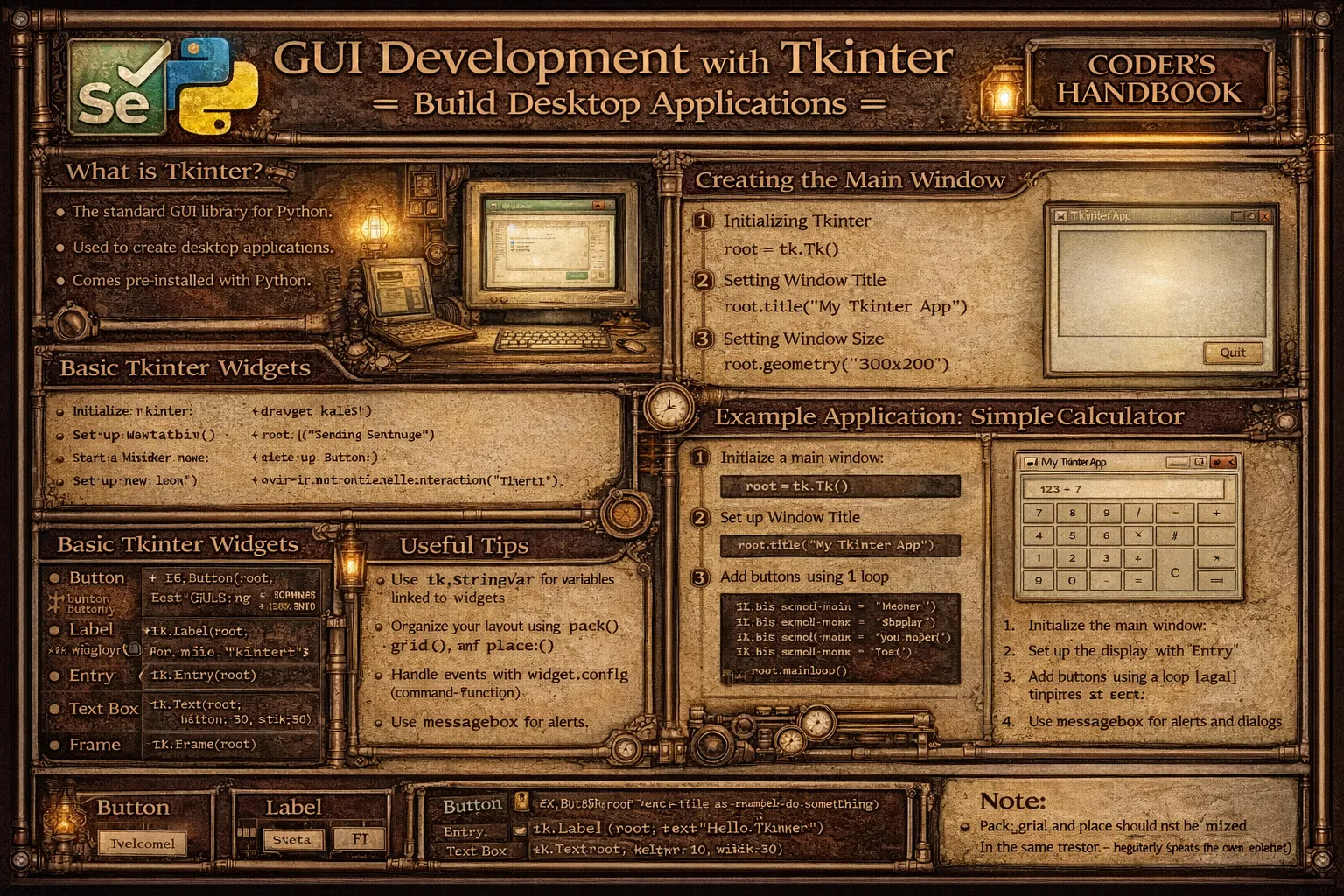
GUI (Graphical User Interface) development enables creating desktop applications with visual interfaces including windows, buttons, text fields, and interactive components replacing command-line interactions. Tkinter is Python's standard GUI library included with Python installations requiring no separate packages, providing cross-platform support running on Windows, macOS, and Linux with consistent interfaces. Tkinter offers comprehensive widget collection including Label displaying text, Button triggering actions, Entry accepting single-line input, Text for multi-line text, Frame organizing layouts, and many specialized widgets enabling professional desktop applications.
This comprehensive guide explores creating main windows with Tk() initializing application root providing parent container for widgets, configuring window properties setting title with title(), size with geometry(), and background colors, adding widgets creating Label widgets displaying text with customizable fonts and colors, Button widgets executing commands on clicks, Entry widgets accepting user input, Text widgets for multi-line content, Checkbutton and Radiobutton for selections, layout management using pack() stacking widgets vertically or horizontally, grid() arranging in table layout with rows and columns, and place() positioning at absolute coordinates, event handling binding functions to button clicks with command parameter, keyboard events with bind() method, and mouse events, widget styling configuring fonts with font parameter, colors with fg and bg, padding with padx and pady, and relief styles, and building complete applications combining multiple widgets, implementing functionality with event handlers, organizing code with classes, and creating practical tools like calculators, text editors, or data entry forms. Whether you're building utility applications for personal use, creating internal tools for businesses, developing data entry interfaces, prototyping application interfaces, or learning GUI programming concepts, mastering Tkinter provides essential skills for desktop application development enabling creation of interactive programs with visual interfaces supporting diverse user interactions.
Creating Windows and Basic Widgets
Creating GUI applications starts with establishing main window using Tk() class creating root window serving as container for all widgets. Basic widgets include Label for displaying text, Button for triggering actions, Entry for single-line input, and Text for multi-line content. Understanding widget creation and configuration enables building functional interfaces.
# Creating Windows and Basic Widgets

import tkinter as tk
from tkinter import messagebox

# === Creating main window ===

# Create root window
root = tk.Tk()

# Set window title
root.title("My Tkinter Application")

# Set window size (width x height)
root.geometry("600x400")

# Set minimum window size
root.minsize(400, 300)

# Set maximum window size
root.maxsize(800, 600)

# Set background color
root.config(bg="lightblue")

# Disable window resizing
# root.resizable(False, False)

# === Label widget ===

# Create simple label
label1 = tk.Label(root, text="Hello, Tkinter!")
label1.pack()

# Label with styling
label2 = tk.Label(
    root,
    text="Styled Label",
    font=("Arial", 16, "bold"),
    fg="white",          # Foreground (text) color
    bg="navy",           # Background color
    padx=20,             # Horizontal padding
    pady=10,             # Vertical padding
    relief="raised",     # Border style
    bd=3                 # Border width
)
label2.pack(pady=10)

# Label with image
# photo = tk.PhotoImage(file="image.png")
# label_image = tk.Label(root, image=photo)
# label_image.pack()

# === Button widget ===

def on_button_click():
    """Function called when button is clicked."""
    print("Button clicked!")
    messagebox.showinfo("Information", "You clicked the button!")

# Create button
button1 = tk.Button(
    root,
    text="Click Me",
    command=on_button_click,  # Function to call on click
    font=("Arial", 12),
    fg="white",
    bg="green",
    padx=20,
    pady=10,
    cursor="hand2"            # Change cursor on hover
)
button1.pack(pady=10)

# Button that changes label text
status_label = tk.Label(root, text="Status: Ready", font=("Arial", 11))
status_label.pack()

def update_status():
    status_label.config(text="Status: Button Clicked!")

update_button = tk.Button(
    root,
    text="Update Status",
    command=update_status
)
update_button.pack(pady=5)

# === Entry widget (single-line input) ===

label_entry = tk.Label(root, text="Enter your name:")
label_entry.pack()

entry1 = tk.Entry(
    root,
    font=("Arial", 12),
    width=30,
    bd=2
)
entry1.pack(pady=5)

# Get entry value
def get_entry_value():
    value = entry1.get()
    print(f"Entry value: {value}")
    messagebox.showinfo("Entry Value", f"You entered: {value}")

get_button = tk.Button(
    root,
    text="Get Entry",
    command=get_entry_value
)
get_button.pack(pady=5)

# Clear entry
def clear_entry():
    entry1.delete(0, tk.END)  # Delete from start to end

clear_button = tk.Button(root, text="Clear", command=clear_entry)
clear_button.pack(pady=5)

# Entry with default text
entry2 = tk.Entry(root, font=("Arial", 11))
entry2.insert(0, "Default text")  # Insert at position 0
entry2.pack(pady=5)

# Password entry
password_label = tk.Label(root, text="Password:")
password_label.pack()

password_entry = tk.Entry(root, show="*", font=("Arial", 12))
password_entry.pack(pady=5)

# === Text widget (multi-line input) ===

text_label = tk.Label(root, text="Multi-line text:")
text_label.pack()

text1 = tk.Text(
    root,
    height=5,
    width=40,
    font=("Arial", 11),
    wrap="word"  # Wrap by word
)
text1.pack(pady=5)

# Insert text
text1.insert("1.0", "Enter your text here...\n")

# Get text content
def get_text_value():
    value = text1.get("1.0", tk.END)  # From line 1, char 0 to end
    print(f"Text value: {value}")

text_button = tk.Button(root, text="Get Text", command=get_text_value)
text_button.pack(pady=5)

# === Checkbutton widget ===

check_var = tk.BooleanVar()

checkbutton = tk.Checkbutton(
    root,
    text="I agree to terms and conditions",
    variable=check_var,
    font=("Arial", 10)
)
checkbutton.pack(pady=5)

def check_agreement():
    if check_var.get():
        print("Checkbox is checked")
    else:
        print("Checkbox is unchecked")

check_button = tk.Button(root, text="Check Status", command=check_agreement)
check_button.pack(pady=5)

# === Radiobutton widget ===

radio_var = tk.StringVar()
radio_var.set("option1")  # Default selection

label_radio = tk.Label(root, text="Select an option:")
label_radio.pack()

radio1 = tk.Radiobutton(
    root,
    text="Option 1",
    variable=radio_var,
    value="option1"
)
radio1.pack()

radio2 = tk.Radiobutton(
    root,
    text="Option 2",
    variable=radio_var,
    value="option2"
)
radio2.pack()

radio3 = tk.Radiobutton(
    root,
    text="Option 3",
    variable=radio_var,
    value="option3"
)
radio3.pack()

def get_radio_value():
    selected = radio_var.get()
    print(f"Selected: {selected}")

radio_button = tk.Button(root, text="Get Selection", command=get_radio_value)
radio_button.pack(pady=5)

# === Listbox widget ===

label_listbox = tk.Label(root, text="Select items:")
label_listbox.pack()

listbox = tk.Listbox(
    root,
    height=4,
    selectmode=tk.MULTIPLE  # Allow multiple selection
)
listbox.pack(pady=5)

# Add items
items = ["Python", "Java", "C++", "JavaScript", "Ruby"]
for item in items:
    listbox.insert(tk.END, item)

def get_listbox_selection():
    selected_indices = listbox.curselection()
    selected_items = [listbox.get(i) for i in selected_indices]
    print(f"Selected: {selected_items}")

listbox_button = tk.Button(
    root,
    text="Get Selection",
    command=get_listbox_selection
)
listbox_button.pack(pady=5)

# Start event loop
root.mainloop()root.mainloop() at the end. It starts the event loop keeping window open and responsive to user interactions.Layout Management with Geometry Managers
Layout management controls widget positioning and sizing using geometry managers. Tkinter provides three geometry managers: pack() for simple stacking, grid() for table-based layouts organizing widgets in rows and columns, and place() for absolute positioning with x/y coordinates. Understanding geometry managers enables creating organized professional-looking interfaces.
# Layout Management with Geometry Managers

import tkinter as tk

# === Pack geometry manager ===

root_pack = tk.Tk()
root_pack.title("Pack Layout")
root_pack.geometry("400x300")

# Pack from top (default)
label1 = tk.Label(root_pack, text="Label 1 (Top)", bg="lightblue")
label1.pack(side="top", fill="x", padx=10, pady=5)

label2 = tk.Label(root_pack, text="Label 2 (Top)", bg="lightgreen")
label2.pack(side="top", fill="x", padx=10, pady=5)

# Pack from bottom
label3 = tk.Label(root_pack, text="Label 3 (Bottom)", bg="lightyellow")
label3.pack(side="bottom", fill="x", padx=10, pady=5)

# Pack from left
label4 = tk.Label(root_pack, text="Left", bg="lightcoral")
label4.pack(side="left", fill="y", padx=5, pady=5)

# Pack from right
label5 = tk.Label(root_pack, text="Right", bg="lightpink")
label5.pack(side="right", fill="y", padx=5, pady=5)

# Pack with expand
label6 = tk.Label(root_pack, text="Expanded", bg="lightgray")
label6.pack(side="top", fill="both", expand=True, padx=10, pady=10)

# === Grid geometry manager ===

root_grid = tk.Tk()
root_grid.title("Grid Layout")
root_grid.geometry("400x300")

# Create widgets in grid
label_name = tk.Label(root_grid, text="Name:")
label_name.grid(row=0, column=0, sticky="w", padx=10, pady=5)

entry_name = tk.Entry(root_grid, width=30)
entry_name.grid(row=0, column=1, padx=10, pady=5)

label_email = tk.Label(root_grid, text="Email:")
label_email.grid(row=1, column=0, sticky="w", padx=10, pady=5)

entry_email = tk.Entry(root_grid, width=30)
entry_email.grid(row=1, column=1, padx=10, pady=5)

label_message = tk.Label(root_grid, text="Message:")
label_message.grid(row=2, column=0, sticky="nw", padx=10, pady=5)

text_message = tk.Text(root_grid, width=30, height=5)
text_message.grid(row=2, column=1, padx=10, pady=5)

# Buttons spanning columns
button_submit = tk.Button(root_grid, text="Submit")
button_submit.grid(row=3, column=0, columnspan=2, pady=10)

# === Grid with columnspan and rowspan ===

root_span = tk.Tk()
root_span.title("Grid with Span")
root_span.geometry("300x200")

# Widget spanning 2 columns
label_header = tk.Label(
    root_span,
    text="Form Header",
    font=("Arial", 14, "bold"),
    bg="navy",
    fg="white"
)
label_header.grid(row=0, column=0, columnspan=2, sticky="ew", pady=10)

label1 = tk.Label(root_span, text="Field 1:")
label1.grid(row=1, column=0, sticky="e", padx=5, pady=5)

entry1 = tk.Entry(root_span)
entry1.grid(row=1, column=1, padx=5, pady=5)

label2 = tk.Label(root_span, text="Field 2:")
label2.grid(row=2, column=0, sticky="e", padx=5, pady=5)

entry2 = tk.Entry(root_span)
entry2.grid(row=2, column=1, padx=5, pady=5)

# Button spanning 2 rows
button_side = tk.Button(root_span, text="Side\nButton", height=3)
button_side.grid(row=1, column=2, rowspan=2, padx=10)

# === Sticky parameter (alignment) ===

root_sticky = tk.Tk()
root_sticky.title("Sticky Examples")
root_sticky.geometry("300x200")

# Configure column weight (makes column expandable)
root_sticky.columnconfigure(1, weight=1)

# sticky="n" - North (top)
label_n = tk.Label(root_sticky, text="North", bg="lightblue")
label_n.grid(row=0, column=0, sticky="n")

# sticky="s" - South (bottom)
label_s = tk.Label(root_sticky, text="South", bg="lightgreen")
label_s.grid(row=0, column=1, sticky="s")

# sticky="e" - East (right)
label_e = tk.Label(root_sticky, text="East", bg="lightyellow")
label_e.grid(row=1, column=0, sticky="e")

# sticky="w" - West (left)
label_w = tk.Label(root_sticky, text="West", bg="lightcoral")
label_w.grid(row=1, column=1, sticky="w")

# sticky="ew" - Stretch horizontally
label_ew = tk.Label(root_sticky, text="East-West", bg="lightgray")
label_ew.grid(row=2, column=0, columnspan=2, sticky="ew")

# sticky="nsew" - Fill entire cell
label_nsew = tk.Label(root_sticky, text="All Directions", bg="lightpink")
label_nsew.grid(row=3, column=0, columnspan=2, sticky="nsew")

# === Place geometry manager ===

root_place = tk.Tk()
root_place.title("Place Layout")
root_place.geometry("400x300")

# Absolute positioning
label_abs = tk.Label(root_place, text="Absolute (x=50, y=50)", bg="lightblue")
label_abs.place(x=50, y=50)

# Relative positioning (using relative coordinates)
label_rel = tk.Label(root_place, text="Relative (50%, 50%)", bg="lightgreen")
label_rel.place(relx=0.5, rely=0.5, anchor="center")

# Positioned button
button_place = tk.Button(root_place, text="Bottom Right")
button_place.place(relx=1.0, rely=1.0, x=-10, y=-10, anchor="se")

# === Frames for organization ===

root_frames = tk.Tk()
root_frames.title("Frames Layout")
root_frames.geometry("500x300")

# Top frame
top_frame = tk.Frame(root_frames, bg="lightblue", height=100)
top_frame.pack(side="top", fill="x")

label_top = tk.Label(top_frame, text="Top Frame", bg="lightblue")
label_top.pack(pady=20)

# Bottom frame with two sub-frames
bottom_frame = tk.Frame(root_frames)
bottom_frame.pack(side="bottom", fill="both", expand=True)

# Left sub-frame
left_frame = tk.Frame(bottom_frame, bg="lightgreen", width=200)
left_frame.pack(side="left", fill="both", expand=True)

label_left = tk.Label(left_frame, text="Left Frame", bg="lightgreen")
label_left.pack(pady=20)

# Right sub-frame
right_frame = tk.Frame(bottom_frame, bg="lightyellow", width=200)
right_frame.pack(side="right", fill="both", expand=True)

label_right = tk.Label(right_frame, text="Right Frame", bg="lightyellow")
label_right.pack(pady=20)

# === Calculator layout example ===

root_calc = tk.Tk()
root_calc.title("Calculator Layout")
root_calc.geometry("300x400")

# Display
display = tk.Entry(
    root_calc,
    font=("Arial", 20),
    justify="right",
    bd=5
)
display.grid(row=0, column=0, columnspan=4, sticky="ew", padx=5, pady=5)

# Buttons
buttons = [
    '7', '8', '9', '/',
    '4', '5', '6', '*',
    '1', '2', '3', '-',
    '0', '.', '=', '+'
]

row = 1
col = 0

for button_text in buttons:
    button = tk.Button(
        root_calc,
        text=button_text,
        font=("Arial", 16),
        width=5,
        height=2
    )
    button.grid(row=row, column=col, padx=2, pady=2)

    col += 1
    if col > 3:
        col = 0
        row += 1

# Configure grid weights for resizing
for i in range(4):
    root_calc.columnconfigure(i, weight=1)

for i in range(5):
    root_calc.rowconfigure(i, weight=1)

# Start all windows
root_pack.mainloop()
# root_grid.mainloop()  # Uncomment to run
# root_span.mainloop()  # Uncomment to run
# root_sticky.mainloop()  # Uncomment to run
# root_place.mainloop()  # Uncomment to run
# root_frames.mainloop()  # Uncomment to run
# root_calc.mainloop() # Uncomment to runEvent Handling and Interactive Applications
Event handling makes applications interactive responding to user actions like button clicks, key presses, and mouse movements. Button commands use command parameter specifying callback functions, while bind() method attaches event handlers to widgets for keyboard and mouse events. Understanding event handling enables creating responsive applications reacting to user input.
# Event Handling and Interactive Applications

import tkinter as tk
from tkinter import messagebox

root = tk.Tk()
root.title("Event Handling Examples")
root.geometry("500x400")

# === Button command events ===

counter = 0
counter_label = tk.Label(root, text=f"Count: {counter}", font=("Arial", 14))
counter_label.pack(pady=10)

def increment():
    global counter
    counter += 1
    counter_label.config(text=f"Count: {counter}")

def decrement():
    global counter
    counter -= 1
    counter_label.config(text=f"Count: {counter}")

def reset():
    global counter
    counter = 0
    counter_label.config(text=f"Count: {counter}")

button_frame = tk.Frame(root)
button_frame.pack(pady=10)

tk.Button(button_frame, text="+", command=increment, width=10).pack(side="left", padx=5)
tk.Button(button_frame, text="-", command=decrement, width=10).pack(side="left", padx=5)
tk.Button(button_frame, text="Reset", command=reset, width=10).pack(side="left", padx=5)

# === Keyboard events ===

entry_kb = tk.Entry(root, font=("Arial", 12))
entry_kb.pack(pady=10)

keyboard_label = tk.Label(root, text="Type something...", font=("Arial", 11))
keyboard_label.pack()

def on_key_press(event):
    """Called when key is pressed."""
    keyboard_label.config(text=f"Key pressed: {event.char} (keycode: {event.keycode})")

def on_return(event):
    """Called when Enter is pressed."""
    text = entry_kb.get()
    messagebox.showinfo("Entry", f"You entered: {text}")
    entry_kb.delete(0, tk.END)

# Bind keyboard events
entry_kb.bind("<KeyPress>", on_key_press)
entry_kb.bind("<Return>", on_return)

# === Mouse events ===

mouse_label = tk.Label(
    root,
    text="Mouse Events Area",
    bg="lightblue",
    width=40,
    height=5,
    font=("Arial", 12)
)
mouse_label.pack(pady=10)

event_label = tk.Label(root, text="No mouse event", font=("Arial", 10))
event_label.pack()

def on_mouse_click(event):
    """Called on mouse click."""
    event_label.config(text=f"Clicked at ({event.x}, {event.y})")

def on_mouse_enter(event):
    """Called when mouse enters widget."""
    mouse_label.config(bg="lightgreen")
    event_label.config(text="Mouse entered")

def on_mouse_leave(event):
    """Called when mouse leaves widget."""
    mouse_label.config(bg="lightblue")
    event_label.config(text="Mouse left")

def on_mouse_motion(event):
    """Called on mouse movement."""
    event_label.config(text=f"Mouse at ({event.x}, {event.y})")

# Bind mouse events
mouse_label.bind("<Button-1>", on_mouse_click)      # Left click
mouse_label.bind("<Enter>", on_mouse_enter)         # Mouse enter
mouse_label.bind("<Leave>", on_mouse_leave)         # Mouse leave
mouse_label.bind("<Motion>", on_mouse_motion)       # Mouse movement

# === Complete example: Simple text editor ===

root_editor = tk.Tk()
root_editor.title("Simple Text Editor")
root_editor.geometry("600x400")

# Text widget with scrollbar
text_frame = tk.Frame(root_editor)
text_frame.pack(fill="both", expand=True, padx=10, pady=10)

scrollbar = tk.Scrollbar(text_frame)
scrollbar.pack(side="right", fill="y")

text_editor = tk.Text(
    text_frame,
    font=("Courier", 11),
    undo=True,
    wrap="word",
    yscrollcommand=scrollbar.set
)
text_editor.pack(side="left", fill="both", expand=True)
scrollbar.config(command=text_editor.yview)

# Menu bar
menu_bar = tk.Menu(root_editor)
root_editor.config(menu=menu_bar)

def new_file():
    text_editor.delete("1.0", tk.END)

def save_file():
    content = text_editor.get("1.0", tk.END)
    with open("output.txt", "w") as f:
        f.write(content)
    messagebox.showinfo("Saved", "File saved successfully!")

def exit_app():
    if messagebox.askokcancel("Quit", "Do you want to quit?"):
        root_editor.destroy()

# File menu
file_menu = tk.Menu(menu_bar, tearoff=0)
menu_bar.add_cascade(label="File", menu=file_menu)
file_menu.add_command(label="New", command=new_file)
file_menu.add_command(label="Save", command=save_file)
file_menu.add_separator()
file_menu.add_command(label="Exit", command=exit_app)

# Edit menu
edit_menu = tk.Menu(menu_bar, tearoff=0)
menu_bar.add_cascade(label="Edit", menu=edit_menu)
edit_menu.add_command(label="Cut", command=lambda: text_editor.event_generate("<<Cut>>"))
edit_menu.add_command(label="Copy", command=lambda: text_editor.event_generate("<<Copy>>"))
edit_menu.add_command(label="Paste", command=lambda: text_editor.event_generate("<<Paste>>"))

# === Complete example: Login form ===

root_login = tk.Tk()
root_login.title("Login Form")
root_login.geometry("350x250")

# Title
title_label = tk.Label(
    root_login,
    text="User Login",
    font=("Arial", 18, "bold"),
    fg="navy"
)
title_label.pack(pady=20)

# Form frame
form_frame = tk.Frame(root_login)
form_frame.pack(pady=10)

# Username
tk.Label(form_frame, text="Username:", font=("Arial", 11)).grid(
    row=0, column=0, sticky="e", padx=10, pady=10
)
username_entry = tk.Entry(form_frame, font=("Arial", 11), width=20)
username_entry.grid(row=0, column=1, padx=10, pady=10)

# Password
tk.Label(form_frame, text="Password:", font=("Arial", 11)).grid(
    row=1, column=0, sticky="e", padx=10, pady=10
)
password_entry = tk.Entry(form_frame, font=("Arial", 11), width=20, show="*")
password_entry.grid(row=1, column=1, padx=10, pady=10)

def login():
    username = username_entry.get()
    password = password_entry.get()

    if username == "admin" and password == "password":
        messagebox.showinfo("Success", "Login successful!")
    else:
        messagebox.showerror("Error", "Invalid credentials!")
        password_entry.delete(0, tk.END)

def clear_form():
    username_entry.delete(0, tk.END)
    password_entry.delete(0, tk.END)
    username_entry.focus()

# Button frame
button_frame = tk.Frame(root_login)
button_frame.pack(pady=20)

tk.Button(
    button_frame,
    text="Login",
    command=login,
    bg="green",
    fg="white",
    font=("Arial", 11, "bold"),
    width=10
).pack(side="left", padx=5)

tk.Button(
    button_frame,
    text="Clear",
    command=clear_form,
    font=("Arial", 11),
    width=10
).pack(side="left", padx=5)

# Bind Enter key to login
password_entry.bind("<Return>", lambda e: login())

root.mainloop()
# root_editor.mainloop()  # Uncomment to run
# root_login.mainloop()  # Uncomment to run
GUI Development Best Practices
- Use consistent layout manager: Choose one geometry manager per parent widget. Never mix pack() and grid() in same container causing unpredictable layouts
- Organize with frames: Use Frame widgets grouping related widgets together. Improves organization and makes complex layouts manageable
- Implement proper event handlers: Separate UI code from logic. Create functions handling button clicks and events keeping code organized and testable
- Use classes for complex apps: Organize large applications with classes inheriting from tk.Tk or tk.Frame. Encapsulates state and methods improving maintainability
- Provide user feedback: Use messagebox for confirmations and errors. Update labels showing operation status. Users need feedback for actions
- Handle exceptions gracefully: Wrap file operations and user input processing in try-except blocks. Display friendly error messages preventing crashes
- Set consistent styling: Define color schemes and fonts consistently. Create style dictionaries applying to multiple widgets ensuring professional appearance
- Make windows resizable properly: Configure grid weights allowing widgets to resize. Test applications at different window sizes ensuring usability
- Use keyboard shortcuts: Bind common operations to keyboard shortcuts (Ctrl+S for save). Improves user experience for power users
- Validate user input: Check entry values before processing. Provide clear error messages for invalid input preventing application errors
tk.Tk organizing code better. Define widgets in __init__ and methods for functionality.Conclusion
GUI development with Tkinter enables creating desktop applications with visual interfaces replacing command-line interactions through comprehensive widget collection and intuitive APIs. Creating applications starts with Tk() initializing root window serving as container for all widgets, with window configuration through title() setting window titles, geometry() specifying dimensions, config() setting properties like background colors, and methods controlling window behavior including resizable(), minsize(), and maxsize(). Basic widgets include Label displaying text and images with configurable fonts, colors, and styling, Button executing commands on clicks using command parameter, Entry accepting single-line text input with methods like get() retrieving values and delete() clearing content, Text for multi-line input supporting rich text editing, Checkbutton for boolean selections using BooleanVar, Radiobutton for mutually exclusive choices with StringVar or IntVar, and Listbox displaying selectable item lists.
Layout management organizes widgets using geometry managers with pack() stacking widgets vertically or horizontally using side parameter, fill controlling expansion, and expand allowing widgets to grow, grid() arranging widgets in table layout with row and column parameters, sticky for alignment, columnspan and rowspan for spanning cells, and padx/pady for spacing, and place() positioning widgets at absolute or relative coordinates using x/y or relx/rely parameters. Event handling makes applications interactive with button commands using command parameter specifying callback functions executed on clicks, keyboard events bound with bind() method accepting event patterns like
$ share --platform
$ cat /comments/ (0)
$ cat /comments/
// No comments found. Be the first!