Tauri 2.0 Windows Build Creating .exe and .msi Installers
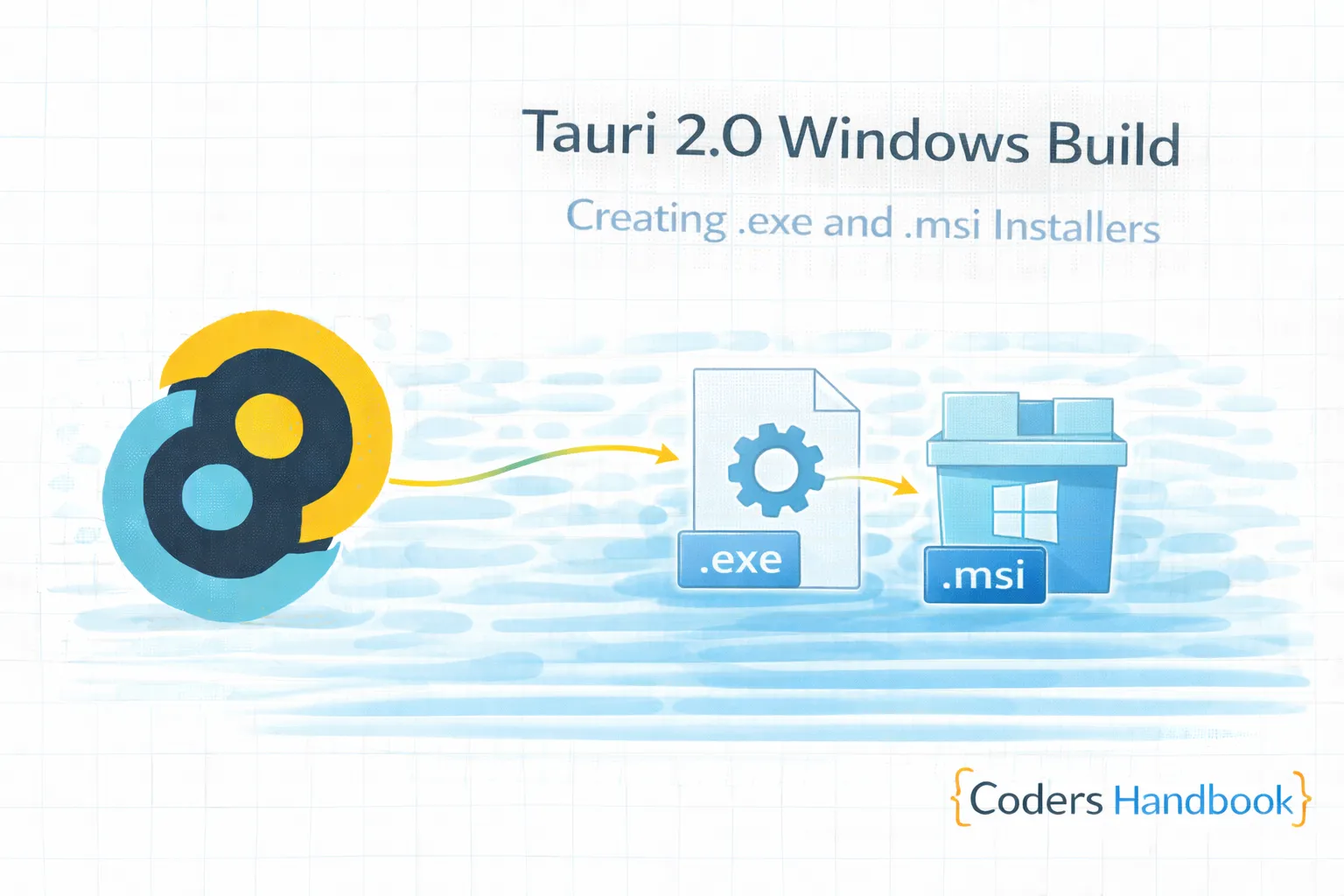
Windows build configuration in Tauri 2.0 creates professional installers using NSIS and WiX Toolset generating executable installers and MSI packages enabling seamless Windows distribution—essential process for reaching Windows users providing familiar installation experience, proper system integration, and Windows Installer support maintaining Windows ecosystem standards users expect. Windows builds combine NSIS installers creating lightweight .exe setup files with custom installation UI, MSI packages using WiX Toolset providing enterprise-grade Windows Installer integration, code signing with Authenticode certificates ensuring application authenticity, installation customization configuring install directories and shortcuts, update mechanisms enabling automatic updates, and system integration with Start Menu, desktop shortcuts, file associations delivering comprehensive Windows distribution solution. This comprehensive guide covers understanding Windows installer formats and differences, creating NSIS installers with custom installation pages, building MSI packages with WiX Toolset configuration, implementing code signing with Authenticode certificates, configuring installation options and user experience, setting up silent installation for enterprise deployment, troubleshooting Windows Defender and SmartScreen issues, and real-world examples including custom branded installer, silent deployment configuration, and properly signed Windows application maintaining professional Windows distribution through proper build configuration. Mastering Windows build patterns enables building distributable applications reaching Windows users. Before proceeding, understand build configuration and general packaging concepts.
NSIS Installer Configuration
NSIS (Nullsoft Scriptable Install System) creates lightweight .exe installers. Understanding NSIS configuration enables creating customizable Windows installers with branded installation experience maintaining professional appearance.
// tauri.conf.json - NSIS configuration
{
  "bundle": {
    "active": true,
    "targets": ["nsis"],
    "identifier": "com.mycompany.myapp",
    "icon": ["icons/icon.ico"],

    "windows": {
      "certificateThumbprint": null,
      "digestAlgorithm": "sha256",
      "timestampUrl": "",

      "nsis": {
        // Installer configuration
        "installerIcon": "icons/installer.ico",
        "headerImage": "installer/header.bmp",
        "sidebarImage": "installer/sidebar.bmp",

        // Installation options
        "installMode": "perMachine",  // or "currentUser"
        "allowDowngrades": true,
        "perMachineUpgrade": true,

        // Shortcuts
        "createDesktopShortcut": "always",  // "always", "never", "prompt"
        "createStartMenuShortcut": true,

        // Custom languages
        "languages": ["English", "Spanish", "French", "German"],

        // License file
        "license": "LICENSE.rtf",

        // Custom NSIS script
        "template": null,

        // Display language selector
        "displayLanguageSelector": false
      }
    }
  }
}

// Build NSIS installer
npm run tauri build -- --target nsis

// Output location:
// src-tauri/target/release/bundle/nsis/MyApp_1.0.0_x64-setup.exe

// Custom NSIS script (advanced)
// Create custom-installer.nsi
!include "MUI2.nsh"

Name "MyApp"
OutFile "MyApp-Setup.exe"
InstallDir "$PROGRAMFILES64\MyApp"

# Modern UI settings
!define MUI_ABORTWARNING
!define MUI_ICON "icons\installer.ico"
!define MUI_UNICON "icons\uninstaller.ico"
!define MUI_HEADERIMAGE
!define MUI_HEADERIMAGE_BITMAP "installer\header.bmp"
!define MUI_WELCOMEFINISHPAGE_BITMAP "installer\sidebar.bmp"

# Pages
!insertmacro MUI_PAGE_WELCOME
!insertmacro MUI_PAGE_LICENSE "LICENSE.txt"
!insertmacro MUI_PAGE_COMPONENTS
!insertmacro MUI_PAGE_DIRECTORY
!insertmacro MUI_PAGE_INSTFILES
!insertmacro MUI_PAGE_FINISH

!insertmacro MUI_UNPAGE_WELCOME
!insertmacro MUI_UNPAGE_CONFIRM
!insertmacro MUI_UNPAGE_INSTFILES
!insertmacro MUI_UNPAGE_FINISH

# Languages
!insertmacro MUI_LANGUAGE "English"

# Installation section
Section "MyApp" SecMain
  SetOutPath "$INSTDIR"

  # Copy files
  File /r "release\*.*"

  # Create shortcuts
  CreateDirectory "$SMPROGRAMS\MyApp"
  CreateShortcut "$SMPROGRAMS\MyApp\MyApp.lnk" "$INSTDIR\MyApp.exe"
  CreateShortcut "$DESKTOP\MyApp.lnk" "$INSTDIR\MyApp.exe"

  # Registry keys
  WriteRegStr HKLM "Software\MyApp" "InstallPath" "$INSTDIR"
  WriteRegStr HKLM "Software\Microsoft\Windows\CurrentVersion\Uninstall\MyApp" \
    "DisplayName" "MyApp"
  WriteRegStr HKLM "Software\Microsoft\Windows\CurrentVersion\Uninstall\MyApp" \
    "UninstallString" "$INSTDIR\Uninstall.exe"

  # Create uninstaller
  WriteUninstaller "$INSTDIR\Uninstall.exe"
SectionEnd

# Uninstaller section
Section "Uninstall"
  # Remove files
  RMDir /r "$INSTDIR"

  # Remove shortcuts
  Delete "$SMPROGRAMS\MyApp\MyApp.lnk"
  Delete "$DESKTOP\MyApp.lnk"
  RMDir "$SMPROGRAMS\MyApp"

  # Remove registry keys
  DeleteRegKey HKLM "Software\MyApp"
  DeleteRegKey HKLM "Software\Microsoft\Windows\CurrentVersion\Uninstall\MyApp"
SectionEnd

// Silent installation
MyApp-Setup.exe /S

// Custom install directory
MyApp-Setup.exe /D=C:\CustomPath\MyApp
WiX Toolset MSI Packages
WiX Toolset creates MSI packages for enterprise environments. Understanding WiX configuration enables building Windows Installer packages supporting Group Policy deployment and enterprise management tools.
// tauri.conf.json - WiX MSI configuration
{
  "bundle": {
    "targets": ["msi"],
    "windows": {
      "wix": {
        // WiX configuration
        "language": ["en-US"],
        "dialogImagePath": "installer/dialog.bmp",
        "bannerPath": "installer/banner.bmp",

        // Custom WiX source
        "template": null,

        // Component group refs
        "componentRefs": [],

        // Feature refs
        "featureRefs": [],

        // Merge modules
        "mergeRefs": [],

        // Skip webview install
        "skipWebviewInstall": false,

        // License
        "license": "LICENSE.rtf",

        // Enable elevated update
        "enableElevatedUpdateRuntime": false
      }
    }
  }
}

// Build MSI package
npm run tauri build -- --target msi

// Custom WiX template (advanced)
// Create custom.wxs
<?xml version="1.0" encoding="UTF-8"?>
<Wix xmlns="http://schemas.microsoft.com/wix/2006/wi">
  <Product
    Id="*"
    Name="MyApp"
    Language="1033"
    Version="1.0.0"
    Manufacturer="MyCompany"
    UpgradeCode="{YOUR-GUID-HERE}">

    <Package
      InstallerVersion="500"
      Compressed="yes"
      InstallScope="perMachine"
      Description="MyApp Installer"
      Comments="MyApp - A powerful desktop application" />

    <!-- Media -->
    <Media Id="1" Cabinet="myapp.cab" EmbedCab="yes" />

    <!-- Upgrade handling -->
    <MajorUpgrade
      DowngradeErrorMessage="A newer version is already installed."
      AllowSameVersionUpgrades="yes" />

    <!-- Installation directory -->
    <Directory Id="TARGETDIR" Name="SourceDir">
      <Directory Id="ProgramFiles64Folder">
        <Directory Id="INSTALLDIR" Name="MyApp">
          <!-- Application files -->
          <Component Id="MainExecutable" Guid="{GUID}">
            <File
              Id="MyAppExe"
              Source="MyApp.exe"
              KeyPath="yes"
              Checksum="yes" />

            <!-- Start Menu shortcut -->
            <Shortcut
              Id="StartMenuShortcut"
              Directory="ProgramMenuFolder"
              Name="MyApp"
              WorkingDirectory="INSTALLDIR"
              Icon="AppIcon.exe"
              IconIndex="0"
              Advertise="yes" />

            <!-- Desktop shortcut -->
            <Shortcut
              Id="DesktopShortcut"
              Directory="DesktopFolder"
              Name="MyApp"
              WorkingDirectory="INSTALLDIR"
              Icon="AppIcon.exe"
              IconIndex="0"
              Advertise="yes" />

            <!-- Registry keys -->
            <RegistryValue
              Root="HKCU"
              Key="Software\MyCompany\MyApp"
              Name="InstallPath"
              Type="string"
              Value="[INSTALLDIR]"
              KeyPath="no" />
          </Component>
        </Directory>
      </Directory>

      <!-- Program Menu folder -->
      <Directory Id="ProgramMenuFolder" />

      <!-- Desktop folder -->
      <Directory Id="DesktopFolder" Name="Desktop" />
    </Directory>

    <!-- Features -->
    <Feature Id="Complete" Level="1">
      <ComponentRef Id="MainExecutable" />
    </Feature>

    <!-- UI -->
    <UIRef Id="WixUI_InstallDir" />
    <Property Id="WIXUI_INSTALLDIR" Value="INSTALLDIR" />

    <!-- Icon -->
    <Icon Id="AppIcon.exe" SourceFile="MyApp.exe" />
    <Property Id="ARPPRODUCTICON" Value="AppIcon.exe" />

    <!-- Add/Remove Programs -->
    <Property Id="ARPHELPLINK" Value="https://myapp.com/support" />
    <Property Id="ARPURLINFOABOUT" Value="https://myapp.com" />
  </Product>
</Wix>

// Build custom WiX installer
candle.exe custom.wxs
light.exe custom.wixobj -out MyApp.msi

// Silent MSI installation
msiexec /i MyApp.msi /qn

// MSI with logging
msiexec /i MyApp.msi /l*v install.log

// Uninstall MSI
msiexec /x MyApp.msi /qn
Code Signing with Authenticode
Windows requires code signing to avoid SmartScreen warnings. Understanding Authenticode signing enables creating trusted Windows applications passing Windows Defender and SmartScreen verification maintaining user trust.
// 1. Obtain code signing certificate
// Options:
// - DigiCert, Sectigo, GlobalSign ($200-400/year)
// - SSL.com ($200/year)
// - Certum ($70/year)

// 2. Export certificate with private key (.pfx)

// 3. Configure Tauri for signing
// tauri.conf.json
{
  "bundle": {
    "windows": {
      "certificateThumbprint": "YOUR_CERT_THUMBPRINT",
      "digestAlgorithm": "sha256",
      "timestampUrl": "http://timestamp.digicert.com"
    }
  }
}

// Get certificate thumbprint (PowerShell)
Get-ChildItem -Path Cert:\CurrentUser\My

// Or from .pfx file
certutil -dump certificate.pfx

// Manual signing with signtool
// Install Windows SDK for signtool.exe

// Sign executable
signtool sign /f certificate.pfx /p password /fd SHA256 \
  /tr http://timestamp.digicert.com /td SHA256 \
  /d "MyApp" /du "https://myapp.com" \
  MyApp.exe

// Verify signature
signtool verify /pa /v MyApp.exe

// Environment variables for CI/CD
// GitHub Actions
env:
  WINDOWS_CERTIFICATE: ${{ secrets.WINDOWS_CERTIFICATE }}
  WINDOWS_CERTIFICATE_PASSWORD: ${{ secrets.WINDOWS_CERTIFICATE_PASSWORD }}
  TAURI_PRIVATE_KEY: ${{ secrets.TAURI_PRIVATE_KEY }}
  TAURI_KEY_PASSWORD: ${{ secrets.TAURI_KEY_PASSWORD }}

// Decode and import certificate in CI
- name: Import Certificate
  run: |
    $pfxPath = "$env:TEMP\certificate.pfx"
    $pfxBytes = [System.Convert]::FromBase64String($env:WINDOWS_CERTIFICATE)
    [IO.File]::WriteAllBytes($pfxPath, $pfxBytes)
    Import-PfxCertificate -FilePath $pfxPath \
      -CertStoreLocation Cert:\CurrentUser\My \
      -Password (ConvertTo-SecureString -String $env:WINDOWS_CERTIFICATE_PASSWORD -AsPlainText -Force)
  shell: powershell

// Sign after build
- name: Sign Installer
  run: |
    $installers = Get-ChildItem -Path "src-tauri/target/release/bundle" -Filter "*.exe" -Recurse
    foreach ($installer in $installers) {
      & "C:\Program Files (x86)\Windows Kits\10\bin\10.0.22621.0\x64\signtool.exe" sign `
        /f "$env:TEMP\certificate.pfx" `
        /p "$env:WINDOWS_CERTIFICATE_PASSWORD" `
        /fd SHA256 `
        /tr http://timestamp.digicert.com `
        /td SHA256 `
        /d "MyApp" `
        $installer.FullName
    }
  shell: powershell

// SmartScreen reputation
// - New certificates trigger warnings
// - Build reputation through:
//   1. Extended Validation (EV) certificate (instant trust)
//   2. Standard certificate + downloads over time
//   3. Submit to Microsoft SmartScreen for review
NSIS vs MSI Comparison
| Feature | NSIS | MSI (WiX) |
|---|---|---|
| File Format | .exe | .msi |
| Installer Size | Smaller | Larger |
| Customization | Highly customizable UI | Standard Windows UI |
| Enterprise Deploy | Limited | Full Group Policy support |
| Silent Install | /S flag | /qn flag |
| Repair/Modify | Manual implementation | Built-in support |
| Rollback | Manual | Automatic |
| Best For | Consumer apps, custom branding | Enterprise, corporate deployment |
Windows Build Best Practices
- Always Sign: Code sign all executables and installers
- Use Timestamp: Include timestamp URL for signature validity
- Test on Clean VM: Verify installation on fresh Windows install
- Support Silent Install: Enable enterprise deployment scenarios
- Proper Uninstall: Clean up all files, registry keys, shortcuts
- Version Management: Handle upgrades and downgrades properly
- Admin Rights: Request UAC elevation when needed
- WebView2 Runtime: Bundle or check for WebView2 installation
- Custom Branding: Use branded icons and installer graphics
- Test SmartScreen: Verify no warnings with signed builds
Next Steps
- macOS Build: DMG and app bundles with macOS guide
- Linux Build: DEB, RPM, AppImage with Linux packaging
- Build Config: Optimization with build configuration
- Getting Started: Review basics with first app
Conclusion
Mastering Windows build configuration in Tauri 2.0 enables building professional distributable Windows applications providing familiar installation experience users expect maintaining Windows ecosystem standards through proper installer creation and code signing. Windows builds combine NSIS installers creating lightweight customizable .exe setup files with branded installation UI, MSI packages using WiX Toolset providing enterprise-grade Windows Installer integration supporting Group Policy deployment, code signing with Authenticode certificates ensuring application authenticity passing Windows Defender and SmartScreen verification, installation customization configuring directories and shortcuts, and comprehensive testing ensuring proper installation and uninstallation delivering trusted Windows distribution solution. Understanding Windows build patterns including NSIS configuration with custom installation pages, WiX MSI creation with Windows Installer support, Authenticode signing with certificate management, silent installation for enterprise scenarios, and best practices maintaining Windows standards establishes foundation for professional Windows application distribution delivering trusted installations maintaining user confidence through proper Windows builds Windows users depend on!
$ share --platform
$ cat /comments/ (0)
$ cat /comments/
// No comments found. Be the first!