Tauri 2.0 Shell API Opening URLs and Files
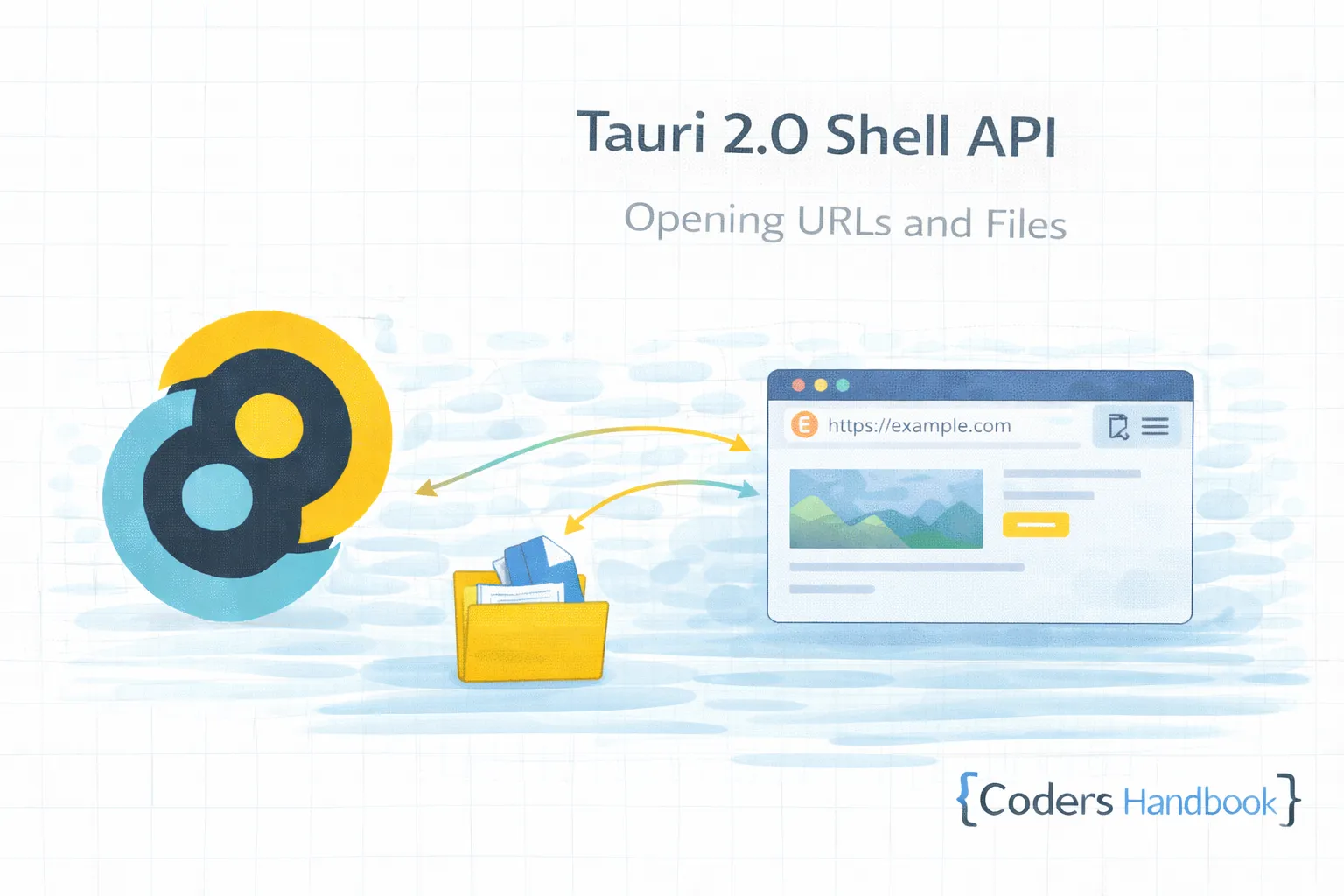
Shell API in Tauri 2.0 enables desktop applications to open URLs in default browser, launch files with associated applications, and open folders in file explorer providing seamless integration with system defaults maintaining user preferences for file handlers and browsers—essential feature for applications requiring external resource access, documentation links, file viewing, or system folder navigation maintaining native system integration users expect from desktop applications. Shell operations combine URL opening launching web browsers with security validation preventing malicious redirects, file opening using system file associations respecting user-configured default applications, folder opening showing directories in native file managers, and permission controls ensuring secure external launches delivering safe system integration. This comprehensive guide covers understanding Shell API architecture and security model, opening URLs with protocol validation, launching files with type detection, opening folders with path validation, handling shell open failures gracefully, implementing URL whitelist preventing unauthorized sites, building download managers with shell integration, creating help systems with documentation links, and real-world examples including external link handler with confirmation dialogs, file viewer launcher with association detection, and folder browser with quick access maintaining safe external resource access through controlled shell operations. Mastering Shell API patterns enables building professional desktop applications integrating seamlessly with system defaults while maintaining security through proper validation and user confirmation. Before proceeding, understand process management and file system operations.
Opening URLs in Default Browser
Opening URLs launches system default browser with specified address. Understanding URL opening enables building applications with external documentation, support links, or web content maintaining user browser preferences and security through URL validation.
// Frontend: Open URLs with Shell API
import { open } from '@tauri-apps/api/shell';

// Open URL in default browser
async function openUrl(url: string) {
  try {
    await open(url);
    console.log(`Opened URL: ${url}`);
  } catch (error) {
    console.error('Failed to open URL:', error);
  }
}

// Open external link with validation
async function openExternalLink(url: string) {
  // Validate URL format
  if (!isValidUrl(url)) {
    console.error('Invalid URL format');
    return;
  }

  // Confirm before opening external links
  const confirmed = confirm(`Open external link?\n${url}`);
  if (!confirmed) return;

  try {
    await open(url);
  } catch (error) {
    alert('Failed to open link. Please copy and open manually.');
  }
}

function isValidUrl(url: string): boolean {
  try {
    const parsed = new URL(url);
    return ['http:', 'https:'].includes(parsed.protocol);
  } catch {
    return false;
  }
}

// Usage examples
await openUrl('https://tauri.app');
await openUrl('https://github.com/tauri-apps/tauri');
await openExternalLink('https://docs.rs/tauri');

// React component with external links
import React from 'react';
import { open } from '@tauri-apps/api/shell';

interface ExternalLinkProps {
  href: string;
  children: React.ReactNode;
}

const ExternalLink: React.FC<ExternalLinkProps> = ({ href, children }) => {
  const handleClick = async (e: React.MouseEvent) => {
    e.preventDefault();

    try {
      await open(href);
    } catch (error) {
      console.error('Failed to open link:', error);
    }
  };

  return (
    <a
      href={href}
      onClick={handleClick}
      style={{ color: '#0066cc', cursor: 'pointer' }}
    >
      {children} 🔗
    </a>
  );
};

// Usage
function App() {
  return (
    <div>
      <h1>External Links</h1>
      <p>
        Visit our <ExternalLink href="https://tauri.app">website</ExternalLink>
      </p>
      <p>
        Check the{' '}
        <ExternalLink href="https://github.com/tauri-apps/tauri">
          GitHub repository
        </ExternalLink>
      </p>
    </div>
  );
}

// Rust: Backend URL validation and opening
use tauri::api::shell;

#[tauri::command]
async fn open_url_safe(url: String) -> Result<(), String> {
    // Validate URL
    if !url.starts_with("https://") && !url.starts_with("http://") {
        return Err("Invalid URL protocol".to_string());
    }

    // Whitelist domains (optional)
    let allowed_domains = vec![
        "tauri.app",
        "github.com",
        "docs.rs",
    ];

    let url_obj = url::Url::parse(&url)
        .map_err(|e| format!("Invalid URL: {}", e))?;

    if let Some(host) = url_obj.host_str() {
        if !allowed_domains.iter().any(|d| host.ends_with(d)) {
            return Err(format!("Domain not whitelisted: {}", host));
        }
    }

    // Open URL
    shell::open(&url, None)
        .map_err(|e| format!("Failed to open URL: {}", e))?;

    Ok(())
}

#[tauri::command]
async fn open_documentation_url(section: String) -> Result<(), String> {
    let base_url = "https://tauri.app/v1/guides/";
    let url = format!("{}{}", base_url, section);

    shell::open(&url, None)
        .map_err(|e| format!("Failed to open documentation: {}", e))?;

    Ok(())
}
Opening Files with Associated Applications
Opening files launches associated applications respecting system file type associations. Understanding file opening enables building applications with quick file viewing maintaining user-configured default applications for different file types.
// Frontend: Open files with system associations
import { open } from '@tauri-apps/api/shell';
import { invoke } from '@tauri-apps/api/core';

// Open file with default application
async function openFile(filePath: string) {
  try {
    await open(filePath);
    console.log(`Opened file: ${filePath}`);
  } catch (error) {
    console.error('Failed to open file:', error);
    alert('Could not open file. Please check if the file exists.');
  }
}

// Open different file types
async function openDocument(path: string) {
  await open(path); // Opens with default PDF/Word viewer
}

async function openImage(path: string) {
  await open(path); // Opens with default image viewer
}

async function openVideo(path: string) {
  await open(path); // Opens with default video player
}

// File browser component
import React, { useState } from 'react';
import { open as openShell } from '@tauri-apps/api/shell';
import { open as openDialog } from '@tauri-apps/api/dialog';

interface FileInfo {
  path: string;
  name: string;
  type: string;
}

const FileBrowser: React.FC = () => {
  const [files, setFiles] = useState<FileInfo[]>([]);

  const selectFiles = async () => {
    const selected = await openDialog({
      multiple: true,
      filters: [{
        name: 'All Files',
        extensions: ['*'],
      }],
    });

    if (Array.isArray(selected)) {
      const fileInfos: FileInfo[] = selected.map((path) => ({
        path,
        name: path.split(/[\\/]/).pop() || '',
        type: path.split('.').pop() || 'unknown',
      }));
      setFiles(fileInfos);
    }
  };

  const openFileWithApp = async (path: string) => {
    try {
      await openShell(path);
    } catch (error) {
      alert(`Failed to open file: ${error}`);
    }
  };

  const getFileIcon = (type: string) => {
    const icons: { [key: string]: string } = {
      pdf: '📄',
      doc: '📝',
      docx: '📝',
      txt: '📃',
      jpg: '🖼️',
      png: '🖼️',
      gif: '🖼️',
      mp4: '🎥',
      mp3: '🎵',
      zip: '📦',
    };
    return icons[type.toLowerCase()] || '📁';
  };

  return (
    <div className="file-browser">
      <button onClick={selectFiles}>Select Files</button>

      <div className="file-list">
        {files.map((file, index) => (
          <div
            key={index}
            className="file-item"
            onClick={() => openFileWithApp(file.path)}
          >
            <span className="file-icon">{getFileIcon(file.type)}</span>
            <span className="file-name">{file.name}</span>
            <span className="file-type">.{file.type}</span>
          </div>
        ))}
      </div>
    </div>
  );
};

export default FileBrowser;

// Rust: Backend file opening with validation
use tauri::api::shell;
use std::path::Path;

#[tauri::command]
async fn open_file_safe(file_path: String) -> Result<(), String> {
    // Validate file exists
    let path = Path::new(&file_path);
    if !path.exists() {
        return Err("File does not exist".to_string());
    }

    // Validate it's a file, not a directory
    if !path.is_file() {
        return Err("Path is not a file".to_string());
    }

    // Open file with default application
    shell::open(&file_path, None)
        .map_err(|e| format!("Failed to open file: {}", e))?;

    Ok(())
}

#[tauri::command]
async fn open_file_with_app(
    file_path: String,
    app_name: String,
) -> Result<(), String> {
    // Open file with specific application
    shell::open(&file_path, Some(&app_name))
        .map_err(|e| format!("Failed to open with app: {}", e))?;

    Ok(())
}
Opening Folders in File Explorer
Opening folders reveals directories in native file manager. Understanding folder opening enables building applications with quick folder access maintaining native file browsing experience users expect from desktop applications.
// Open folders in file explorer
import { open } from '@tauri-apps/api/shell';
import { appDataDir, downloadDir, documentDir } from '@tauri-apps/api/path';

// Open folder in file explorer
async function openFolder(folderPath: string) {
  try {
    await open(folderPath);
    console.log(`Opened folder: ${folderPath}`);
  } catch (error) {
    console.error('Failed to open folder:', error);
  }
}

// Open common system folders
async function openAppDataFolder() {
  const path = await appDataDir();
  await open(path);
}

async function openDownloadsFolder() {
  const path = await downloadDir();
  await open(path);
}

async function openDocumentsFolder() {
  const path = await documentDir();
  await open(path);
}

// Quick access component
import React from 'react';
import { open } from '@tauri-apps/api/shell';
import {
  appDataDir,
  downloadDir,
  documentDir,
  pictureDir,
  videoDir,
  musicDir,
} from '@tauri-apps/api/path';

interface FolderShortcut {
  name: string;
  icon: string;
  getPath: () => Promise<string>;
}

const QuickFolderAccess: React.FC = () => {
  const shortcuts: FolderShortcut[] = [
    { name: 'Downloads', icon: '📥', getPath: downloadDir },
    { name: 'Documents', icon: '📄', getPath: documentDir },
    { name: 'Pictures', icon: '🖼️', getPath: pictureDir },
    { name: 'Videos', icon: '🎥', getPath: videoDir },
    { name: 'Music', icon: '🎵', getPath: musicDir },
    { name: 'App Data', icon: '⚙️', getPath: appDataDir },
  ];

  const openQuickFolder = async (shortcut: FolderShortcut) => {
    try {
      const path = await shortcut.getPath();
      await open(path);
    } catch (error) {
      console.error(`Failed to open ${shortcut.name}:`, error);
      alert(`Could not open ${shortcut.name} folder`);
    }
  };

  return (
    <div className="quick-access">
      <h3>Quick Folder Access</h3>
      <div className="shortcuts">
        {shortcuts.map((shortcut, index) => (
          <button
            key={index}
            className="shortcut-button"
            onClick={() => openQuickFolder(shortcut)}
          >
            <span className="icon">{shortcut.icon}</span>
            <span className="label">{shortcut.name}</span>
          </button>
        ))}
      </div>
    </div>
  );
};

// Rust: Backend folder operations
use tauri::api::shell;
use std::path::Path;

#[tauri::command]
async fn open_folder_safe(folder_path: String) -> Result<(), String> {
    let path = Path::new(&folder_path);

    // Validate path exists
    if !path.exists() {
        return Err("Folder does not exist".to_string());
    }

    // Validate it's a directory
    if !path.is_dir() {
        return Err("Path is not a directory".to_string());
    }

    // Open folder
    shell::open(&folder_path, None)
        .map_err(|e| format!("Failed to open folder: {}", e))?;

    Ok(())
}

#[tauri::command]
async fn reveal_file_in_folder(file_path: String) -> Result<(), String> {
    let path = Path::new(&file_path);

    if !path.exists() {
        return Err("File does not exist".to_string());
    }

    // Get parent directory
    if let Some(parent) = path.parent() {
        shell::open(parent.to_str().unwrap(), None)
            .map_err(|e| format!("Failed to reveal file: {}", e))?;
        Ok(())
    } else {
        Err("Could not determine parent directory".to_string())
    }
}
Shell API Security Best Practices
| Security Risk | Mitigation Strategy | Implementation |
|---|---|---|
| Malicious URLs | URL whitelist | Only allow specific domains |
| Protocol injection | Protocol validation | Only allow http/https |
| Path traversal | Path sanitization | Resolve and validate paths |
| Arbitrary file access | Directory restrictions | Limit to specific folders |
| User confusion | Confirmation dialogs | Show URL before opening |
Shell API Best Practices
- Validate URLs: Check protocol and domain before opening
- Confirm External Links: Show confirmation dialog for external URLs
- Check File Existence: Verify files exist before attempting to open
- Handle Errors Gracefully: Provide clear error messages when opening fails
- Whitelist Domains: Restrict URLs to approved domains when possible
- Sanitize Paths: Validate and resolve file paths before opening
- Respect User Defaults: Use system file associations naturally
- Provide Fallbacks: Offer manual copy if opening fails
- Log Operations: Track opened URLs and files for debugging
- Test Cross-Platform: Verify behavior on Windows, macOS, and Linux
Next Steps
- Path API: Path handling with path utilities
- Process Management: External commands with process API
- File System: File operations with filesystem API
- Commands: Backend integration with Rust commands
- Getting Started: Review basics with first app
Conclusion
Mastering Shell API in Tauri 2.0 enables building professional desktop applications integrating seamlessly with system defaults opening URLs in browsers, launching files with associated applications, and revealing folders in file managers maintaining native user experience while preserving security through proper validation and user confirmation. Shell operations combine URL opening launching web browsers with protocol validation preventing malicious redirects, file opening using system associations respecting user preferences, folder opening showing directories in native file managers, and permission controls ensuring secure external launches delivering comprehensive system integration. Understanding Shell API patterns including URL opening with domain whitelisting and confirmation dialogs, file opening with type detection and error handling, folder opening with path validation and quick access shortcuts, and security best practices maintaining safe external resource access establishes foundation for building professional desktop applications delivering seamless integration with system defaults maintaining user trust through proper validation and controlled external launches users depend on!
$ share --platform
$ cat /comments/ (0)
$ cat /comments/
// No comments found. Be the first!