Tauri 2.0 Context Menu Right-Click Menus
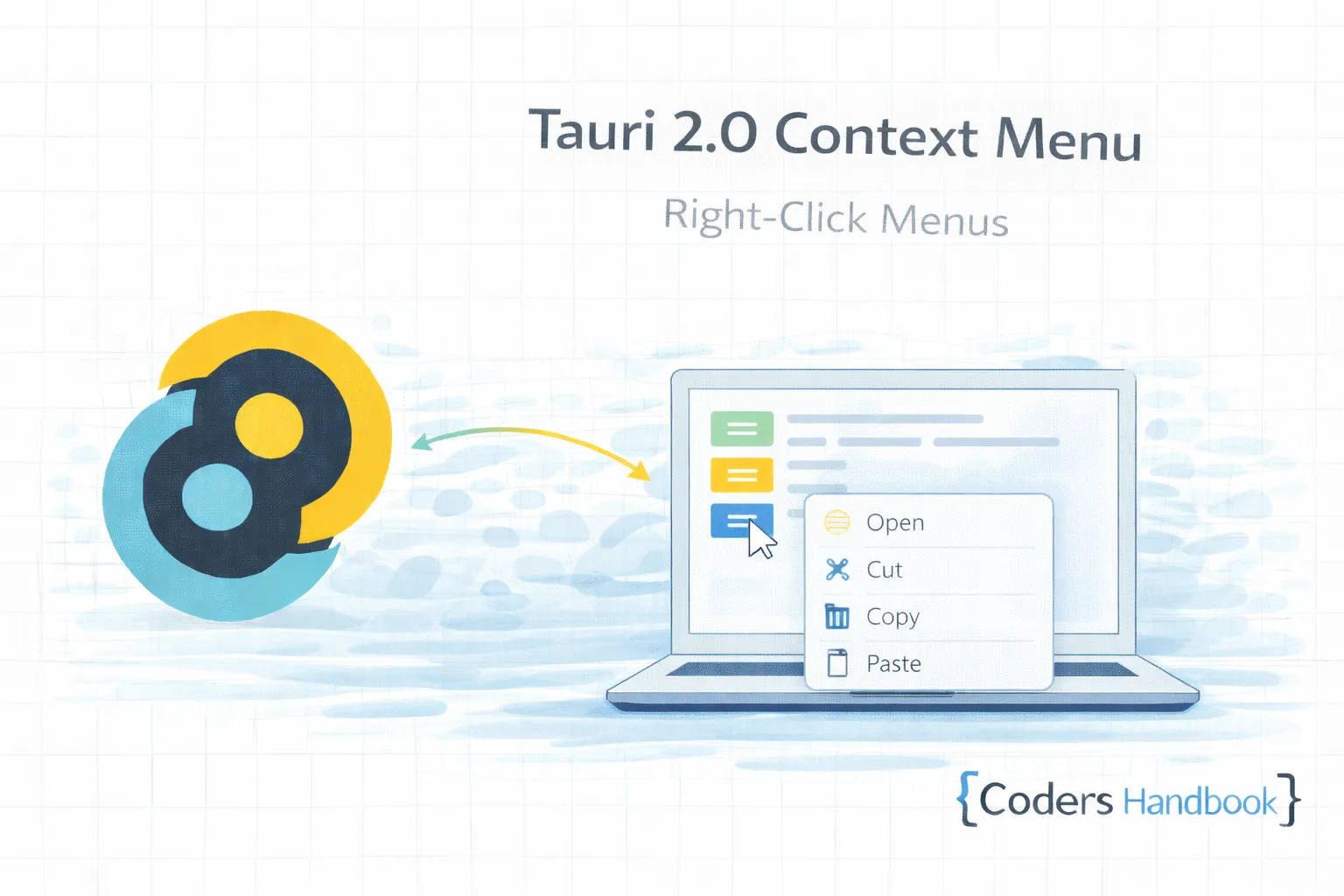
Context menus in Tauri 2.0 provide right-click functionality displaying contextual actions relevant to clicked elements maintaining familiar desktop interaction patterns users expect from native applications—essential feature for text editors, file managers, image editors, and any application requiring contextual commands providing quick access to actions without cluttering main UI maintaining efficient workflows. Context menu system combines browser contextmenu event detection triggering menu display with custom HTML/CSS menu rendering or native platform menus, position calculation placing menu near cursor avoiding screen edges, keyboard navigation supporting arrow keys and Enter, and action dispatching executing commands when items selected delivering native-feeling context menus. This comprehensive guide covers understanding context menu architecture and implementation approaches, creating basic HTML context menus with CSS positioning, preventing default browser menus maintaining custom behavior, implementing keyboard navigation with arrow key support, adding menu separators and submenus organizing actions, building platform-native menus using Tauri Menu API, handling dynamic menu items changing based on context, and creating real-world examples including text editor with formatting menu, file browser with file operations, and image editor with edit actions maintaining productive context-aware workflows. Mastering context menu patterns enables building professional desktop applications providing familiar right-click interactions maintaining efficiency through contextual command access. Before proceeding, understand window management and event handling.
Basic HTML Context Menu
Basic context menu uses HTML/CSS with JavaScript event handling. Understanding custom menu implementation enables building styled menus matching application design with full control over appearance and behavior.
// Basic HTML context menu implementation
<!DOCTYPE html>
<html>
<head>
  <style>
    * { margin: 0; padding: 0; box-sizing: border-box; }

    body {
      font-family: -apple-system, BlinkMacSystemFont, 'Segoe UI', sans-serif;
      padding: 20px;
    }

    .content-area {
      padding: 40px;
      background: #f5f5f5;
      border-radius: 8px;
      min-height: 400px;
    }

    /* Context Menu */
    .context-menu {
      position: fixed;
      background: white;
      border: 1px solid #ccc;
      border-radius: 6px;
      box-shadow: 0 4px 12px rgba(0, 0, 0, 0.15);
      padding: 4px 0;
      min-width: 180px;
      display: none;
      z-index: 1000;
    }

    .context-menu.show {
      display: block;
    }

    .menu-item {
      padding: 8px 16px;
      cursor: pointer;
      display: flex;
      align-items: center;
      gap: 8px;
      font-size: 14px;
      user-select: none;
    }

    .menu-item:hover {
      background: #f0f0f0;
    }

    .menu-item.disabled {
      opacity: 0.5;
      cursor: not-allowed;
    }

    .menu-item.disabled:hover {
      background: transparent;
    }

    .menu-separator {
      height: 1px;
      background: #e0e0e0;
      margin: 4px 0;
    }

    .menu-icon {
      width: 16px;
      display: flex;
      align-items: center;
      justify-content: center;
    }

    .menu-shortcut {
      margin-left: auto;
      font-size: 12px;
      color: #999;
    }
  </style>
</head>
<body>
  <h1>Right-click anywhere to open context menu</h1>

  <div class="content-area" id="content">
    <p>This is a sample content area. Right-click to see the context menu.</p>
    <p>You can select text and right-click for additional options.</p>
  </div>

  <!-- Context Menu -->
  <div id="context-menu" class="context-menu">
    <div class="menu-item" data-action="copy">
      <span class="menu-icon">📋</span>
      <span>Copy</span>
      <span class="menu-shortcut">Ctrl+C</span>
    </div>
    <div class="menu-item" data-action="paste">
      <span class="menu-icon">📄</span>
      <span>Paste</span>
      <span class="menu-shortcut">Ctrl+V</span>
    </div>
    <div class="menu-separator"></div>
    <div class="menu-item" data-action="selectall">
      <span class="menu-icon">📝</span>
      <span>Select All</span>
      <span class="menu-shortcut">Ctrl+A</span>
    </div>
    <div class="menu-separator"></div>
    <div class="menu-item" data-action="inspect">
      <span class="menu-icon">🔍</span>
      <span>Inspect Element</span>
    </div>
  </div>

  <script>
    const contextMenu = document.getElementById('context-menu');
    const content = document.getElementById('content');

    // Show context menu
    document.addEventListener('contextmenu', (e) => {
      e.preventDefault();

      const x = e.clientX;
      const y = e.clientY;

      // Position menu
      contextMenu.style.left = x + 'px';
      contextMenu.style.top = y + 'px';
      contextMenu.classList.add('show');

      // Adjust if menu goes off screen
      setTimeout(() => {
        const rect = contextMenu.getBoundingClientRect();
        if (rect.right > window.innerWidth) {
          contextMenu.style.left = (x - rect.width) + 'px';
        }
        if (rect.bottom > window.innerHeight) {
          contextMenu.style.top = (y - rect.height) + 'px';
        }
      }, 0);
    });

    // Hide menu on click outside
    document.addEventListener('click', (e) => {
      if (!contextMenu.contains(e.target)) {
        contextMenu.classList.remove('show');
      }
    });

    // Handle menu item clicks
    contextMenu.addEventListener('click', (e) => {
      const menuItem = e.target.closest('.menu-item');
      if (!menuItem || menuItem.classList.contains('disabled')) return;

      const action = menuItem.dataset.action;
      handleAction(action);

      contextMenu.classList.remove('show');
    });

    function handleAction(action) {
      console.log('Action:', action);

      switch (action) {
        case 'copy':
          document.execCommand('copy');
          break;
        case 'paste':
          document.execCommand('paste');
          break;
        case 'selectall':
          const selection = window.getSelection();
          const range = document.createRange();
          range.selectNodeContents(content);
          selection.removeAllRanges();
          selection.addRange(range);
          break;
        case 'inspect':
          alert('Inspect element (open DevTools)');
          break;
      }
    }

    // Keyboard navigation
    document.addEventListener('keydown', (e) => {
      if (!contextMenu.classList.contains('show')) return;

      if (e.key === 'Escape') {
        contextMenu.classList.remove('show');
      }
    });
  </script>
</body>
</html>
React Context Menu Component
React context menu component provides reusable menu system with hooks and state management. Understanding component architecture enables building maintainable context menus with dynamic items and proper positioning.
// React Context Menu Component
import React, { useState, useEffect, useRef } from 'react';
import './ContextMenu.css';

interface MenuItem {
  label: string;
  icon?: string;
  shortcut?: string;
  action: () => void;
  disabled?: boolean;
  separator?: boolean;
}

interface ContextMenuProps {
  items: MenuItem[];
  children: React.ReactNode;
}

const ContextMenu: React.FC<ContextMenuProps> = ({ items, children }) => {
  const [visible, setVisible] = useState(false);
  const [position, setPosition] = useState({ x: 0, y: 0 });
  const menuRef = useRef<HTMLDivElement>(null);

  const handleContextMenu = (e: React.MouseEvent) => {
    e.preventDefault();
    setPosition({ x: e.clientX, y: e.clientY });
    setVisible(true);
  };

  const handleClick = () => {
    setVisible(false);
  };

  useEffect(() => {
    document.addEventListener('click', handleClick);
    return () => document.removeEventListener('click', handleClick);
  }, []);

  useEffect(() => {
    if (visible && menuRef.current) {
      const rect = menuRef.current.getBoundingClientRect();
      let { x, y } = position;

      if (x + rect.width > window.innerWidth) {
        x = window.innerWidth - rect.width - 10;
      }
      if (y + rect.height > window.innerHeight) {
        y = window.innerHeight - rect.height - 10;
      }

      setPosition({ x, y });
    }
  }, [visible]);

  const handleItemClick = (item: MenuItem) => {
    if (item.disabled) return;
    item.action();
    setVisible(false);
  };

  return (
    <div onContextMenu={handleContextMenu}>
      {children}
      {visible && (
        <div
          ref={menuRef}
          className="context-menu"
          style={{ left: position.x, top: position.y }}
        >
          {items.map((item, index) =>
            item.separator ? (
              <div key={index} className="menu-separator" />
            ) : (
              <div
                key={index}
                className={`menu-item ${item.disabled ? 'disabled' : ''}`}
                onClick={() => handleItemClick(item)}
              >
                {item.icon && <span className="menu-icon">{item.icon}</span>}
                <span className="menu-label">{item.label}</span>
                {item.shortcut && (
                  <span className="menu-shortcut">{item.shortcut}</span>
                )}
              </div>
            )
          )}
        </div>
      )}
    </div>
  );
};

// Usage Example
function App() {
  const menuItems: MenuItem[] = [
    {
      label: 'Copy',
      icon: '📋',
      shortcut: 'Ctrl+C',
      action: () => document.execCommand('copy'),
    },
    {
      label: 'Paste',
      icon: '📄',
      shortcut: 'Ctrl+V',
      action: () => document.execCommand('paste'),
    },
    { separator: true } as MenuItem,
    {
      label: 'Delete',
      icon: '🗑️',
      action: () => console.log('Delete'),
    },
    { separator: true } as MenuItem,
    {
      label: 'Properties',
      icon: 'ℹ️',
      action: () => console.log('Properties'),
    },
  ];

  return (
    <div className="app">
      <h1>Context Menu Example</h1>
      <ContextMenu items={menuItems}>
        <div className="content">
          <p>Right-click anywhere in this area to see the context menu.</p>
        </div>
      </ContextMenu>
    </div>
  );
}

export default ContextMenu;
Context Menu Best Practices
- Prevent Default: Always preventDefault() on contextmenu event
- Position Carefully: Ensure menu stays within viewport bounds
- Keyboard Support: Add arrow key navigation and Enter selection
- Close on Outside Click: Hide menu when clicking elsewhere
- Visual Feedback: Highlight hovered items clearly
- Disabled States: Show but prevent interaction with disabled items
- Keyboard Shortcuts: Display shortcuts helping users learn
- Context-Aware: Show relevant items based on context
- Performance: Avoid heavy operations in menu handlers
- Accessibility: Add ARIA labels and roles for screen readers
Next Steps
- Process Management: Execute commands with external processes
- Commands: Backend actions with Rust commands
- Events: Menu actions with event system
- Drag and Drop: File operations with drag-drop
- Custom Titlebar: UI integration with titlebar
Conclusion
Mastering context menus in Tauri 2.0 enables building professional desktop applications providing familiar right-click interactions delivering quick access to contextual commands maintaining efficient workflows users expect from native applications. Context menu system combines browser contextmenu event detection with custom HTML/CSS rendering or native platform menus, position calculation ensuring menus stay within viewport bounds, keyboard navigation supporting arrow keys and Enter, and action dispatching executing commands maintaining responsive user interface. Understanding context menu patterns including basic HTML menus with custom styling, React components with reusable logic, keyboard navigation with arrow key support, dynamic menu items changing based on context, and best practices maintaining accessibility and performance establishes foundation for building professional desktop applications delivering contextual command access maintaining productivity through familiar right-click interactions users trust!
$ share --platform
$ cat /comments/ (0)
$ cat /comments/
// No comments found. Be the first!