Tauri 2.0 macOS Build Creating .dmg and .app Bundles
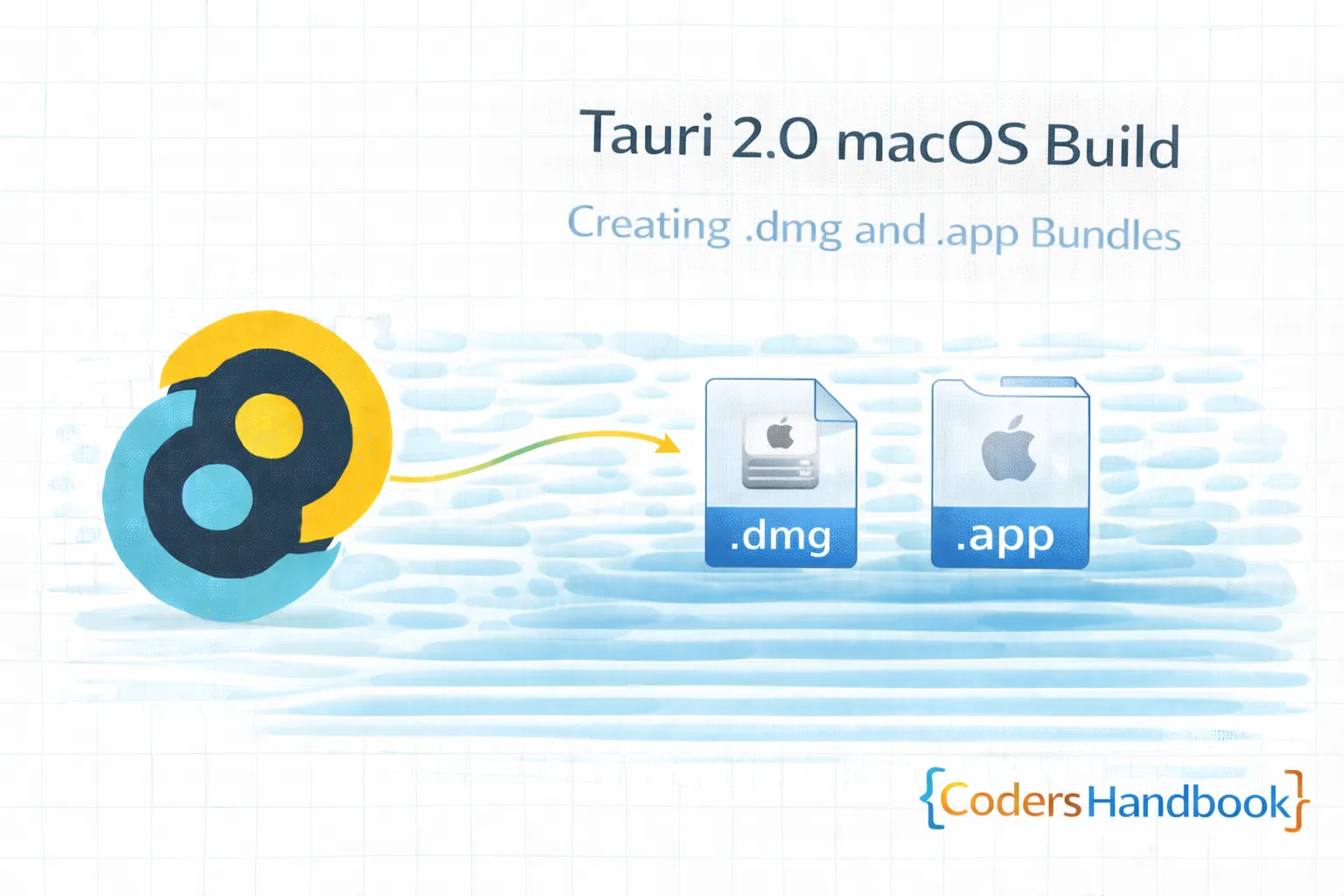
macOS build configuration in Tauri 2.0 creates professional application bundles using .app packages and DMG disk images with proper code signing and notarization enabling trusted macOS distribution—essential process for reaching Mac users providing seamless installation experience, Gatekeeper approval, and Mac App Store compatibility maintaining Apple's security standards users expect. macOS builds combine .app bundle creation packaging application with proper structure and metadata, DMG disk image generation providing drag-and-drop installation, code signing with Developer ID certificates ensuring application authenticity, notarization through Apple's service validating security requirements, entitlements configuration enabling specific capabilities, universal binary creation supporting Intel and Apple Silicon, and App Store preparation following Apple guidelines delivering comprehensive macOS distribution solution. This comprehensive guide covers understanding macOS bundle structure and requirements, creating properly signed .app bundles with Info.plist configuration, generating DMG installers with custom backgrounds, implementing code signing with Developer ID certificates, performing notarization through notarytool, configuring entitlements for capabilities, building universal binaries for both architectures, troubleshooting Gatekeeper and signing issues, and real-world examples including branded DMG with custom layout, notarized installer workflow, and App Store submission maintaining professional macOS distribution through proper build configuration. Mastering macOS build patterns enables building trusted Mac applications delivering native macOS experience. Before proceeding, understand build configuration, Windows build, and general packaging concepts.
macOS App Bundle Structure
macOS applications use .app bundle format with specific structure. Understanding bundle layout enables creating properly structured applications maintaining macOS standards and expectations.
// tauri.conf.json - macOS configuration
{
  "bundle": {
    "active": true,
    "targets": ["app", "dmg"],
    "identifier": "com.mycompany.myapp",
    "icon": ["icons/icon.icns"],

    "macOS": {
      // Minimum macOS version
      "minimumSystemVersion": "10.15",

      // Signing identity
      "signingIdentity": "Developer ID Application: Your Name (TEAM123)",

      // Entitlements file
      "entitlements": "entitlements.plist",

      // Provisioning profile (for App Store)
      "provisioningProfile": null,

      // Exception domain for network access
      "exceptionDomain": null,

      // Additional frameworks
      "frameworks": [],

      // DMG configuration
      "dmg": {
        "background": "dmg-background.png",
        "windowSize": {
          "width": 600,
          "height": 400
        },
        "iconSize": 100,
        "appPosition": {
          "x": 180,
          "y": 170
        },
        "applicationFolderPosition": {
          "x": 420,
          "y": 170
        }
      }
    }
  }
}

// Build app bundle
npm run tauri build -- --target app

// App bundle structure:
MyApp.app/
├── Contents/
│   ├── Info.plist              # Application metadata
│   ├── MacOS/
│   │   └── MyApp               # Executable binary
│   ├── Resources/
│   │   ├── icon.icns           # Application icon
│   │   ├── assets/             # Web assets
│   │   └── ...                 # Other resources
│   ├── Frameworks/             # Embedded frameworks
│   ├── _CodeSignature/         # Code signature
│   └── embedded.provisionprofile  # Provisioning (if applicable)

// Info.plist configuration
<?xml version="1.0" encoding="UTF-8"?>
<!DOCTYPE plist PUBLIC "-//Apple//DTD PLIST 1.0//EN"
  "http://www.apple.com/DTDs/PropertyList-1.0.dtd">
<plist version="1.0">
<dict>
  <key>CFBundleDisplayName</key>
  <string>MyApp</string>

  <key>CFBundleExecutable</key>
  <string>MyApp</string>

  <key>CFBundleIdentifier</key>
  <string>com.mycompany.myapp</string>

  <key>CFBundleVersion</key>
  <string>1</string>

  <key>CFBundleShortVersionString</key>
  <string>1.0.0</string>

  <!-- Icon -->
  <key>CFBundleIconFile</key>
  <string>icon.icns</string>

  <!-- High DPI support -->
  <key>NSHighResolutionCapable</key>
  <true/>

  <!-- Document types -->
  <key>CFBundleDocumentTypes</key>
  <array>
    <dict>
      <key>CFBundleTypeName</key>
      <string>MyApp Document</string>
      <key>CFBundleTypeExtensions</key>
      <array>
        <string>myfile</string>
      </array>
    </dict>
  </array>

  <!-- URL schemes -->
  <key>CFBundleURLTypes</key>
  <array>
    <dict>
      <key>CFBundleURLSchemes</key>
      <array>
        <string>myapp</string>
      </array>
    </dict>
  </array>

  <!-- App category -->
  <key>LSApplicationCategoryType</key>
  <string>public.app-category.productivity</string>

  <!-- Privacy descriptions -->
  <key>NSCameraUsageDescription</key>
  <string>Camera access for photos</string>

  <key>NSMicrophoneUsageDescription</key>
  <string>Microphone access for recording</string>
</dict>
</plist>
Code Signing and Notarization
macOS requires code signing and notarization for distribution. Understanding signing process enables creating trusted applications passing Gatekeeper verification maintaining user security.
// 1. Get Apple Developer account ($99/year)
// 2. Generate certificates in Xcode or Developer Portal

// entitlements.plist - Required capabilities
<?xml version="1.0" encoding="UTF-8"?>
<!DOCTYPE plist PUBLIC "-//Apple//DTD PLIST 1.0//EN"
  "http://www.apple.com/DTDs/PropertyList-1.0.dtd">
<plist version="1.0">
<dict>
  <!-- Network client -->
  <key>com.apple.security.network.client</key>
  <true/>

  <!-- Network server -->
  <key>com.apple.security.network.server</key>
  <true/>

  <!-- User selected files -->
  <key>com.apple.security.files.user-selected.read-write</key>
  <true/>

  <!-- Camera access -->
  <key>com.apple.security.device.camera</key>
  <true/>

  <!-- Microphone access -->
  <key>com.apple.security.device.audio-input</key>
  <true/>

  <!-- App Sandbox (for App Store) -->
  <key>com.apple.security.app-sandbox</key>
  <true/>
</dict>
</plist>

// Sign app bundle
codesign --sign "Developer ID Application: Your Name (TEAM123)" \
  --force \
  --options runtime \
  --entitlements entitlements.plist \
  --deep \
  --timestamp \
  MyApp.app

// Verify signature
codesign --verify --verbose=4 MyApp.app
spctl --assess --verbose=4 MyApp.app

// Create DMG
hdiutil create -volname "MyApp" \
  -srcfolder MyApp.app \
  -ov \
  -format UDZO \
  MyApp.dmg

// Sign DMG
codesign --sign "Developer ID Application: Your Name (TEAM123)" \
  --timestamp \
  MyApp.dmg

// Notarization process
// 1. Submit for notarization
xcrun notarytool submit MyApp.dmg \
  --apple-id [email protected] \
  --team-id TEAM123 \
  --password "app-specific-password" \
  --wait

// 2. Staple notarization ticket
xcrun stapler staple MyApp.dmg

// 3. Verify notarization
spctl --assess --verbose=4 --type install MyApp.dmg
xcrun stapler validate MyApp.dmg

// Store credentials in keychain
xcrun notarytool store-credentials "AC_PASSWORD" \
  --apple-id [email protected] \
  --team-id TEAM123 \
  --password "app-specific-password"

// Use stored credentials
xcrun notarytool submit MyApp.dmg \
  --keychain-profile "AC_PASSWORD" \
  --wait
Custom DMG Creation
DMG disk images provide drag-and-drop installation. Understanding DMG customization enables creating branded installers with custom backgrounds maintaining professional appearance.
// Using create-dmg tool (easiest)
// Install: brew install create-dmg

create-dmg \
  --volname "MyApp" \
  --volicon "icon.icns" \
  --background "dmg-background.png" \
  --window-pos 200 120 \
  --window-size 600 400 \
  --icon-size 100 \
  --icon "MyApp.app" 180 170 \
  --hide-extension "MyApp.app" \
  --app-drop-link 420 170 \
  --no-internet-enable \
  "MyApp.dmg" \
  "MyApp.app"

// Manual DMG creation with AppleScript
#!/bin/bash

SOURCE="MyApp.app"
DMG_NAME="MyApp-1.0.0.dmg"
VOLUME_NAME="MyApp Installer"
DMG_BACKGROUND="dmg-background.png"

# Create temporary folder
mkdir -p dmg-temp
cp -r "$SOURCE" dmg-temp/
ln -s /Applications dmg-temp/Applications
mkdir -p dmg-temp/.background
cp "$DMG_BACKGROUND" dmg-temp/.background/

# Create DMG
hdiutil create -volname "$VOLUME_NAME" \
  -srcfolder dmg-temp \
  -ov \
  -format UDRW \
  temp.dmg

# Mount and customize
DEVICE=$(hdiutil attach -readwrite -noverify -noautoopen temp.dmg | \
  grep -E '^/dev/' | sed 1q | awk '{print $1}')
VOLUME="/Volumes/$VOLUME_NAME"

sleep 2

# Set window properties with AppleScript
echo '
  tell application "Finder"
    tell disk "'"$VOLUME_NAME"'"
      open
      set current view of container window to icon view
      set toolbar visible of container window to false
      set the bounds of container window to {100, 100, 700, 500}
      set viewOptions to the icon view options of container window
      set icon size of viewOptions to 100
      set background picture of viewOptions to file ".background:dmg-background.png"
      set position of item "MyApp.app" to {180, 170}
      set position of item "Applications" to {420, 170}
      close
      open
      update without registering applications
      delay 2
    end tell
  end tell
' | osascript

# Unmount and compress
hdiutil detach "$DEVICE"
hdiutil convert temp.dmg \
  -format UDZO \
  -imagekey zlib-level=9 \
  -o "$DMG_NAME"

rm -rf dmg-temp temp.dmg

echo "DMG created: $DMG_NAME"
Universal Binary Intel and Apple Silicon
// Build universal binary supporting both architectures

// Install Rust targets
rustup target add x86_64-apple-darwin   # Intel
rustup target add aarch64-apple-darwin  # Apple Silicon

// Build for both architectures
cargo build --release --target x86_64-apple-darwin
cargo build --release --target aarch64-apple-darwin

// Create universal binary with lipo
lipo -create \
  target/x86_64-apple-darwin/release/myapp \
  target/aarch64-apple-darwin/release/myapp \
  -output target/release/myapp-universal

// Verify architectures
lipo -info target/release/myapp-universal
// Output: Architectures in the fat file: x86_64 arm64

// Automated universal build script
#!/bin/bash
set -e

APP_NAME="MyApp"

echo "Building for Intel..."
cargo build --release --target x86_64-apple-darwin

echo "Building for Apple Silicon..."
cargo build --release --target aarch64-apple-darwin

echo "Creating universal binary..."
mkdir -p target/universal/release
lipo -create \
  target/x86_64-apple-darwin/release/$APP_NAME \
  target/aarch64-apple-darwin/release/$APP_NAME \
  -output target/universal/release/$APP_NAME

echo "Building Tauri bundle..."
npm run tauri build -- --target universal-apple-darwin

echo "Done!"

// Configure Tauri for universal builds
// package.json
{
  "scripts": {
    "tauri:build:universal": "tauri build --target universal-apple-darwin"
  }
}
App Bundle vs DMG
| Aspect | .app Bundle | .dmg Disk Image |
|---|---|---|
| Format | Application package | Disk image container |
| Distribution | Directly executable | Requires mounting |
| Installation | Copy to Applications | Drag-and-drop interface |
| User Experience | Manual copy | Guided installation |
| Branding | Limited | Custom backgrounds |
| File Size | Smaller | Slightly larger |
| Best For | Direct distribution | Professional installers |
macOS Build Best Practices
- Always Notarize: Required for distribution outside App Store
- Universal Binaries: Support both Intel and Apple Silicon
- Hardened Runtime: Use --options runtime for code signing
- Timestamp Signatures: Signatures remain valid after cert expiry
- Test on Clean System: Verify installation on fresh Mac
- Entitlements: Request only needed permissions
- Info.plist Complete: Include all required metadata
- Custom DMG: Brand installer with background and layout
- Verify Gatekeeper: Test spctl before distribution
- App Sandbox: Required for App Store submissions
Next Steps
- Linux Build: DEB, RPM, AppImage with Linux guide
- Windows Build: EXE and MSI with Windows packaging
- Build Config: Optimization with build configuration
- Getting Started: Review basics with first app
Conclusion
Mastering macOS build configuration in Tauri 2.0 enables building professional distributable Mac applications delivering seamless installation experience users expect maintaining Apple's security standards through proper code signing and notarization passing Gatekeeper verification and App Store requirements. macOS builds combine .app bundle creation with proper structure and metadata configuration, DMG disk image generation providing drag-and-drop installation with custom branding, code signing with Developer ID certificates ensuring application authenticity, notarization through Apple's service validating security requirements, entitlements configuration enabling specific capabilities, universal binary creation supporting both Intel and Apple Silicon architectures, and comprehensive testing ensuring Gatekeeper approval delivering trusted macOS distribution solution. Understanding macOS build patterns including bundle structure with Info.plist configuration, code signing process with hardened runtime and entitlements, notarization workflow with notarytool and stapling, DMG customization with branded backgrounds and layouts, universal binary creation supporting all Mac architectures, and best practices maintaining Apple standards establishes foundation for professional macOS application distribution delivering trusted installations maintaining user confidence through proper macOS builds Mac users depend on!
$ share --platform
$ cat /comments/ (0)
$ cat /comments/
// No comments found. Be the first!