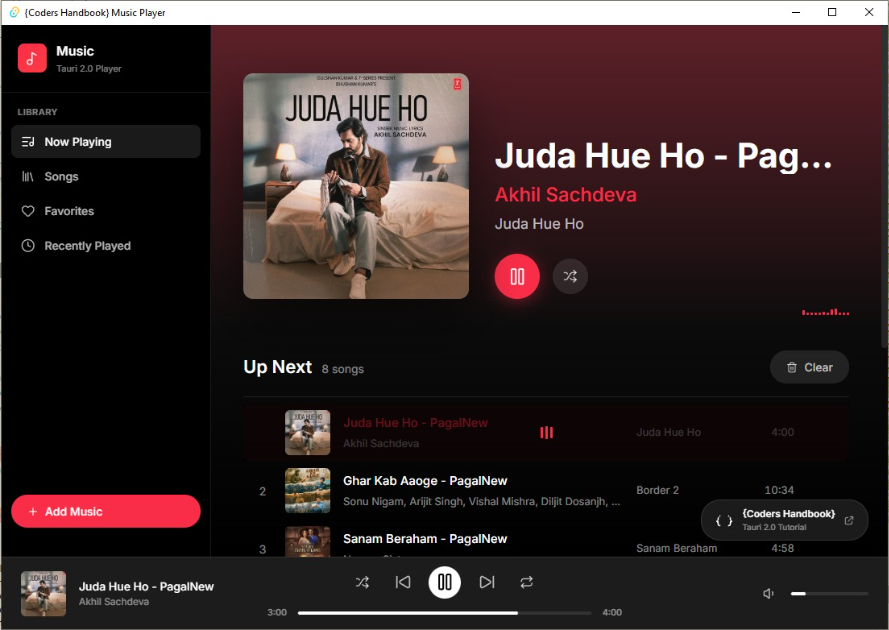
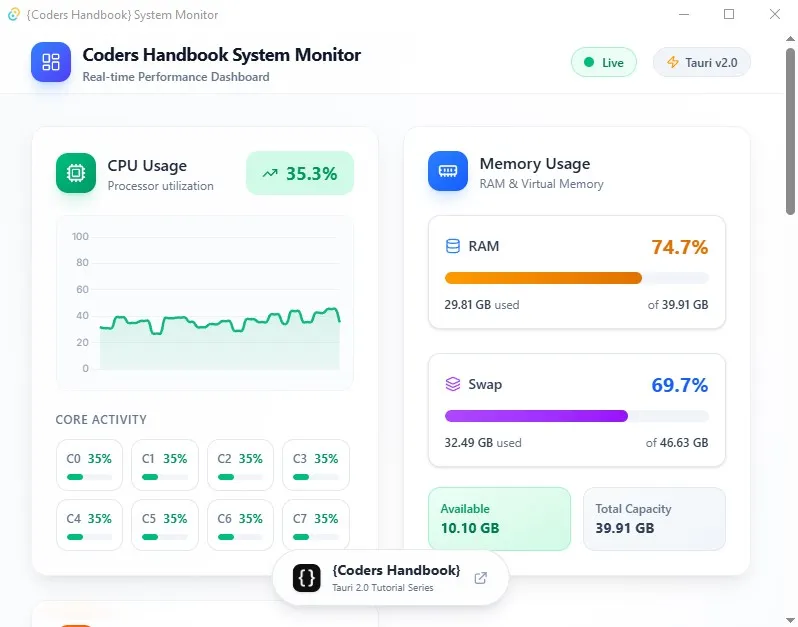
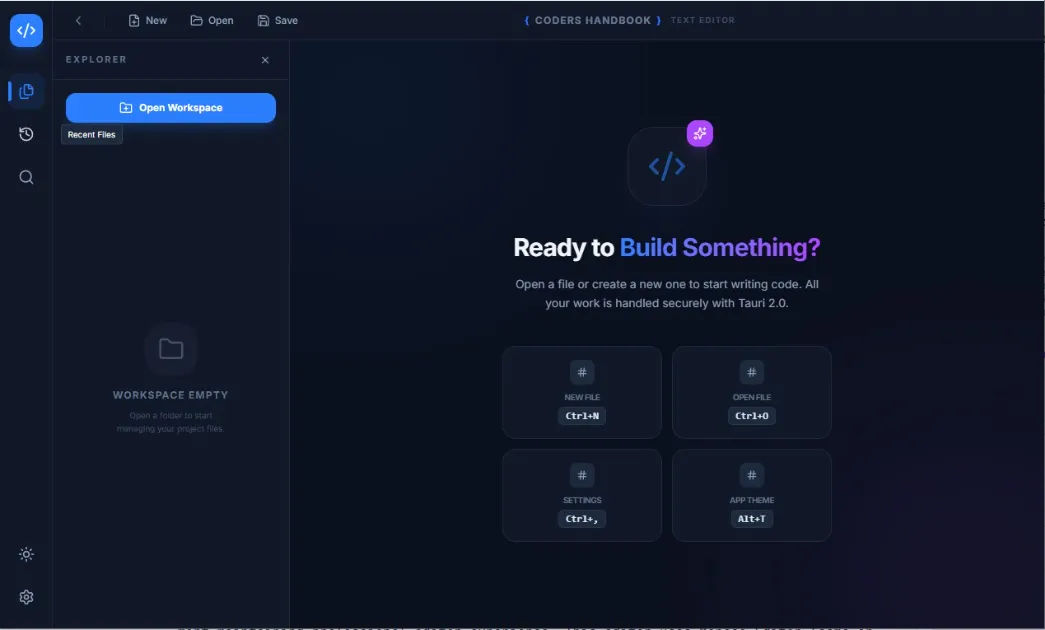
Creating Your First Tauri 2.0 Application Hello World
Creating your first Tauri 2.0 application is straightforward and takes less than 5 minutes with the official scaffolding tools, allowing you to build a complete desktop application using web technologies (React, Vue, Svelte, or vanilla JavaScript) combined with a Rust backend, resulting in a production-ready cross-platform app with minimal boilerplate. This hands-on tutorial walks you through creating a "Hello World" Tauri application from scratch, covering using the Tauri CLI to scaffold a new project, understanding the generated project structure, implementing basic frontend-backend communication with IPC (Inter-Process Communication), customizing the application window and metadata, running the application in development mode with hot reload, and preparing for production builds. Unlike traditional desktop frameworks requiring extensive setup, Tauri provides an opinionated project structure with all necessary configurations pre-configured including Vite for fast frontend development with hot module replacement, Rust backend with essential dependencies, WebView integration for rendering UI, and build scripts for creating platform-specific installers. By the end of this tutorial, you'll have created a functional desktop application demonstrating frontend-backend communication, understand the development workflow for rapid iteration, know how to customize application behavior and appearance, and be ready to build more complex applications with advanced features. Before starting, ensure you have completed Tauri installation and setup with Rust toolchain, Node.js, and system dependencies installed.
Prerequisites and Requirements
- Rust Installed: Rust toolchain with cargo and rustc commands available in terminal
- Node.js Installed: Node.js 16+ with npm or yarn package manager for frontend dependencies
- System Dependencies: Platform-specific requirements (WebView2 on Windows, Xcode tools on macOS, webkit2gtk on Linux)
- Code Editor: VS Code recommended with Rust-analyzer and Tauri extensions for better development experience
- Terminal Access: Comfort using command line for running commands and navigating directories
- Basic Web Knowledge: Familiarity with HTML, CSS, and JavaScript for building user interfaces
Installing Tauri CLI
The Tauri CLI provides commands for creating, developing, and building Tauri applications. You can install it globally via cargo (Rust's package manager) or use it through npm/yarn for project-specific installations.
# Option 1: Install Tauri CLI globally via Cargo (Recommended)
cargo install tauri-cli

# Verify installation
cargo tauri --version
# Output: tauri-cli 2.0.0

# Option 2: Install via npm (alternative)
npm install -g @tauri-apps/cli

# Verify npm installation
npm tauri --version

# Option 3: Use with npx (no global install needed)
npx @tauri-apps/cli --version
Creating a New Tauri Project
Use the Tauri scaffolding tool to create a new project with your preferred frontend framework. The CLI provides interactive prompts to customize your project setup including framework selection, TypeScript configuration, and package manager preference.
# Create new Tauri project using cargo
cargo create-tauri-app

# Or using npm
npm create tauri-app

# Or using yarn
yarn create tauri-app

# Or using pnpm
pnpm create tauri-app

# Interactive prompts will appear:
# 1. Project name: my-first-tauri-app
# 2. Choose your package manager: npm (or yarn, pnpm)
# 3. Choose your UI template:
#    - Vanilla (HTML/CSS/JS)
#    - Vue
#    - Svelte
#    - React
#    - Solid
#    - Angular
# 4. Choose UI flavor:
#    - TypeScript (recommended)
#    - JavaScript

# Example: Creating with specific options
npm create tauri-app@latest my-first-tauri-app -- --template react-ts

# This creates:
# - Frontend: React with TypeScript
# - Backend: Rust with Tauri
# - Build tool: Vite
Template Selection Guide
| Template | Best For | Bundle Size | Learning Curve |
|---|---|---|---|
| Vanilla | Simple apps, learning Tauri basics | Smallest (~3MB) | Easiest |
| React | Component-based apps, large ecosystem | Medium (~4MB) | Moderate |
| Vue 3 | Progressive enhancement, flexible | Medium (~4MB) | Moderate |
| Svelte | Performance-critical apps, small size | Small (~3.5MB) | Easy-Moderate |
| Solid | Fine-grained reactivity, performance | Small (~3.5MB) | Moderate |
Understanding Generated Structure
my-first-tauri-app/
├── src/                      # Frontend source code
│   ├── App.tsx              # Main React component
│   ├── main.tsx             # React entry point
│   ├── App.css              # Component styles
│   └── assets/              # Static assets (images, fonts)
├── src-tauri/               # Tauri Rust backend
│   ├── src/
│   │   └── main.rs          # Rust entry point and commands
│   ├── Cargo.toml           # Rust dependencies
│   ├── tauri.conf.json      # Tauri configuration
│   ├── build.rs             # Build script
│   ├── capabilities/        # Permission configurations
│   └── icons/               # App icons (multiple sizes)
├── public/                  # Public static files
├── index.html               # HTML entry point
├── package.json             # Node dependencies and scripts
├── vite.config.ts           # Vite configuration
├── tsconfig.json            # TypeScript configuration
└── README.md                # Project documentation
The project separates frontend (src/) and backend (src-tauri/) code clearly. Frontend code uses modern web development tools (Vite, React, TypeScript) while backend code is pure Rust. The tauri.conf.json file controls application behavior including window settings, security policies, and build configurations. Learn more about project structure details.
Installing Dependencies
# Navigate to project directory
cd my-first-tauri-app

# Install frontend dependencies
npm install

# Frontend dependencies typically include:
# - vite: Build tool and dev server
# - react: UI framework
# - @tauri-apps/api: Tauri JavaScript API
# - typescript: Type checking

# Rust dependencies are managed by Cargo
# They're automatically downloaded when you first build

# Verify installation
npm list --depth=0
Running in Development Mode
Development mode launches a Vite dev server for the frontend with hot module replacement and compiles the Rust backend in debug mode, opening your application in a native window with DevTools available for debugging.
# Start development server and open app
npm run tauri dev

# What happens:
# 1. Vite starts frontend dev server (usually on http://localhost:1420)
# 2. Rust backend compiles (first time takes 2-5 minutes)
# 3. Application window opens with your UI
# 4. Hot reload enabled for instant updates

# Alternative commands
cargo tauri dev          # Using cargo directly
yarn tauri dev          # Using yarn
pnpm tauri dev          # Using pnpm

# Development features:
# - Hot Module Replacement (HMR) for frontend changes
# - Automatic Rust recompilation on backend changes
# - DevTools accessible (right-click > Inspect)
# - Console logs visible in terminal and DevTools

# First run output:
# Compiling tauri v2.0.0
# Compiling my-first-tauri-app v0.0.0
# Finished dev [unoptimized + debuginfo] target(s) in 2m 15s
# Running target/debug/my-first-tauri-appnpm run tauri dev takes 2-5 minutes as Rust compiles all dependencies. Subsequent runs are much faster (10-30 seconds) as Rust caches compiled dependencies. Be patient on first run!Exploring the Default Application
The scaffolded application includes a simple counter example demonstrating frontend-backend communication through Tauri's IPC system. Let's examine the code to understand how it works.
Frontend Code (React)
// src/App.tsx - Default scaffolded React component
import { useState } from "react";
import { invoke } from "@tauri-apps/api/core";
import "./App.css";

function App() {
  const [greetMsg, setGreetMsg] = useState("");
  const [name, setName] = useState("");

  // Function to call Rust backend
  async function greet() {
    // Invoke the 'greet' command defined in Rust
    // Pass 'name' as parameter, receive String response
    setGreetMsg(await invoke("greet", { name }));
  }

  return (
    <div className="container">
      <h1>Welcome to Tauri!</h1>

      <div className="row">
        <input
          id="greet-input"
          onChange={(e) => setName(e.currentTarget.value)}
          placeholder="Enter a name..."
        />
        <button type="button" onClick={greet}>
          Greet
        </button>
      </div>

      {greetMsg && <p>{greetMsg}</p>}
    </div>
  );
}

export default App;
Backend Code (Rust)
// src-tauri/src/main.rs - Default Rust backend
#![cfg_attr(not(debug_assertions), windows_subsystem = "windows")]

// Tauri command that can be invoked from frontend
#[tauri::command]
fn greet(name: &str) -> String {
    // Simple string formatting
    format!("Hello, {}! You've been greeted from Rust!", name)
}

#[cfg_attr(mobile, tauri::mobile_entry_point)]
pub fn run() {
    tauri::Builder::default()
        // Register the greet command
        .invoke_handler(tauri::generate_handler![greet])
        .run(tauri::generate_context!())
        .expect("error while running tauri application");
}

fn main() {
    run();
}
The frontend uses invoke() from @tauri-apps/api/core to call the Rust greet command. The #[tauri::command] macro exposes the Rust function to the frontend. Parameters are automatically serialized/deserialized. Learn more about IPC communication and creating Rust commands.
Customizing Your Application
Modifying Window Configuration
// src-tauri/tauri.conf.json - Window configuration
{
  "app": {
    "windows": [
      {
        "title": "My First Tauri App",     // Window title
        "width": 900,                       // Initial width
        "height": 700,                      // Initial height
        "resizable": true,                  // Allow resizing
        "fullscreen": false,                // Start fullscreen
        "center": true,                     // Center on screen
        "decorations": true,                // Show titlebar
        "transparent": false,               // Transparent window
        "minWidth": 600,                    // Minimum width
        "minHeight": 400,                   // Minimum height
        "maxWidth": 1920,                   // Maximum width
        "maxHeight": 1080,                  // Maximum height
        "alwaysOnTop": false,               // Pin on top
        "visible": true,                    // Initially visible
        "theme": "light"                    // Light or dark
      }
    ]
  }
}
Setting Application Metadata
// src-tauri/tauri.conf.json - Application metadata
{
  "productName": "My First Tauri App",
  "version": "0.1.0",
  "identifier": "com.mycompany.myfirsttauriapp",
  "app": {
    "security": {
      "csp": "default-src 'self'; style-src 'self' 'unsafe-inline'"
    }
  },
  "bundle": {
    "active": true,
    "targets": "all",
    "identifier": "com.mycompany.myfirsttauriapp",
    "icon": [
      "icons/32x32.png",
      "icons/128x128.png",
      "icons/[email protected]",
      "icons/icon.icns",
      "icons/icon.ico"
    ],
    "copyright": "Copyright © 2026 Your Name",
    "category": "DeveloperTool",
    "shortDescription": "My first Tauri desktop application",
    "longDescription": "A comprehensive desktop app built with Tauri 2.0"
  }
}
Adding Custom Functionality
Let's extend the application with additional functionality to demonstrate the power of Tauri's IPC system. We'll add commands for system information and simple calculations.
// src-tauri/src/main.rs - Enhanced with custom commands
#![cfg_attr(not(debug_assertions), windows_subsystem = "windows")]

use std::env;

#[tauri::command]
fn greet(name: &str) -> String {
    format!("Hello, {}! You've been greeted from Rust!", name)
}

// New command: Get system information
#[tauri::command]
fn get_system_info() -> String {
    let os = env::consts::OS;
    let arch = env::consts::ARCH;
    let family = env::consts::FAMILY;

    format!(
        "Operating System: {}\nArchitecture: {}\nFamily: {}",
        os, arch, family
    )
}

// New command: Simple calculator
#[tauri::command]
fn calculate(a: f64, b: f64, operation: &str) -> Result<f64, String> {
    match operation {
        "add" => Ok(a + b),
        "subtract" => Ok(a - b),
        "multiply" => Ok(a * b),
        "divide" => {
            if b == 0.0 {
                Err("Cannot divide by zero".to_string())
            } else {
                Ok(a / b)
            }
        }
        _ => Err(format!("Unknown operation: {}", operation)),
    }
}

#[cfg_attr(mobile, tauri::mobile_entry_point)]
pub fn run() {
    tauri::Builder::default()
        // Register all commands
        .invoke_handler(tauri::generate_handler![
            greet,
            get_system_info,
            calculate
        ])
        .run(tauri::generate_context!())
        .expect("error while running tauri application");
}

fn main() {
    run();
}// src/App.tsx - Enhanced frontend with new commands
import { useState } from "react";
import { invoke } from "@tauri-apps/api/core";
import "./App.css";
function App() {
const [greetMsg, setGreetMsg] = useState("");
const [name, setName] = useState("");
const [systemInfo, setSystemInfo] = useState("");
const [calcResult, setCalcResult] = useState<number | null>(null);
const [calcError, setCalcError] = useState("");
async function greet() {
setGreetMsg(await invoke("greet", { name }));
}
async function fetchSystemInfo() {
const info = await invoke<string>("get_system_info");
setSystemInfo(info);
}
async function performCalculation() {
try {
const result = await invoke<number>("calculate", {
a: 10,
b: 5,
operation: "add",
});
setCalcResult(result);
setCalcError("");
} catch (error) {
setCalcError(error as string);
setCalcResult(null);
}
}
return (
<div className="container">
<h1>My First Tauri App</h1>
{/* Greet Section */}
<div className="card">
<h2>Greet Command</h2>
<input
onChange={(e) => setName(e.currentTarget.value)}
placeholder="Enter your name..."
/>
<button onClick={greet}>Greet</button>
{greetMsg && <p className="result">{greetMsg}</p>}
</div>
{/* System Info Section */}
<div className="card">
<h2>System Information</h2>
<button onClick={fetchSystemInfo}>Get System Info</button>
{systemInfo && (
<pre className="result">{systemInfo}</pre>
)}
</div>
{/* Calculator Section */}
<div className="card">
<h2>Calculator</h2>
<button onClick={performCalculation}>Calculate 10 + 5</button>
{calcResult !== null && (
<p className="result">Result: {calcResult}</p>
)}
{calcError && <p className="error">{calcError}</p>}
</div>
</div>
);
}
export default App;Using Developer Tools
- Open DevTools: Right-click anywhere in the app window and select 'Inspect' or 'Inspect Element'
- Console Logs: View frontend console.log() output in DevTools Console tab, Rust println!() appears in terminal
- Network Tab: Monitor IPC calls between frontend and backend (shown as fetch requests)
- Elements Tab: Inspect DOM structure, modify styles in real-time, test responsive design
- React DevTools: Install React DevTools extension for component inspection and profiling
- Hot Reload: Save frontend files to see instant updates, backend changes trigger automatic recompilation
- Error Messages: Frontend errors in DevTools Console, Rust errors in terminal with helpful compiler messages
Building for Production
When your application is ready, build production-ready installers optimized for size and performance. Tauri creates platform-specific installers automatically. Learn more about build configuration and Windows installers.
# Build production version
npm run tauri build

# Build process:
# 1. Frontend: Vite creates optimized production build
# 2. Backend: Rust compiles in release mode with optimizations
# 3. Bundler: Creates platform-specific installer

# Output locations:
# Windows: src-tauri/target/release/bundle/nsis/*.exe
# macOS: src-tauri/target/release/bundle/dmg/*.dmg
# Linux: src-tauri/target/release/bundle/deb/*.deb
#        src-tauri/target/release/bundle/appimage/*.AppImage

# Build time: 3-10 minutes depending on project size
# Final size: Typically 3-6 MB for simple apps

# Production build features:
# - Minified JavaScript/CSS
# - Optimized Rust binary (smaller, faster)
# - Code splitting and tree-shaking
# - Compressed assets
# - Platform-specific optimizationsTroubleshooting Common Issues
| Issue | Cause | Solution |
|---|---|---|
| "cargo not found" | Rust not installed or not in PATH | Install Rust from rustup.rs, restart terminal |
| "WebView2 not found" | Windows missing WebView2 runtime | Install from developer.microsoft.com/microsoft-edge/webview2 |
| Long first compilation | Rust compiling all dependencies | Normal, wait 2-5 minutes, subsequent builds faster |
| "invoke is not defined" | Missing Tauri API import | Add: import { invoke } from '@tauri-apps/api/core' |
| Window opens but blank | Vite dev server not running | Check terminal for frontend build errors |
| "Command not found" | Rust command not registered | Add command to invoke_handler in main.rs |
Next Steps
- Explore Project Structure: Deep dive into files and folders to understand how everything connects
- Configure Your App: Learn about tauri.conf.json settings for customizing behavior
- Integrate React: Build complex UIs with React integration guide
- Master IPC: Understand frontend-backend communication in depth
- Add File Operations: Implement file system access for reading/writing files
- Secure Your App: Implement security best practices and CSP
Conclusion
You've successfully created your first Tauri 2.0 application demonstrating the complete development workflow from project scaffolding to production builds, understanding frontend-backend communication through IPC commands, customizing application behavior with configuration files, and experiencing the fast development cycle with hot reload. The scaffolded project provides a solid foundation with modern tooling including Vite for fast frontend builds, TypeScript for type safety, Rust for performant backend operations, and pre-configured build scripts for cross-platform distribution. Continue building on this foundation by exploring advanced Tauri features including system APIs for file operations and dialogs, state management for sharing data across commands, event system for real-time communication, security configurations for production apps, and performance optimizations for larger applications. This is just the beginning of your Tauri journey—the framework's combination of web development familiarity and native performance opens endless possibilities for building modern desktop applications!
$ share --platform
$ cat /comments/ (0)
$ cat /comments/
// No comments found. Be the first!