Tauri 2.0 Code Signing and Notarization Security
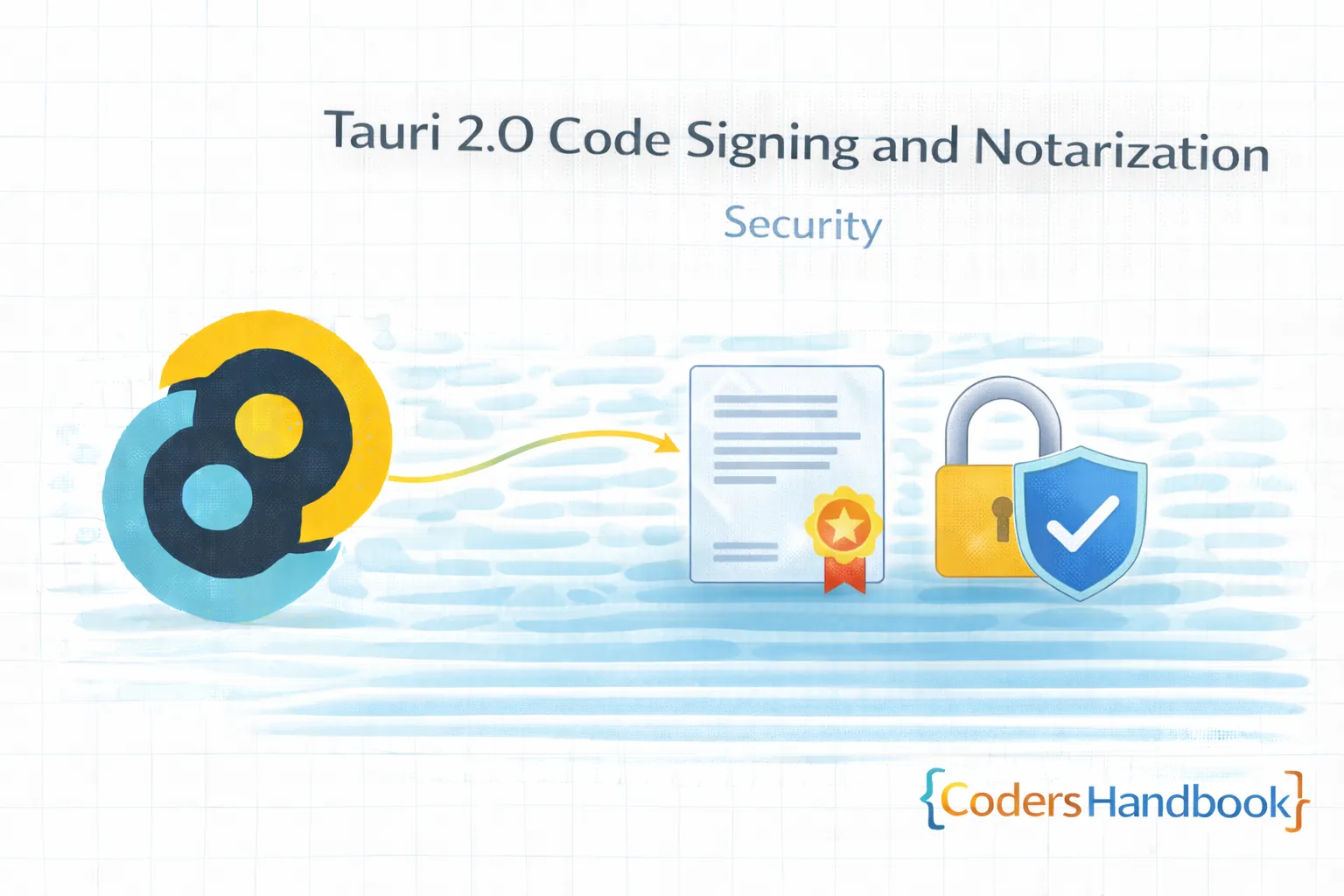
Code signing and notarization in Tauri 2.0 ensures application authenticity and security across Windows, macOS, and Linux platforms enabling trusted distribution—essential process for professional deployment preventing security warnings, passing platform verification, and maintaining user trust through cryptographic signatures validating application integrity users expect. Code signing combines Windows Authenticode certificates signing executables and installers with timestamping, macOS Developer ID certificates with hardened runtime and notarization through Apple's service, certificate management securing private keys and handling renewals, signing workflows automating builds with CI/CD integration, and platform-specific requirements meeting Windows Defender, macOS Gatekeeper, and Linux package signing standards delivering comprehensive security solution. This comprehensive guide covers understanding code signing fundamentals and certificate types, obtaining certificates from certificate authorities, implementing Windows Authenticode signing with signtool, performing macOS code signing and notarization with codesign and notarytool, configuring Linux package signing with GPG keys, managing certificates securely in development and CI/CD, automating signing workflows, troubleshooting signature verification issues, and real-world examples including complete signing pipeline, secure certificate storage, and multi-platform signing automation maintaining professional security through proper code signing. Mastering code signing patterns enables building trusted applications users confidently install. Before proceeding, understand Windows build, macOS build, and Linux build.
Code Signing Fundamentals
Code signing uses cryptographic signatures to verify application authenticity and integrity. Understanding signing fundamentals enables implementing proper security maintaining user trust across all platforms through validated application distribution.
// Code signing process overview

// 1. Obtain certificate from trusted Certificate Authority (CA)
//    - DigiCert, Sectigo, GlobalSign, SSL.com
//    - Apple Developer Program (for macOS/iOS)
//    - Self-signed certificates (for testing only)

// 2. Sign application binary/installer
//    - Create cryptographic signature
//    - Embed signature in file
//    - Include timestamp from trusted server

// 3. User downloads application
//    - Operating system verifies signature
//    - Checks certificate validity
//    - Validates timestamp
//    - Confirms certificate chain to trusted CA

// 4. Signature validation results
//    - Valid: App runs without warnings
//    - Invalid: Security warning or block
//    - Missing: SmartScreen/Gatekeeper warnings

// Certificate types overview

// Windows Authenticode Certificate
// - Standard Code Signing: $200-400/year
// - Extended Validation (EV): $300-600/year
//   * Instant SmartScreen reputation
//   * Physical token/HSM required
//   * Stronger validation

// macOS Developer ID Certificate
// - Apple Developer Program: $99/year
// - Developer ID Application: For distribution outside App Store
// - Mac App Distribution: For Mac App Store
// - Developer ID Installer: For pkg installers

// Linux Package Signing
// - GPG keys: Free, self-managed
// - Used for DEB/RPM repository signing
// - Establishes package authenticity

// Timestamp importance
// Without timestamp:
// - Signature expires when certificate expires
// - Users can't install after expiry

// With timestamp:
// - Proves signing time was during cert validity
// - Signature remains valid after cert expiry
// - App continues working indefinitely

// Timestamp servers (free)
// - DigiCert: http://timestamp.digicert.com
// - Sectigo: http://timestamp.sectigo.com
// - GlobalSign: http://timestamp.globalsign.com

// Security best practices
// 1. Protect private keys
//    - Never commit to version control
//    - Use environment variables or secret managers
//    - Consider hardware security modules (HSM)

// 2. Timestamp all signatures
//    - Ensures long-term validity
//    - Uses trusted timestamp authority

// 3. Verify signatures after signing
//    - Automated verification in build pipeline
//    - Test on clean systems

// 4. Regular certificate renewal
//    - Set reminders before expiry
//    - Update CI/CD with new certificates
//    - Test new certificate before old expires
Windows Authenticode Signing
Windows requires Authenticode signing to avoid SmartScreen warnings and establish trust. Understanding Windows signing enables creating trusted applications passing Windows Defender verification maintaining professional Windows distribution.
// 1. Obtain Windows code signing certificate
// Options:
// - DigiCert (digicert.com) - $200-400/year
// - Sectigo (sectigo.com) - $200-350/year
// - SSL.com (ssl.com) - $200/year
// - Certum (certum.eu) - $70/year

// Extended Validation (EV) recommended:
// - Instant SmartScreen reputation
// - No "unknown publisher" warnings
// - Requires business validation
// - Physical token or cloud HSM

// 2. Export certificate as .pfx (PKCS#12)
// From Windows Certificate Store:
// certmgr.msc > Personal > Certificates > Export
// Include private key, password protect

// 3. Get certificate thumbprint
// PowerShell
Get-ChildItem -Path Cert:\CurrentUser\My | Format-List Subject, Thumbprint

// Or from .pfx
certutil -dump certificate.pfx

// 4. Configure Tauri for automatic signing
// tauri.conf.json
{
  "bundle": {
    "windows": {
      "certificateThumbprint": "YOUR_CERT_THUMBPRINT",
      "digestAlgorithm": "sha256",
      "timestampUrl": "http://timestamp.digicert.com"
    }
  }
}

// 5. Manual signing with signtool
// Install Windows SDK for signtool.exe
// Location: C:\Program Files (x86)\Windows Kits\10\bin\...\x64\signtool.exe

// Sign executable
signtool sign /f certificate.pfx /p password \
  /fd SHA256 \
  /tr http://timestamp.digicert.com /td SHA256 \
  /d "MyApp" \
  /du "https://myapp.com" \
  MyApp.exe

// Sign with certificate from store (using thumbprint)
signtool sign /sha1 YOUR_CERT_THUMBPRINT \
  /fd SHA256 \
  /tr http://timestamp.digicert.com /td SHA256 \
  /d "MyApp" \
  /du "https://myapp.com" \
  MyApp.exe

// Sign multiple files
signtool sign /f certificate.pfx /p password \
  /fd SHA256 \
  /tr http://timestamp.digicert.com /td SHA256 \
  MyApp.exe MyApp-Setup.exe MyApp.msi

// 6. Verify signature
signtool verify /pa /v MyApp.exe

// Detailed verification
signtool verify /pa /v /tw MyApp.exe

// 7. PowerShell signing script
# sign.ps1
$certPath = "$env:TEMP\certificate.pfx"
$certPassword = $env:CERT_PASSWORD
$timestampUrl = "http://timestamp.digicert.com"

# Import certificate (if from file)
if (Test-Path $certPath) {
    $cert = New-Object System.Security.Cryptography.X509Certificates.X509Certificate2
    $cert.Import($certPath, $certPassword, "Exportable,PersistKeySet")
    Write-Host "Certificate imported: $($cert.Subject)"
}

# Find signtool
$signtool = Get-ChildItem "C:\Program Files (x86)\Windows Kits\10\bin" -Recurse -Filter "signtool.exe" |
    Select-Object -First 1 -ExpandProperty FullName

if (-not $signtool) {
    Write-Error "signtool.exe not found. Install Windows SDK."
    exit 1
}

Write-Host "Using signtool: $signtool"

# Find files to sign
$filesToSign = Get-ChildItem -Path "src-tauri/target/release/bundle" -Recurse -Include "*.exe","*.msi"

foreach ($file in $filesToSign) {
    Write-Host "Signing: $($file.FullName)"

    & $signtool sign `
        /f $certPath `
        /p $certPassword `
        /fd SHA256 `
        /tr $timestampUrl `
        /td SHA256 `
        /d "MyApp" `
        /du "https://myapp.com" `
        $file.FullName

    if ($LASTEXITCODE -eq 0) {
        Write-Host "✓ Successfully signed: $($file.Name)" -ForegroundColor Green

        # Verify
        & $signtool verify /pa $file.FullName
    } else {
        Write-Error "✗ Failed to sign: $($file.Name)"
        exit 1
    }
}

Write-Host "All files signed successfully!" -ForegroundColor Green

// 8. SmartScreen reputation building
// Standard certificate (not EV):
// - Initially shows "Unknown publisher" warning
// - Build reputation through:
//   1. Number of downloads (thousands needed)
//   2. Time (weeks to months)
//   3. Low malware reports
//   4. Consistent certificate usage

// EV certificate:
// - Instant reputation
// - No warnings from day one
// - Worth the extra cost for professional apps

// 9. Submit to Microsoft for reputation
// https://www.microsoft.com/en-us/wdsi/filesubmission
macOS Code Signing and Notarization
macOS requires both code signing and notarization for distribution outside App Store. Understanding macOS signing workflow enables creating trusted applications passing Gatekeeper verification maintaining macOS security standards.
// 1. Enroll in Apple Developer Program
// Cost: $99/year
// URL: https://developer.apple.com/programs/

// 2. Create certificates in Xcode or Developer Portal
// Xcode > Preferences > Accounts > Manage Certificates
// Or: https://developer.apple.com/account/resources/certificates/

// Certificate types:
// - Developer ID Application: For distribution outside App Store
// - Mac App Distribution: For Mac App Store submission
// - Developer ID Installer: For .pkg installers

// 3. List installed certificates
security find-identity -v -p codesigning

// Output shows:
// 1) ABC123... "Developer ID Application: Your Name (TEAM123)"
// 2) DEF456... "Mac Developer: Your Name (TEAM123)"

// 4. Create entitlements.plist
<?xml version="1.0" encoding="UTF-8"?>
<!DOCTYPE plist PUBLIC "-//Apple//DTD PLIST 1.0//EN"
  "http://www.apple.com/DTDs/PropertyList-1.0.dtd">
<plist version="1.0">
<dict>
  <!-- Allow unsigned executable memory (for JIT, if needed) -->
  <key>com.apple.security.cs.allow-unsigned-executable-memory</key>
  <true/>

  <!-- Disable library validation (if needed) -->
  <key>com.apple.security.cs.disable-library-validation</key>
  <true/>

  <!-- Network client -->
  <key>com.apple.security.network.client</key>
  <true/>

  <!-- Network server -->
  <key>com.apple.security.network.server</key>
  <true/>

  <!-- User selected files -->
  <key>com.apple.security.files.user-selected.read-write</key>
  <true/>

  <!-- Camera access (if needed) -->
  <key>com.apple.security.device.camera</key>
  <true/>

  <!-- Microphone access (if needed) -->
  <key>com.apple.security.device.audio-input</key>
  <true/>
</dict>
</plist>

// 5. Sign app bundle
codesign --sign "Developer ID Application: Your Name (TEAM123)" \
  --force \
  --options runtime \
  --entitlements entitlements.plist \
  --deep \
  --timestamp \
  MyApp.app

// --force: Replace existing signature
// --options runtime: Enable hardened runtime (required for notarization)
// --deep: Sign nested code (frameworks, etc.)
// --timestamp: Add secure timestamp

// 6. Verify signature
codesign --verify --verbose=4 MyApp.app

// Check if notarization-ready
codesign --verify --verbose=4 --deep --strict MyApp.app

// Test Gatekeeper
spctl --assess --verbose=4 --type execute MyApp.app

// 7. Create and sign DMG
hdiutil create -volname "MyApp" \
  -srcfolder MyApp.app \
  -ov \
  -format UDZO \
  MyApp.dmg

codesign --sign "Developer ID Application: Your Name (TEAM123)" \
  --timestamp \
  MyApp.dmg

// 8. Notarization process
// Create app-specific password
// Apple ID > Security > App-Specific Passwords
// https://appleid.apple.com/account/manage

// Submit for notarization
xcrun notarytool submit MyApp.dmg \
  --apple-id [email protected] \
  --team-id TEAM123 \
  --password "xxxx-xxxx-xxxx-xxxx" \
  --wait

// Check status (if not using --wait)
xcrun notarytool info SUBMISSION_ID \
  --apple-id [email protected] \
  --team-id TEAM123 \
  --password "xxxx-xxxx-xxxx-xxxx"

// View notarization log
xcrun notarytool log SUBMISSION_ID \
  --apple-id [email protected] \
  --team-id TEAM123 \
  --password "xxxx-xxxx-xxxx-xxxx"

// 9. Staple notarization ticket
// After successful notarization
xcrun stapler staple MyApp.dmg

// Verify stapling
xcrun stapler validate MyApp.dmg

// 10. Final verification
spctl --assess --verbose=4 --type install MyApp.dmg

// Should output:
// MyApp.dmg: accepted
// source=Notarized Developer ID

// 11. Store credentials in keychain (recommended)
// Safer than plaintext passwords
xcrun notarytool store-credentials "AC_PASSWORD" \
  --apple-id [email protected] \
  --team-id TEAM123 \
  --password "xxxx-xxxx-xxxx-xxxx"

// Use stored credentials
xcrun notarytool submit MyApp.dmg \
  --keychain-profile "AC_PASSWORD" \
  --wait

// 12. Complete signing script
#!/bin/bash
set -e

APP_NAME="MyApp"
APP_PATH="src-tauri/target/release/bundle/macos/${APP_NAME}.app"
DMG_NAME="${APP_NAME}-1.0.0.dmg"
SIGNING_IDENTITY="Developer ID Application: Your Name (TEAM123)"
KEYCHAIN_PROFILE="AC_PASSWORD"

echo "Signing app bundle..."
codesign --sign "$SIGNING_IDENTITY" \
  --force \
  --options runtime \
  --entitlements entitlements.plist \
  --deep \
  --timestamp \
  "$APP_PATH"

echo "Verifying signature..."
codesign --verify --verbose=4 "$APP_PATH"

echo "Creating DMG..."
hdiutil create -volname "$APP_NAME" \
  -srcfolder "$APP_PATH" \
  -ov \
  -format UDZO \
  "$DMG_NAME"

echo "Signing DMG..."
codesign --sign "$SIGNING_IDENTITY" \
  --timestamp \
  "$DMG_NAME"

echo "Submitting for notarization..."
xcrun notarytool submit "$DMG_NAME" \
  --keychain-profile "$KEYCHAIN_PROFILE" \
  --wait

echo "Stapling notarization ticket..."
xcrun stapler staple "$DMG_NAME"

echo "Verifying final package..."
spctl --assess --verbose=4 --type install "$DMG_NAME"

echo "✓ Build signed and notarized successfully!"
echo "Package ready: $DMG_NAME"
Linux Package Signing with GPG
Linux packages use GPG signatures for authenticity verification. Understanding GPG signing enables creating trusted packages users can verify maintaining package repository integrity and distribution security.
// 1. Generate GPG key
gpg --full-generate-key

// Select:
// - RSA and RSA (default)
// - 4096 bits
// - Expiry: 2 years (recommended)
// - Real name, email, comment

// 2. List GPG keys
gpg --list-secret-keys --keyid-format LONG

// Output:
// sec   rsa4096/ABCD1234EFGH5678 2026-01-28 [SC] [expires: 2028-01-28]
// uid   Your Name <[email protected]>
// ssb   rsa4096/WXYZ9876IJKL5432 2026-01-28 [E]

// Key ID is: ABCD1234EFGH5678

// 3. Export public key
gpg --armor --export ABCD1234EFGH5678 > public-key.asc

// 4. Export private key (for backup, keep secure!)
gpg --armor --export-secret-keys ABCD1234EFGH5678 > private-key.asc

// 5. Sign DEB package
dpkg-sig --sign builder myapp_1.0.0_amd64.deb

// Or using debsigs
debsigs --sign=origin --default-key=ABCD1234EFGH5678 myapp_1.0.0_amd64.deb

// Verify DEB signature
dpkg-sig --verify myapp_1.0.0_amd64.deb

// 6. Sign RPM package
rpm --addsign myapp-1.0.0-1.x86_64.rpm

// Configure RPM signing in ~/.rpmmacros
echo "%_signature gpg" >> ~/.rpmmacros
echo "%_gpg_name Your Name <[email protected]>" >> ~/.rpmmacros

// Verify RPM signature
rpm --checksig myapp-1.0.0-1.x86_64.rpm

// 7. Sign repository metadata (for APT)
// Create Release file
apt-ftparchive release dists/stable > dists/stable/Release

// Sign Release file
gpg --default-key ABCD1234EFGH5678 \
  --armor \
  --detach-sign \
  --output dists/stable/Release.gpg \
  dists/stable/Release

// Create InRelease (inline signature)
gpg --default-key ABCD1234EFGH5678 \
  --armor \
  --clearsign \
  --output dists/stable/InRelease \
  dists/stable/Release

// 8. Users import public key
// From file
sudo apt-key add public-key.asc

// From keyserver
sudo apt-key adv --keyserver keyserver.ubuntu.com --recv-keys ABCD1234EFGH5678

// For modern Debian/Ubuntu (using signed-by)
sudo mkdir -p /etc/apt/keyrings
sudo cp public-key.asc /etc/apt/keyrings/myapp.asc

echo "deb [signed-by=/etc/apt/keyrings/myapp.asc] http://repo.myapp.com stable main" | \
  sudo tee /etc/apt/sources.list.d/myapp.list

// 9. Sign YUM/DNF repository
// Create repodata
createrepo /path/to/rpm-repo

// Sign repomd.xml
gpg --default-key ABCD1234EFGH5678 \
  --detach-sign \
  --armor \
  /path/to/rpm-repo/repodata/repomd.xml

// Users import key for RPM
sudo rpm --import public-key.asc

// 10. Complete signing script
#!/bin/bash
set -e

GPG_KEY_ID="ABCD1234EFGH5678"
VERSION="1.0.0"

echo "Signing DEB package..."
DEB_FILE="myapp_${VERSION}_amd64.deb"
if [ -f "$DEB_FILE" ]; then
    dpkg-sig --sign builder "$DEB_FILE"
    echo "✓ DEB signed: $DEB_FILE"
fi

echo "Signing RPM package..."
RPM_FILE="myapp-${VERSION}-1.x86_64.rpm"
if [ -f "$RPM_FILE" ]; then
    rpm --addsign "$RPM_FILE"
    echo "✓ RPM signed: $RPM_FILE"
fi

echo "All packages signed successfully!"

// 11. CI/CD GPG setup
// Export keys for CI
gpg --armor --export-secret-keys ABCD1234EFGH5678 | base64 > gpg-private.txt
gpg --armor --export ABCD1234EFGH5678 | base64 > gpg-public.txt

// In GitHub Actions secrets:
// GPG_PRIVATE_KEY: (content of gpg-private.txt)
// GPG_PASSPHRASE: (your key passphrase)

// GitHub Actions workflow
- name: Import GPG key
  env:
    GPG_PRIVATE_KEY: ${{ secrets.GPG_PRIVATE_KEY }}
    GPG_PASSPHRASE: ${{ secrets.GPG_PASSPHRASE }}
  run: |
    echo "$GPG_PRIVATE_KEY" | base64 --decode | gpg --batch --import
    echo "$GPG_PASSPHRASE" | gpg --batch --yes --passphrase-fd 0 --pinentry-mode loopback

- name: Sign packages
  run: |
    dpkg-sig --sign builder myapp_*.deb
    rpm --addsign myapp-*.rpm
CI/CD Signing Automation
Automating code signing in CI/CD pipelines ensures consistent signing across all builds. Understanding CI/CD signing workflow enables secure automated builds maintaining certificate security through proper secret management and signing automation.
// GitHub Actions - Complete signing workflow
// .github/workflows/build-and-sign.yml

name: Build and Sign

on:
  push:
    tags:
      - 'v*'

jobs:
  build-windows:
    runs-on: windows-latest

    steps:
      - uses: actions/checkout@v3

      - name: Setup Node
        uses: actions/setup-node@v3
        with:
          node-version: 18

      - name: Setup Rust
        uses: actions-rs/toolchain@v1
        with:
          toolchain: stable

      - name: Install dependencies
        run: npm install

      - name: Import Windows certificate
        env:
          CERTIFICATE_BASE64: ${{ secrets.WINDOWS_CERTIFICATE }}
          CERTIFICATE_PASSWORD: ${{ secrets.WINDOWS_CERTIFICATE_PASSWORD }}
        run: |
          # Decode certificate
          $certBytes = [Convert]::FromBase64String($env:CERTIFICATE_BASE64)
          $certPath = "$env:TEMP\certificate.pfx"
          [IO.File]::WriteAllBytes($certPath, $certBytes)

          # Import to certificate store
          $cert = New-Object System.Security.Cryptography.X509Certificates.X509Certificate2
          $cert.Import($certPath, $env:CERTIFICATE_PASSWORD, "Exportable,PersistKeySet")
          $store = New-Object System.Security.Cryptography.X509Certificates.X509Store(
            "My", "CurrentUser"
          )
          $store.Open("ReadWrite")
          $store.Add($cert)
          $store.Close()

          Write-Host "Certificate imported: $($cert.Thumbprint)"
        shell: powershell

      - name: Build
        run: npm run tauri build

      - name: Sign installers
        env:
          CERTIFICATE_PASSWORD: ${{ secrets.WINDOWS_CERTIFICATE_PASSWORD }}
        run: |
          $certPath = "$env:TEMP\certificate.pfx"
          $signtool = (Get-ChildItem "C:\Program Files (x86)\Windows Kits\10\bin" `
            -Recurse -Filter "signtool.exe" | Select-Object -First 1).FullName

          Get-ChildItem -Path "src-tauri/target/release/bundle" `
            -Recurse -Include "*.exe","*.msi" | ForEach-Object {
            Write-Host "Signing: $($_.Name)"
            & $signtool sign `
              /f $certPath `
              /p $env:CERTIFICATE_PASSWORD `
              /fd SHA256 `
              /tr http://timestamp.digicert.com `
              /td SHA256 `
              /d "MyApp" `
              $_.FullName
          }
        shell: powershell

      - name: Upload artifacts
        uses: actions/upload-artifact@v3
        with:
          name: windows-installer
          path: src-tauri/target/release/bundle/nsis/*.exe

  build-macos:
    runs-on: macos-latest

    steps:
      - uses: actions/checkout@v3

      - name: Setup Node
        uses: actions/setup-node@v3
        with:
          node-version: 18

      - name: Setup Rust
        uses: actions-rs/toolchain@v1
        with:
          toolchain: stable

      - name: Add Rust targets
        run: |
          rustup target add x86_64-apple-darwin
          rustup target add aarch64-apple-darwin

      - name: Install dependencies
        run: npm install

      - name: Import certificates
        env:
          CERTIFICATE_BASE64: ${{ secrets.MACOS_CERTIFICATE }}
          CERTIFICATE_PASSWORD: ${{ secrets.MACOS_CERTIFICATE_PASSWORD }}
          KEYCHAIN_PASSWORD: ${{ secrets.KEYCHAIN_PASSWORD }}
        run: |
          # Decode certificate
          echo $CERTIFICATE_BASE64 | base64 --decode > certificate.p12

          # Create keychain
          security create-keychain -p "$KEYCHAIN_PASSWORD" build.keychain
          security default-keychain -s build.keychain
          security unlock-keychain -p "$KEYCHAIN_PASSWORD" build.keychain

          # Import certificate
          security import certificate.p12 \
            -k build.keychain \
            -P "$CERTIFICATE_PASSWORD" \
            -T /usr/bin/codesign

          security set-key-partition-list \
            -S apple-tool:,apple:,codesign: \
            -s -k "$KEYCHAIN_PASSWORD" \
            build.keychain

      - name: Build universal binary
        run: npm run tauri build -- --target universal-apple-darwin

      - name: Notarize
        env:
          APPLE_ID: ${{ secrets.APPLE_ID }}
          APPLE_PASSWORD: ${{ secrets.APPLE_PASSWORD }}
          APPLE_TEAM_ID: ${{ secrets.APPLE_TEAM_ID }}
        run: |
          # Submit for notarization
          xcrun notarytool submit \
            src-tauri/target/universal-apple-darwin/release/bundle/dmg/*.dmg \
            --apple-id "$APPLE_ID" \
            --team-id "$APPLE_TEAM_ID" \
            --password "$APPLE_PASSWORD" \
            --wait

          # Staple ticket
          xcrun stapler staple \
            src-tauri/target/universal-apple-darwin/release/bundle/dmg/*.dmg

      - name: Upload artifacts
        uses: actions/upload-artifact@v3
        with:
          name: macos-dmg
          path: src-tauri/target/universal-apple-darwin/release/bundle/dmg/*.dmg

  build-linux:
    runs-on: ubuntu-latest

    steps:
      - uses: actions/checkout@v3

      - name: Setup Node
        uses: actions/setup-node@v3
        with:
          node-version: 18

      - name: Setup Rust
        uses: actions-rs/toolchain@v1
        with:
          toolchain: stable

      - name: Install dependencies
        run: |
          sudo apt-get update
          sudo apt-get install -y libwebkit2gtk-4.1-dev \
            libgtk-3-dev \
            libayatana-appindicator3-dev \
            librsvg2-dev
          npm install

      - name: Build
        run: npm run tauri build -- --target deb,rpm,appimage

      - name: Import GPG key
        env:
          GPG_PRIVATE_KEY: ${{ secrets.GPG_PRIVATE_KEY }}
          GPG_PASSPHRASE: ${{ secrets.GPG_PASSPHRASE }}
        run: |
          echo "$GPG_PRIVATE_KEY" | base64 --decode | gpg --batch --import
          echo "$GPG_PASSPHRASE" | \
            gpg --batch --yes --passphrase-fd 0 --pinentry-mode loopback

      - name: Sign packages
        run: |
          # Sign DEB
          dpkg-sig --sign builder src-tauri/target/release/bundle/deb/*.deb

          # Sign RPM
          rpm --addsign src-tauri/target/release/bundle/rpm/*.rpm

      - name: Upload artifacts
        uses: actions/upload-artifact@v3
        with:
          name: linux-packages
          path: |
            src-tauri/target/release/bundle/deb/*.deb
            src-tauri/target/release/bundle/rpm/*.rpm
            src-tauri/target/release/bundle/appimage/*.AppImage
Platform Signing Comparison
| Aspect | Windows | macOS | Linux |
|---|---|---|---|
| Certificate Type | Authenticode | Developer ID | GPG Key |
| Cost | $200-400/year | $99/year | Free |
| Verification | SmartScreen | Gatekeeper | GPG verify |
| Extra Step | None | Notarization required | None |
| Timestamp | Required | Automatic | Not applicable |
| Tool | signtool.exe | codesign | gpg |
| EV Option | Yes (instant trust) | No | N/A |
Code Signing Best Practices
- Protect Private Keys: Never commit certificates to version control
- Always Timestamp: Ensures signatures remain valid after certificate expiry
- Verify After Signing: Automated verification in build pipeline
- Use Strong Passwords: Protect certificate files with complex passwords
- Consider EV Certificates: For Windows, instant SmartScreen trust
- Regular Renewal: Set reminders before certificate expiration
- Secure CI/CD Secrets: Use encrypted secrets, rotate regularly
- Test on Clean Systems: Verify signed apps on fresh installs
- Document Process: Maintain signing procedures for team
- Backup Certificates: Secure backup of certificates and keys
Next Steps
- CI/CD Pipeline: Automated builds with GitHub Actions
- Windows Build: Platform specifics with Windows guide
- macOS Build: Apple requirements with macOS guide
- Linux Build: Package signing with Linux guide
Conclusion
Mastering code signing and notarization in Tauri 2.0 enables building trusted applications users confidently install across Windows, macOS, and Linux platforms preventing security warnings maintaining professional distribution through cryptographic signatures validating application authenticity and integrity users expect. Code signing combines Windows Authenticode certificates with timestamping and SmartScreen reputation building, macOS Developer ID certificates with hardened runtime and notarization through Apple's service passing Gatekeeper verification, Linux GPG key signing for package repository integrity, certificate management securing private keys and handling renewals, CI/CD automation enabling consistent signing across all builds, and platform-specific verification ensuring proper implementation delivering comprehensive security solution. Understanding code signing patterns including certificate acquisition and management, Windows signing with signtool and EV certificates, macOS signing workflow with codesign and notarytool, Linux GPG signing for packages and repositories, CI/CD integration with secure secret management, and best practices protecting private keys and ensuring signature validity establishes foundation for professional application distribution delivering trusted installations maintaining user confidence through proper code signing security all platforms depend on!
$ share --platform
$ cat /comments/ (0)
$ cat /comments/
// No comments found. Be the first!