Tauri 2.0 Drag and Drop File Handling
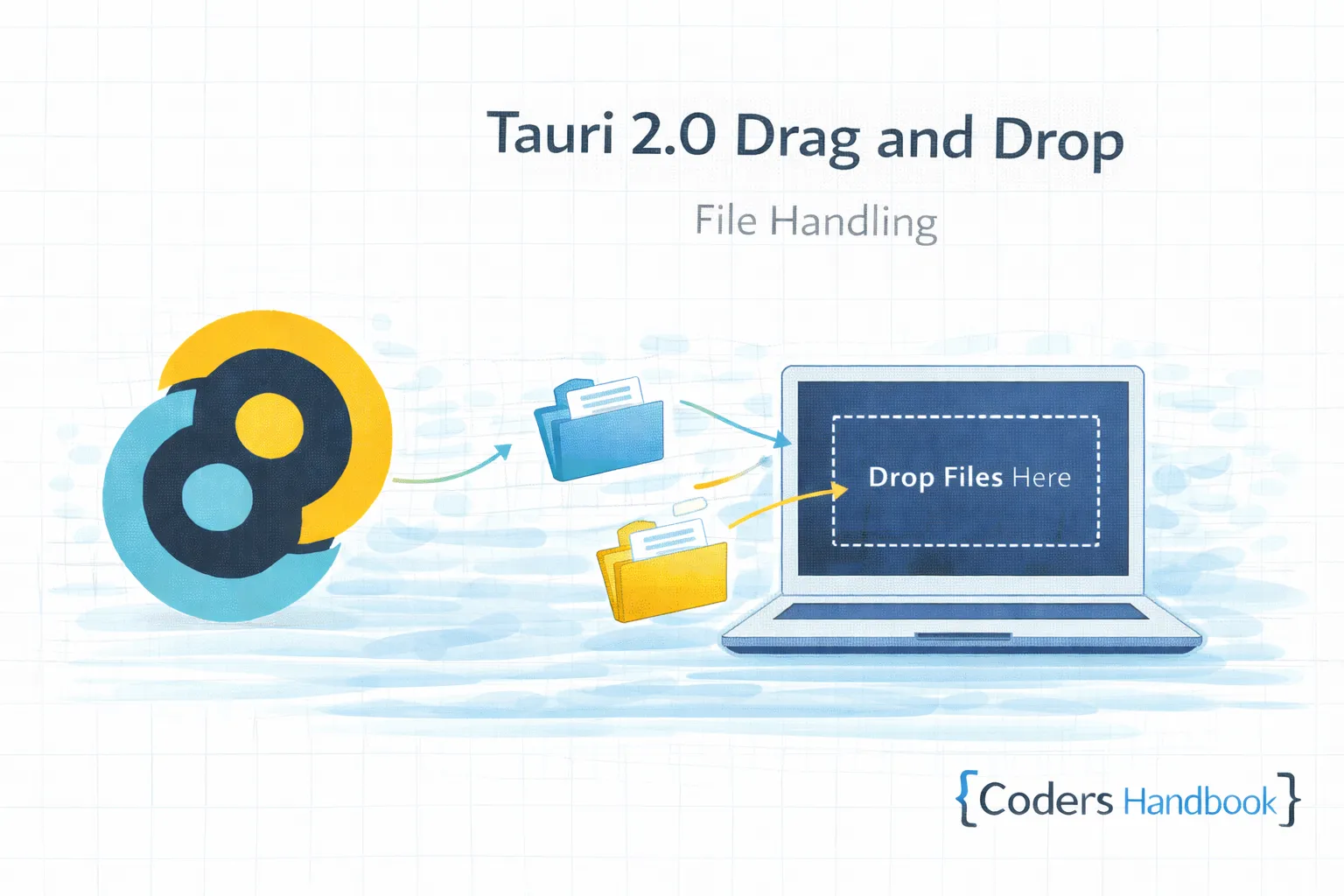
Drag-and-drop functionality in Tauri 2.0 enables desktop applications to accept files and folders through intuitive drag gesture providing seamless file handling without requiring file picker dialogs—essential feature for file processing applications, image editors, media players, and any application accepting file input maintaining user-friendly workflows users expect from native applications. Drag-drop system combines browser DragEvent API detecting drag-over and drop events with Tauri file path extraction converting dropped items to system paths, drag feedback UI showing drop zones with visual indicators, multi-file handling supporting batch operations, file type filtering accepting specific extensions, and security controls validating file paths preventing unauthorized access delivering intuitive file import mechanism. This comprehensive guide covers understanding drag-drop architecture and security model, creating drop zones with visual feedback, handling drop events extracting file paths, processing multiple files in batch operations, implementing file type validation with extension checking, showing drag-over states with CSS styling, building upload progress UI tracking file operations, handling folders with recursive reading, and creating real-world examples including image uploader with preview, document processor with batch import, and media player with playlist management maintaining productive file workflows through intuitive drag-drop interactions. Mastering drag-drop patterns enables building professional desktop applications providing seamless file handling maintaining user efficiency through familiar gesture-based interactions. Before proceeding, understand dialog API and file system operations.
Basic Drag and Drop Setup
Basic drag-and-drop requires listening to browser drag events and extracting file paths from dropped items. Understanding event flow enables building functional drop zones accepting files with proper visual feedback maintaining intuitive user experience.
// Basic HTML drag-and-drop setup
<!DOCTYPE html>
<html>
  <head>
    <style>
      .drop-zone {
        width: 400px;
        height: 300px;
        border: 2px dashed #ccc;
        border-radius: 8px;
        display: flex;
        flex-direction: column;
        align-items: center;
        justify-content: center;
        background: #f9f9f9;
        transition: all 0.3s;
        cursor: pointer;
      }

      .drop-zone.drag-over {
        border-color: #4a9eff;
        background: #e3f2fd;
        transform: scale(1.02);
      }

      .drop-zone-icon {
        font-size: 48px;
        margin-bottom: 16px;
        opacity: 0.5;
      }

      .drop-zone-text {
        font-size: 16px;
        color: #666;
        text-align: center;
      }

      .file-list {
        margin-top: 20px;
        padding: 16px;
        background: #fff;
        border-radius: 8px;
        border: 1px solid #ddd;
        max-width: 400px;
      }

      .file-item {
        padding: 8px;
        margin: 4px 0;
        background: #f5f5f5;
        border-radius: 4px;
        font-size: 14px;
      }
    </style>
  </head>
  <body>
    <div id="drop-zone" class="drop-zone">
      <div class="drop-zone-icon">📁</div>
      <div class="drop-zone-text">
        <strong>Drag and drop files here</strong>
        <br />
        or click to select files
      </div>
    </div>

    <div id="file-list" class="file-list" style="display: none;">
      <h3>Dropped Files:</h3>
      <div id="files"></div>
    </div>

    <script type="module">
      const dropZone = document.getElementById('drop-zone');
      const fileList = document.getElementById('file-list');
      const filesContainer = document.getElementById('files');

      // Prevent default drag behaviors
      ['dragenter', 'dragover', 'dragleave', 'drop'].forEach((eventName) => {
        dropZone.addEventListener(eventName, preventDefaults, false);
        document.body.addEventListener(eventName, preventDefaults, false);
      });

      function preventDefaults(e) {
        e.preventDefault();
        e.stopPropagation();
      }

      // Highlight drop zone when item is dragged over it
      ['dragenter', 'dragover'].forEach((eventName) => {
        dropZone.addEventListener(eventName, highlight, false);
      });

      ['dragleave', 'drop'].forEach((eventName) => {
        dropZone.addEventListener(eventName, unhighlight, false);
      });

      function highlight(e) {
        dropZone.classList.add('drag-over');
      }

      function unhighlight(e) {
        dropZone.classList.remove('drag-over');
      }

      // Handle dropped files
      dropZone.addEventListener('drop', handleDrop, false);

      async function handleDrop(e) {
        const dt = e.dataTransfer;
        const files = dt.files;

        if (files.length === 0) return;

        // Display dropped files
        filesContainer.innerHTML = '';
        fileList.style.display = 'block';

        Array.from(files).forEach((file) => {
          const fileDiv = document.createElement('div');
          fileDiv.className = 'file-item';
          fileDiv.textContent = `${file.name} (${formatFileSize(file.size)})`;
          filesContainer.appendChild(fileDiv);
        });

        // Process files
        await processFiles(files);
      }

      async function processFiles(files) {
        for (const file of files) {
          console.log('Processing:', file.name);
          // Read file content
          const content = await file.text();
          console.log('Content length:', content.length);
        }
      }

      function formatFileSize(bytes) {
        if (bytes === 0) return '0 Bytes';
        const k = 1024;
        const sizes = ['Bytes', 'KB', 'MB', 'GB'];
        const i = Math.floor(Math.log(bytes) / Math.log(k));
        return Math.round(bytes / Math.pow(k, i) * 100) / 100 + ' ' + sizes[i];
      }

      // Click to open file picker
      dropZone.addEventListener('click', () => {
        const input = document.createElement('input');
        input.type = 'file';
        input.multiple = true;
        input.onchange = (e) => {
          const files = e.target.files;
          handleDrop({ dataTransfer: { files } });
        };
        input.click();
      });
    </script>
  </body>
</html>
React Drag and Drop Component
React drag-drop component encapsulates file handling logic with hooks and state management. Understanding component architecture enables building reusable drop zones with proper event handling and file processing maintaining clean code organization.
// React Drag and Drop Component
import React, { useState, useCallback } from 'react';
import { invoke } from '@tauri-apps/api/core';
import './FileDropZone.css';

interface FileDropZoneProps {
  acceptedTypes?: string[];
  maxFiles?: number;
  onFilesDropped: (files: File[]) => void;
}

const FileDropZone: React.FC<FileDropZoneProps> = ({
  acceptedTypes = [],
  maxFiles,
  onFilesDropped,
}) => {
  const [isDragging, setIsDragging] = useState(false);
  const [droppedFiles, setDroppedFiles] = useState<File[]>([]);

  const handleDragEnter = useCallback((e: React.DragEvent) => {
    e.preventDefault();
    e.stopPropagation();
    setIsDragging(true);
  }, []);

  const handleDragLeave = useCallback((e: React.DragEvent) => {
    e.preventDefault();
    e.stopPropagation();
    setIsDragging(false);
  }, []);

  const handleDragOver = useCallback((e: React.DragEvent) => {
    e.preventDefault();
    e.stopPropagation();
  }, []);

  const validateFile = (file: File): boolean => {
    if (acceptedTypes.length === 0) return true;

    const fileExtension = file.name.split('.').pop()?.toLowerCase();
    return acceptedTypes.some((type) =>
      type.toLowerCase().includes(fileExtension || '')
    );
  };

  const handleDrop = useCallback(
    (e: React.DragEvent) => {
      e.preventDefault();
      e.stopPropagation();
      setIsDragging(false);

      const files = Array.from(e.dataTransfer.files);

      // Filter by accepted types
      const validFiles = files.filter(validateFile);

      // Limit number of files
      const filesToProcess = maxFiles
        ? validFiles.slice(0, maxFiles)
        : validFiles;

      if (filesToProcess.length === 0) {
        alert('No valid files to process');
        return;
      }

      setDroppedFiles(filesToProcess);
      onFilesDropped(filesToProcess);
    },
    [acceptedTypes, maxFiles, onFilesDropped]
  );

  const handleClick = () => {
    const input = document.createElement('input');
    input.type = 'file';
    input.multiple = maxFiles !== 1;
    if (acceptedTypes.length > 0) {
      input.accept = acceptedTypes.join(',');
    }
    input.onchange = (e) => {
      const files = Array.from((e.target as HTMLInputElement).files || []);
      if (files.length > 0) {
        setDroppedFiles(files);
        onFilesDropped(files);
      }
    };
    input.click();
  };

  return (
    <div
      className={`drop-zone ${isDragging ? 'dragging' : ''}`}
      onDragEnter={handleDragEnter}
      onDragLeave={handleDragLeave}
      onDragOver={handleDragOver}
      onDrop={handleDrop}
      onClick={handleClick}
    >
      <div className="drop-zone-content">
        <div className="drop-zone-icon">📁</div>
        <div className="drop-zone-text">
          <strong>Drag and drop files here</strong>
          <p>or click to select files</p>
          {acceptedTypes.length > 0 && (
            <p className="accepted-types">
              Accepted: {acceptedTypes.join(', ')}
            </p>
          )}
          {maxFiles && <p className="max-files">Max {maxFiles} files</p>}
        </div>
      </div>

      {droppedFiles.length > 0 && (
        <div className="dropped-files">
          <h4>Dropped Files:</h4>
          <ul>
            {droppedFiles.map((file, index) => (
              <li key={index}>
                {file.name} ({formatBytes(file.size)})
              </li>
            ))}
          </ul>
        </div>
      )}
    </div>
  );
};

function formatBytes(bytes: number): string {
  if (bytes === 0) return '0 Bytes';
  const k = 1024;
  const sizes = ['Bytes', 'KB', 'MB', 'GB'];
  const i = Math.floor(Math.log(bytes) / Math.log(k));
  return Math.round((bytes / Math.pow(k, i)) * 100) / 100 + ' ' + sizes[i];
}

export default FileDropZone;

// Usage Example
function App() {
  const handleFilesDropped = async (files: File[]) => {
    console.log('Files dropped:', files);

    for (const file of files) {
      // Read file content
      const content = await file.text();

      // Send to Rust backend for processing
      await invoke('process_file', {
        filename: file.name,
        content: content,
      });
    }
  };

  return (
    <div className="app">
      <h1>File Drop Zone Example</h1>
      <FileDropZone
        acceptedTypes={['.txt', '.json', '.md']}
        maxFiles={5}
        onFilesDropped={handleFilesDropped}
      />
    </div>
  );
}
Getting File Paths with Tauri
While browser File API provides file content, Tauri applications often need actual file system paths. Understanding path extraction enables building applications operating directly on files without reading entire content into memory maintaining efficiency for large files.
// Rust: Get file paths from drop events
use tauri::Manager;

#[tauri::command]
async fn process_dropped_files(
    paths: Vec<String>,
) -> Result<Vec<String>, String> {
    let mut results = Vec::new();

    for path in paths {
        println!("Processing file: {}", path);

        // Validate file exists
        if !std::path::Path::new(&path).exists() {
            return Err(format!("File not found: {}", path));
        }

        // Process file
        let metadata = std::fs::metadata(&path)
            .map_err(|e| format!("Failed to read metadata: {}", e))?;

        let file_info = format!(
            "File: {} (Size: {} bytes)",
            path,
            metadata.len()
        );
        results.push(file_info);
    }

    Ok(results)
}

// Frontend: Extract file paths using webview API
import { invoke } from '@tauri-apps/api/core';

async function handleDropWithPaths(event: DragEvent) {
  event.preventDefault();

  const items = event.dataTransfer?.items;
  if (!items) return;

  const paths: string[] = [];

  // Extract file paths
  for (let i = 0; i < items.length; i++) {
    const item = items[i];
    if (item.kind === 'file') {
      const file = item.getAsFile();
      if (file) {
        // Use webview API to get path
        // Note: File.path is available in Tauri's webview
        const path = (file as any).path || file.name;
        paths.push(path);
      }
    }
  }

  // Send to Rust for processing
  try {
    const results = await invoke('process_dropped_files', { paths });
    console.log('Processing results:', results);
  } catch (error) {
    console.error('Failed to process files:', error);
  }
}

// Alternative: Read file content and save
async function handleDropWithContent(files: File[]) {
  for (const file of files) {
    const content = await file.arrayBuffer();
    const uint8Array = new Uint8Array(content);

    // Send to Rust backend
    await invoke('save_dropped_file', {
      filename: file.name,
      content: Array.from(uint8Array),
    });
  }
}
Real-World Example: Image Uploader with Preview
Image uploader demonstrates complete drag-drop implementation with file validation, preview generation, and batch upload. Understanding real-world patterns enables building professional file handling applications maintaining visual feedback throughout upload process.
// Complete image uploader with drag-drop and preview
import React, { useState } from 'react';
import { invoke } from '@tauri-apps/api/core';

interface ImageFile {
  file: File;
  preview: string;
  uploading: boolean;
  uploaded: boolean;
  error?: string;
}

const ImageUploader: React.FC = () => {
  const [images, setImages] = useState<ImageFile[]>([]);
  const [isDragging, setIsDragging] = useState(false);

  const handleDrop = async (e: React.DragEvent) => {
    e.preventDefault();
    setIsDragging(false);

    const files = Array.from(e.dataTransfer.files);
    const imageFiles = files.filter((file) =>
      file.type.startsWith('image/')
    );

    if (imageFiles.length === 0) {
      alert('Please drop image files only');
      return;
    }

    // Generate previews
    const newImages: ImageFile[] = [];
    for (const file of imageFiles) {
      const preview = await generatePreview(file);
      newImages.push({
        file,
        preview,
        uploading: false,
        uploaded: false,
      });
    }

    setImages([...images, ...newImages]);
  };

  const generatePreview = (file: File): Promise<string> => {
    return new Promise((resolve) => {
      const reader = new FileReader();
      reader.onload = (e) => {
        resolve(e.target?.result as string);
      };
      reader.readAsDataURL(file);
    });
  };

  const uploadImage = async (index: number) => {
    const image = images[index];
    setImages((prev) => {
      const updated = [...prev];
      updated[index].uploading = true;
      return updated;
    });

    try {
      const buffer = await image.file.arrayBuffer();
      const uint8Array = new Uint8Array(buffer);

      await invoke('upload_image', {
        filename: image.file.name,
        data: Array.from(uint8Array),
      });

      setImages((prev) => {
        const updated = [...prev];
        updated[index].uploading = false;
        updated[index].uploaded = true;
        return updated;
      });
    } catch (error) {
      setImages((prev) => {
        const updated = [...prev];
        updated[index].uploading = false;
        updated[index].error = String(error);
        return updated;
      });
    }
  };

  const uploadAll = async () => {
    for (let i = 0; i < images.length; i++) {
      if (!images[i].uploaded && !images[i].uploading) {
        await uploadImage(i);
      }
    }
  };

  const removeImage = (index: number) => {
    setImages((prev) => prev.filter((_, i) => i !== index));
  };

  return (
    <div className="image-uploader">
      <div
        className={`drop-zone ${isDragging ? 'dragging' : ''}`}
        onDragEnter={() => setIsDragging(true)}
        onDragLeave={() => setIsDragging(false)}
        onDragOver={(e) => e.preventDefault()}
        onDrop={handleDrop}
      >
        <div className="drop-icon">🖼️</div>
        <p>Drag and drop images here</p>
        <span>or click to browse</span>
      </div>

      {images.length > 0 && (
        <div className="image-grid">
          {images.map((img, index) => (
            <div key={index} className="image-item">
              <img src={img.preview} alt={img.file.name} />
              <div className="image-info">
                <div className="filename">{img.file.name}</div>
                <div className="filesize">
                  {formatBytes(img.file.size)}
                </div>
              </div>
              <div className="image-actions">
                {img.uploaded ? (
                  <span className="status success">✓ Uploaded</span>
                ) : img.uploading ? (
                  <span className="status uploading">Uploading...</span>
                ) : img.error ? (
                  <span className="status error">Error: {img.error}</span>
                ) : (
                  <button onClick={() => uploadImage(index)}>Upload</button>
                )}
                <button
                  className="remove"
                  onClick={() => removeImage(index)}
                >
                  ✕
                </button>
              </div>
            </div>
          ))}
        </div>
      )}

      {images.length > 0 && (
        <div className="upload-controls">
          <button onClick={uploadAll} className="upload-all">
            Upload All ({images.filter((img) => !img.uploaded).length})
          </button>
        </div>
      )}
    </div>
  );
};

function formatBytes(bytes: number): string {
  if (bytes === 0) return '0 Bytes';
  const k = 1024;
  const sizes = ['Bytes', 'KB', 'MB', 'GB'];
  const i = Math.floor(Math.log(bytes) / Math.log(k));
  return Math.round((bytes / Math.pow(k, i)) * 100) / 100 + ' ' + sizes[i];
}

export default ImageUploader;
Drag and Drop Best Practices
- Prevent Defaults: Always preventDefault() on drag events avoiding browser navigation
- Visual Feedback: Show clear drag-over state with CSS changes
- Validate Files: Check file types and sizes before processing
- Handle Errors: Gracefully handle invalid or corrupted files
- Provide Alternative: Offer click-to-browse option for accessibility
- Show Progress: Display upload/processing progress for large files
- Limit File Count: Enforce reasonable maximums preventing overwhelming
- Clear Instructions: Show accepted file types and size limits
- Cleanup Resources: Revoke object URLs after use preventing memory leaks
- Test Edge Cases: Handle folders, shortcuts, and invalid drops gracefully
Next Steps
- Context Menus: Right-click actions with context menus
- Process Management: File processing with external commands
- File System: File operations with filesystem API
- Dialog API: File picker with dialogs
- Custom Titlebar: Branded UI with custom titlebar
Conclusion
Mastering drag-and-drop in Tauri 2.0 enables building professional desktop applications providing intuitive file handling through familiar gesture-based interactions eliminating need for cumbersome file picker dialogs maintaining user productivity through seamless file import workflows users expect from native applications. Drag-drop system combines browser DragEvent API detecting drag-over and drop events with file extraction converting dropped items to File objects or system paths, visual feedback showing drop zones with CSS state changes, multi-file handling supporting batch operations, file validation checking types and sizes, and security controls maintaining safe file access delivering professional file handling mechanism. Understanding drag-drop patterns including basic setup with event prevention and visual feedback, React components encapsulating reusable drop zones, file path extraction accessing system paths through Tauri APIs, validation ensuring accepted file types, and real-world implementations like image uploaders with preview and progress tracking establishes foundation for building professional desktop applications delivering seamless file workflows maintaining user efficiency through intuitive drag-drop interactions integrated naturally with application UI. Your Tauri applications now possess powerful drag-and-drop capabilities enabling features like batch file import, visual file previews, upload progress tracking, file type validation, and intuitive file handling delivering professional desktop experiences maintaining productivity through familiar gesture-based interactions users trust!
$ share --platform
$ cat /comments/ (0)
$ cat /comments/
// No comments found. Be the first!